
Open the AdoPiSoft portal and check your session
Join the AdoPiSoft vendo’s WiFi and open the portal address posted by the owner. Check how much time or data is left. Use Pause only if it is available for your session, then wait for the portal to confirm it is paused.
Each vendo can use a different gateway, price, pause limit, and expiry rule. Check the local portal and rate card before you pay.
The diagrams are examples. They do not show your local machine. The video below is from AdoPiSoft and shows an older version of its dashboard.
What is AdoPiSoft Piso WiFi?
AdoPiSoft is software that operators use to run WiFi vendos and their login pages. Its guides cover customer sessions, time and data credits, coin rates, vouchers, connected devices, and portal settings. The owner chooses which features and payment methods to turn on.
We use AdoPiSoft’s public guides to explain common customer steps. This site is independent and does not run AdoPiSoft machines. Your vendo may use a different version or settings.
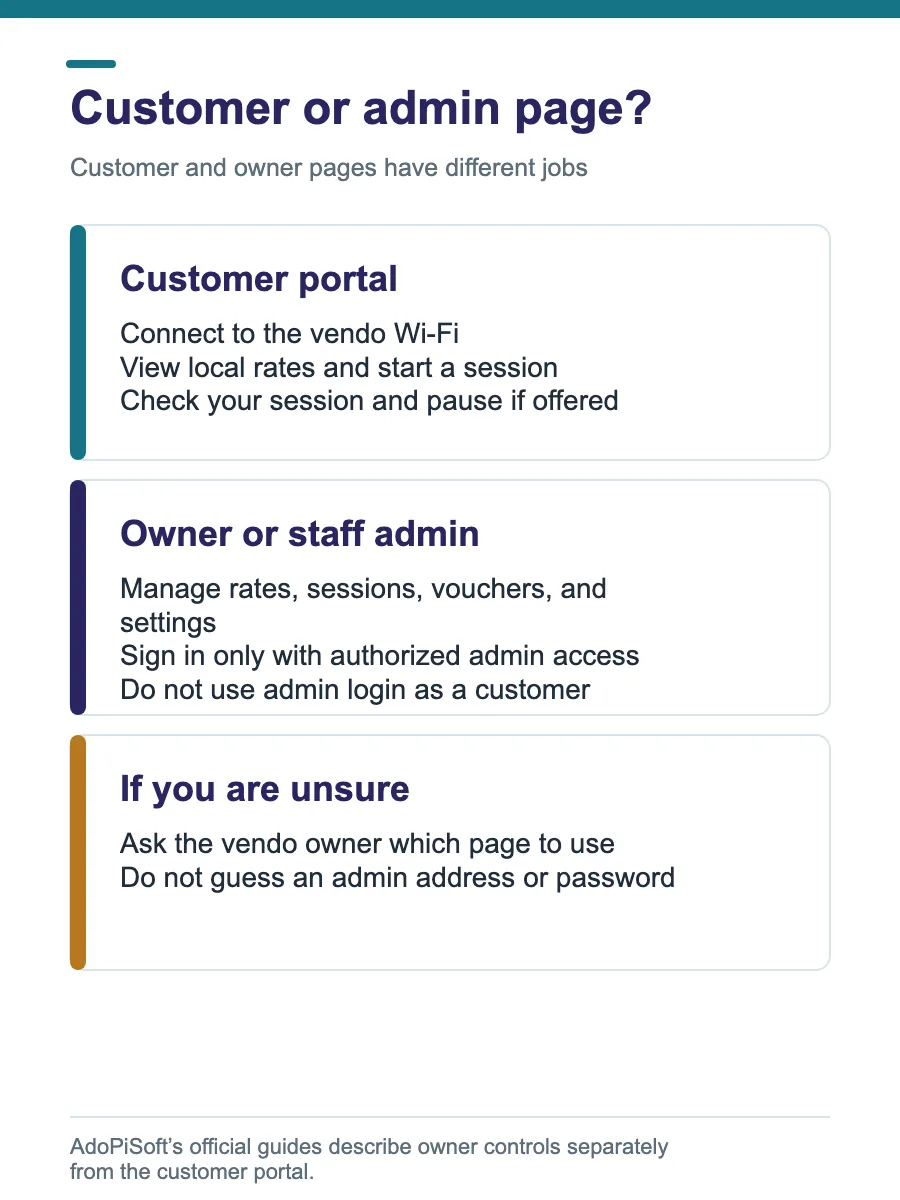
Customer portal or owner admin panel?
Use the customer portal to start or check your paid session. The admin panel is for the owner, who manages rates, vouchers, and machine settings.
| Page | Who should use it | Typical task | Address |
|---|---|---|---|
| Captive portal | WiFi customer | View rates, pay, activate a voucher, or check a session | Local gateway set by the operator |
| Admin dashboard | Authorized owner or staff | Configure users, sessions, rates, and portal controls | Use the owner’s setup instructions; do not guess a public admin URL |
Do not enter admin passwords into a customer login page or attempt to access a machine you do not own or manage.
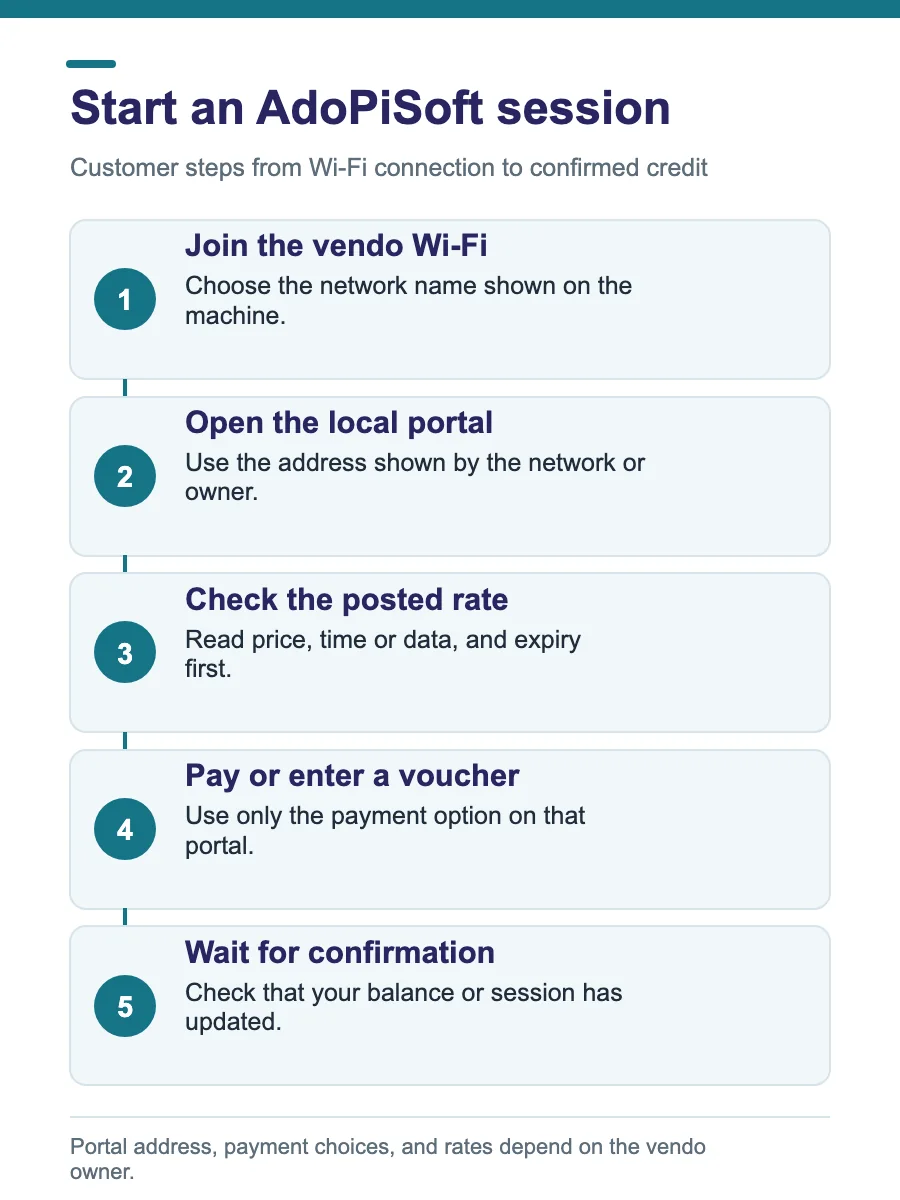
Connect and start an AdoPiSoft session
- Choose the correct vendo WiFi network and connect your phone or laptop.
- Open the sign-in page shown by the network. If it does not appear, ask for the local gateway address and type it into the browser address bar.
- Review the displayed coin rates or payment choices before paying.
- Insert the amount shown by the machine or follow the portal’s voucher instructions.
- Wait for the portal to show your credit or active session before opening other sites.
AdoPiSoft documents a setting that checks internet availability before accepting coin payments. If the machine is offline, the owner may need to restore its connection; paying again will not fix an outage.
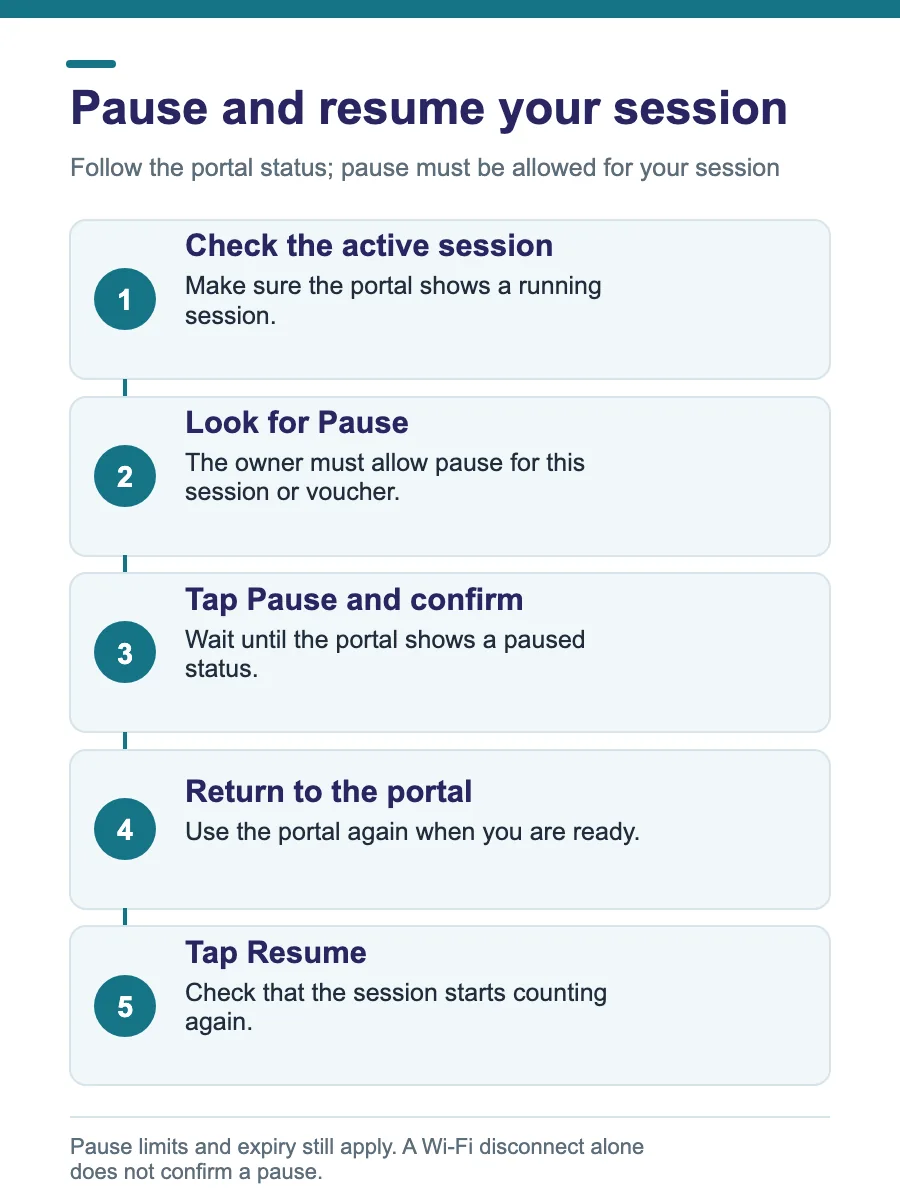
Pause and resume AdoPiSoft session time
If Pause is available, use the customer portal control and wait for a clear paused status. Return to the same portal and select Resume when you are ready. The controls and labels can vary by portal theme.
AdoPiSoft’s session-settings guide says owners can configure automatic pause when a device is inactive or disconnected from the Ado WiFi, and automatic resume when it reconnects. Treat this as configurable behavior, not a guarantee for every vendo.
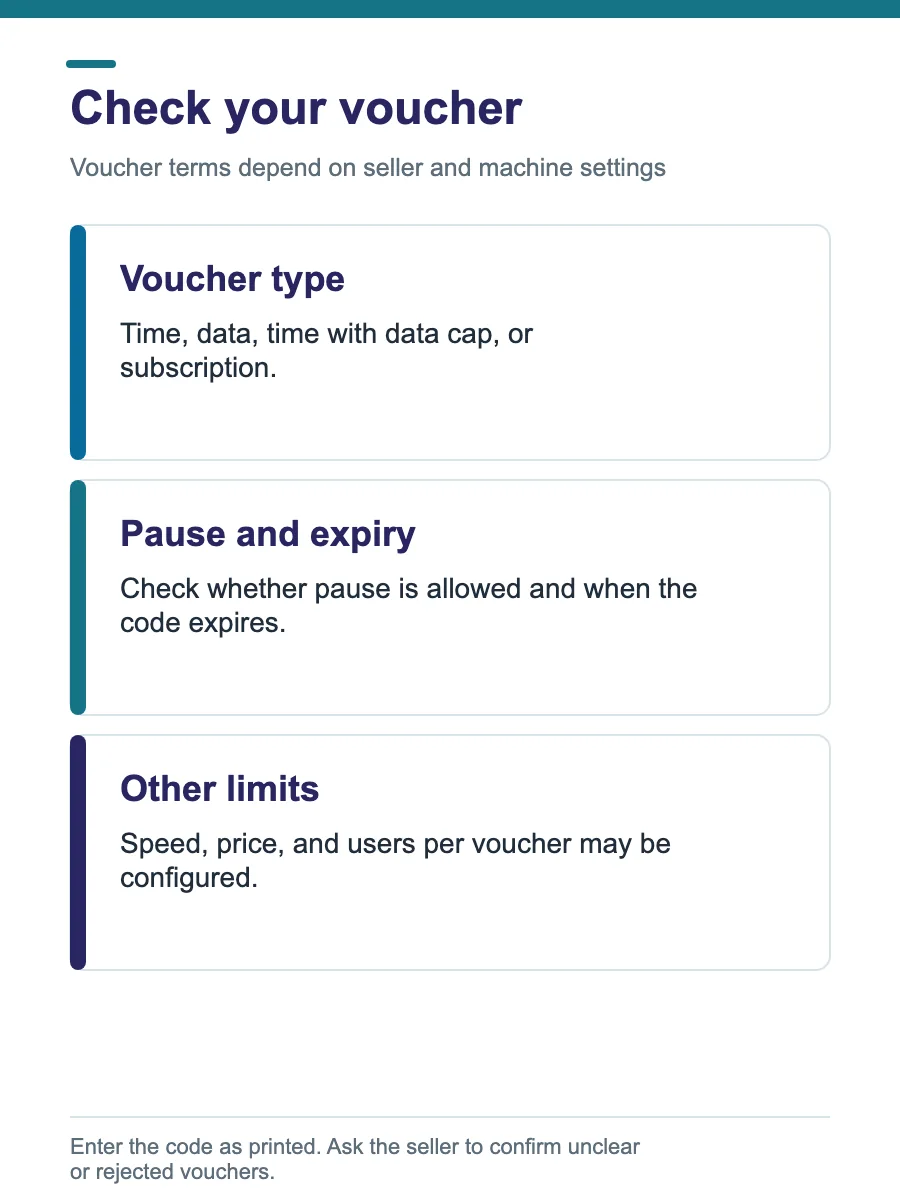
Pause limits and expiry are separate. A session can have a set number of pauses and can still have an overall expiration deadline. Check the portal’s session details or ask the owner if the timer behaves differently than expected.
Sources: AdoPiSoft Session Settings · watch AdoPiSoft’s official pause and expiry walkthrough ↗. The video shows an older interface; menu names may differ by version.
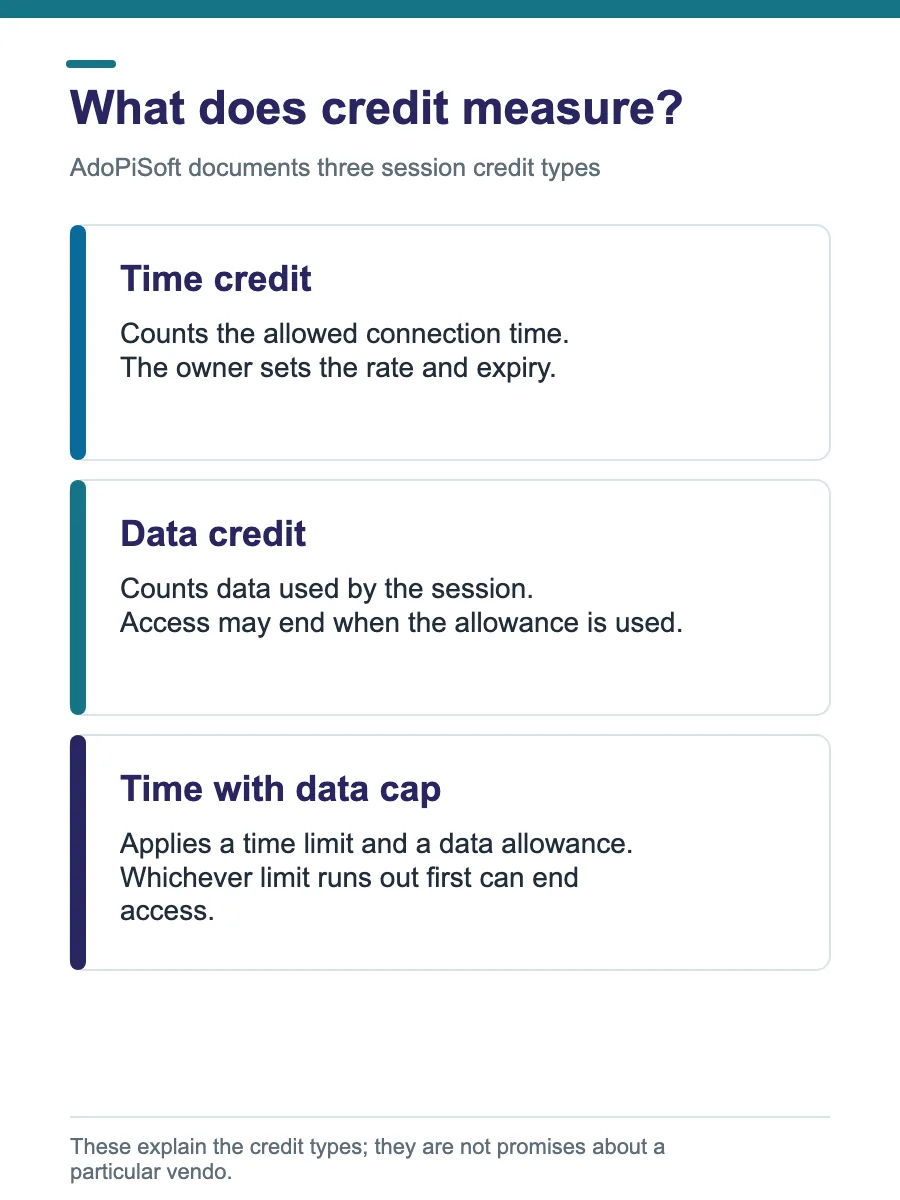
AdoPiSoft time, data, pause limits, and expiry
AdoPiSoft supports time credits, data credits, and plans with both limits. Time credits count how long you can connect. Data credits count how much data you use. A combined plan can end when either limit runs out.
| Credit type | What may run out | Example behavior in AdoPiSoft documentation |
|---|---|---|
| Time | Allowed session time | Sample 1–2 hour credits show a 10-pause limit and an expiry period of session time plus 1 hour. |
| Data | Included megabytes | The guide shows a 1–2 GB example with 10 pauses and a one-day expiry. |
| Time with data cap | Either the time window or data allowance | The guide gives an unlimited-pause example, while access ends if the data is consumed or the time window passes. |
These are examples from AdoPiSoft’s documentation, not universal machine defaults. The owner may set different credit ranges, pause counts, and expiration values. Confirm the rules for your session before relying on a break or leaving it paused.
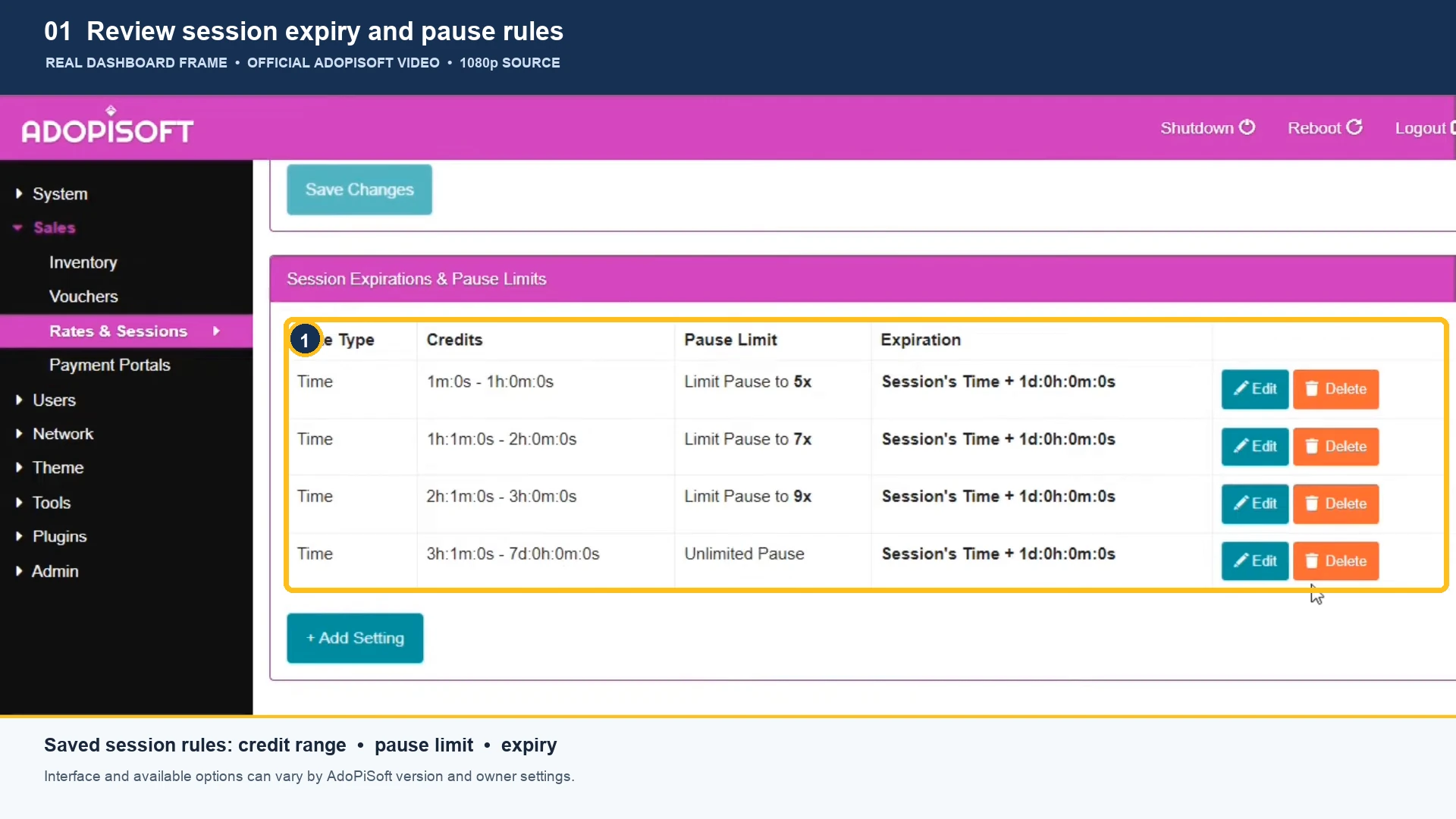
AdoPiSoft rates and coin payments
AdoPiSoft allows an operator to configure rates that exchange coin amounts for time, data, or time with data capping. Its guide gives sample Philippine peso values, but owners can edit rate amounts and add denominations. Your local vendo’s posted rates are the ones to follow.
| Rate type | What the customer receives | What to check before paying |
|---|---|---|
| Time rate | A set amount of connection time | Minutes/hours and expiration |
| Data rate | A set data allowance | Megabytes or gigabytes and expiry |
| Time with data cap | Time access that also has a data limit | Both the time window and data allowance |
Never use another machine’s sample rate as a promise for your vendo. If a coin is rejected or credit does not appear, check the balance and ask the operator to verify the payment before trying again.
Source: AdoPiSoft WiFi Rates.
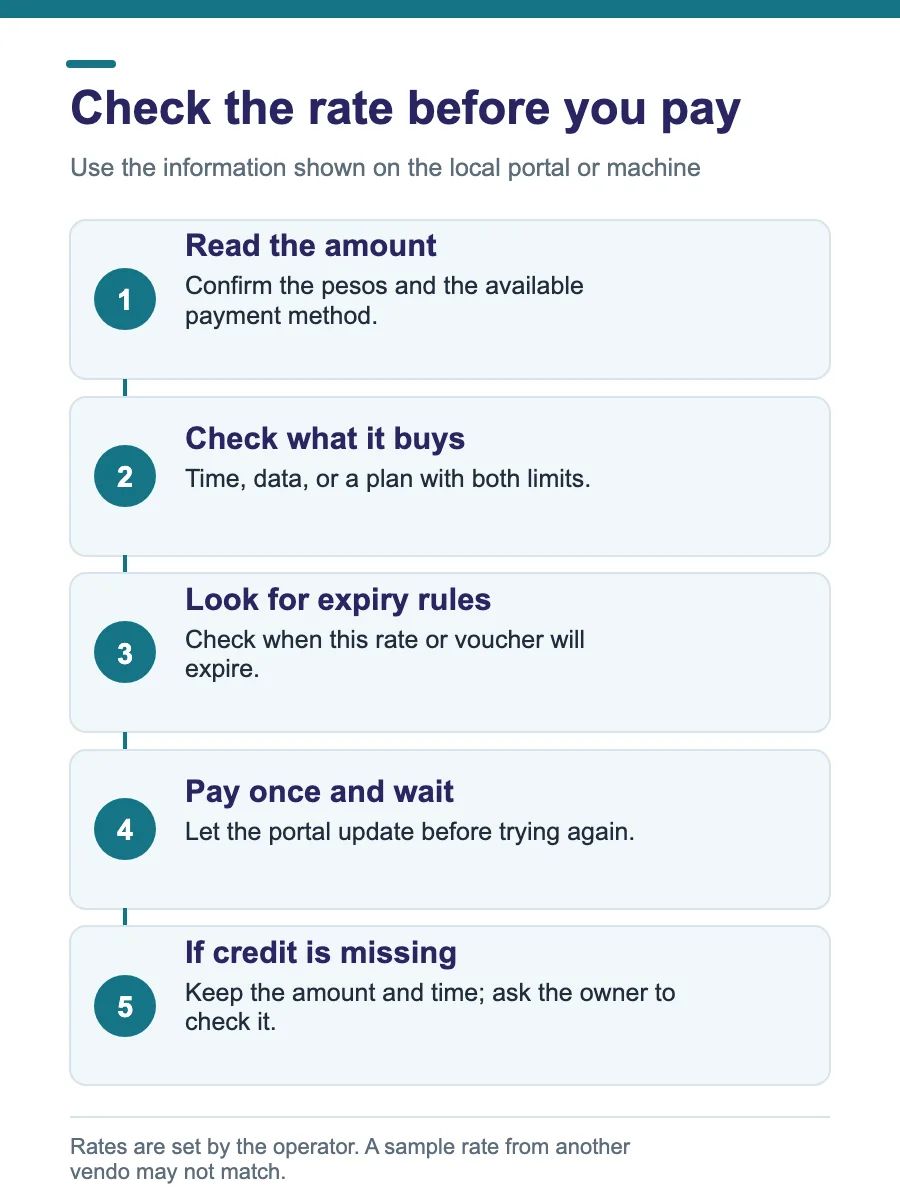
AdoPiSoft vouchers: time, data, and pause rules
AdoPiSoft’s voucher guide lists time, data, time-with-data-capping, and subscription voucher types. It also describes settings such as speed limits, expiry, whether a voucher can be paused, the number of users allowed, and voucher price.
- Time voucher: defined by a time amount.
- Data voucher: defined by a data allowance.
- Time with data cap: includes both a time limit and data cap.
- Subscription: recurring periods may be configured by the operator.
When using a voucher, read the stated expiry and pause conditions. Do not assume that closing the browser or turning off WiFi pauses voucher time.
Source: AdoPiSoft Vouchers.
Owner settings that change the customer experience
Only the authorized owner should edit these controls. AdoPiSoft’s documentation identifies settings that can affect whether a customer can pay, pause, resume, or see particular portal buttons.
- Session Settings: reboot continuation, session cookies, online-status checking, inactivity pause/resume, user limits, pause limits, and expiry.
- WiFi Rates: coin values, time or data credits, free trial options, and payment retry timing.
- Vouchers: credit type, expiry, speed, pause permission, user limit, and price.
- Captive Portal theme: which customer buttons and forms appear, such as Insert Coin, View Rates, Buy Voucher, or Activate Voucher.
- WiFi Devices: an owner can inspect a device’s session status and, where appropriate, start, pause, or edit its session.
Menu names can vary between versions. Use the official guide matching the installed software and hardware; do not change undocumented GPIO or payment wiring settings based on a general article.
| Task | Official reference |
|---|---|
| Session Settings | Open AdoPiSoft guide ↗ |
| WiFi Rates | Open AdoPiSoft guide ↗ |
| Vouchers | Open AdoPiSoft guide ↗ |
| WiFi Devices | Open AdoPiSoft guide ↗ |
| Theme: Captive Portal | Open AdoPiSoft guide ↗ |
| Dashboard | Open AdoPiSoft guide ↗ |
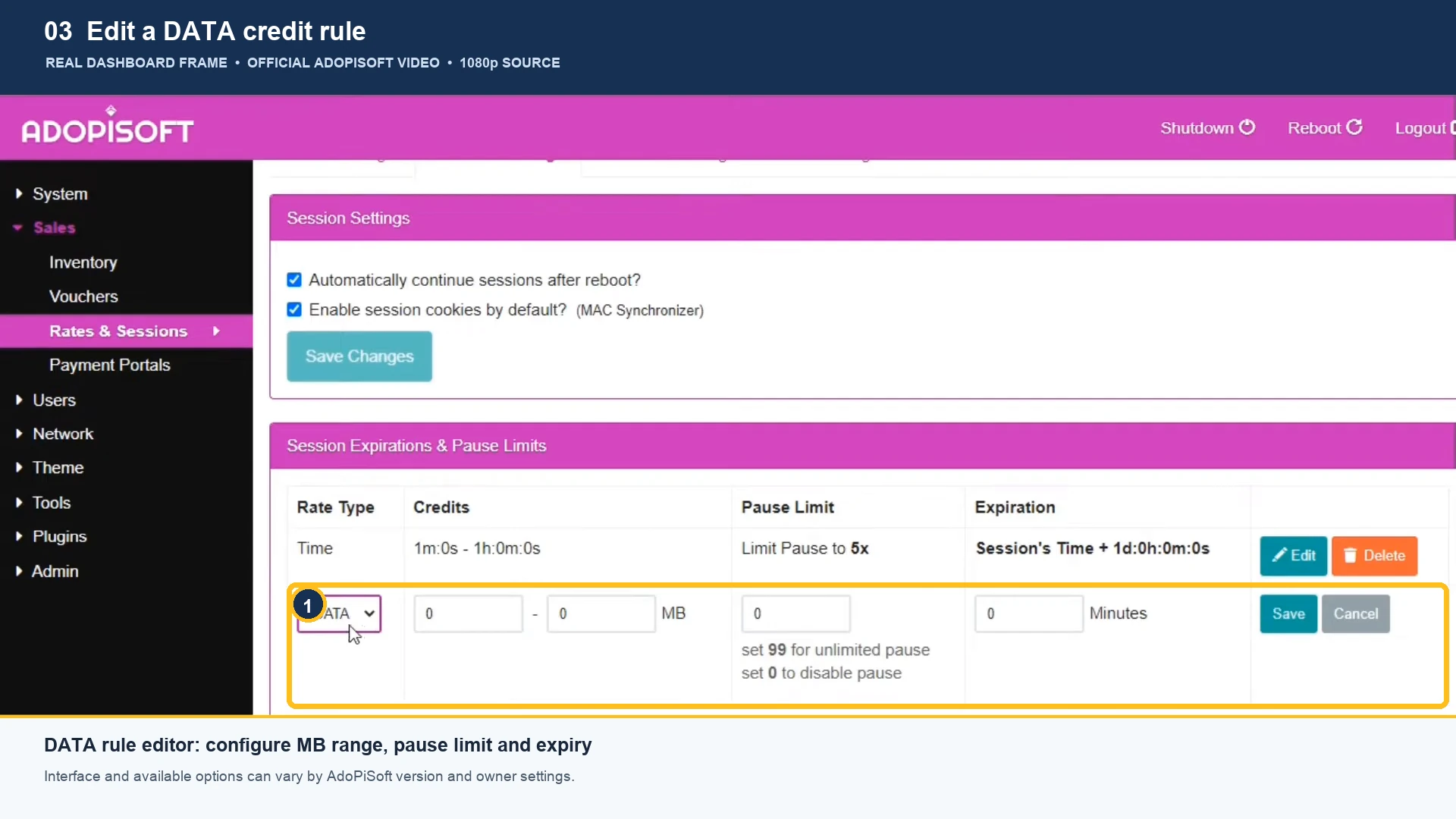
Dashboard walkthrough: edit pause and expiry rules
These frames come from AdoPiSoft’s official walkthrough. They show an older dashboard version, so current menu names or layouts may differ. Use your installed version’s official instructions and the values chosen by the vendo owner.
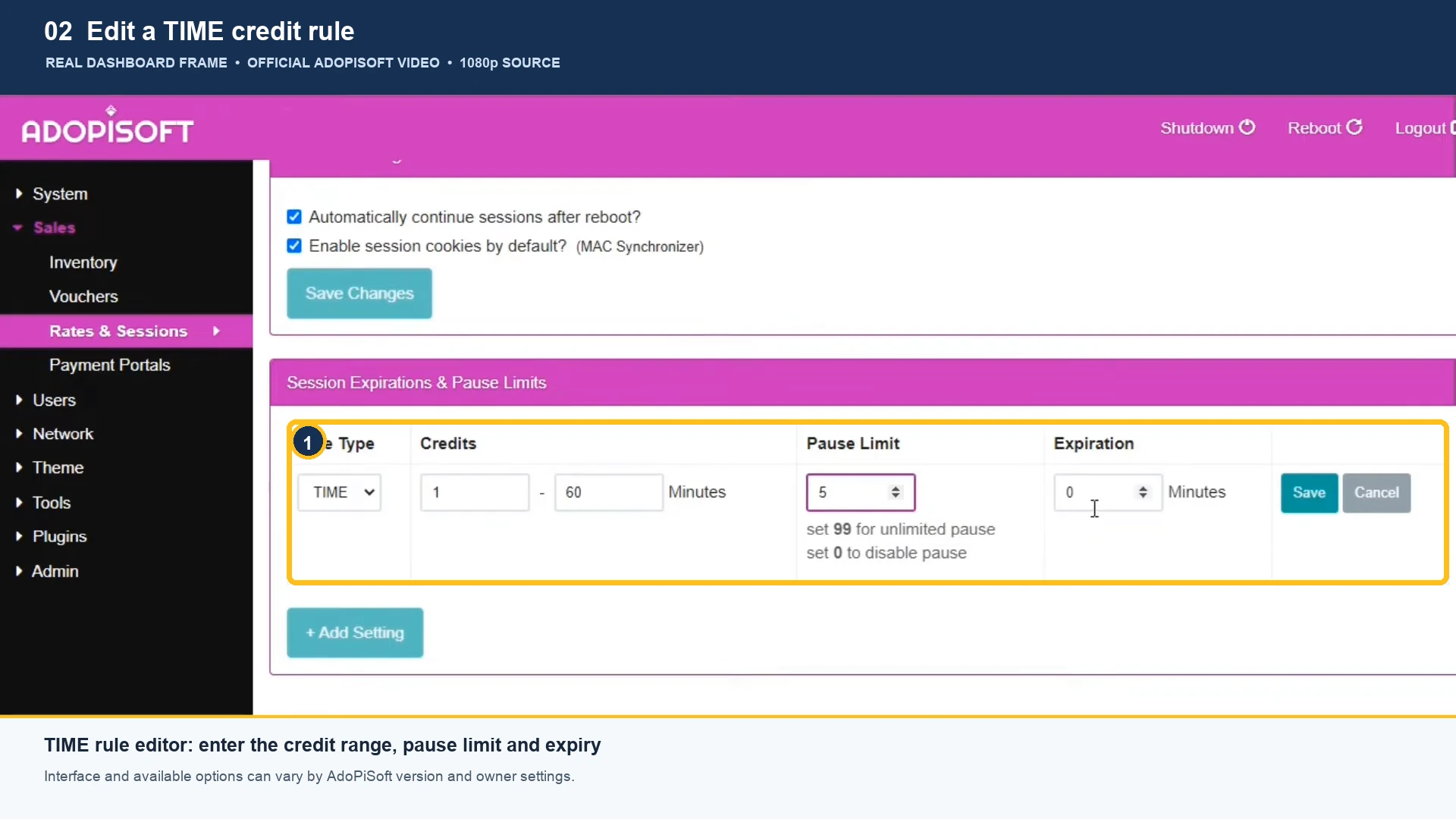
Fix common AdoPiSoft Piso WiFi problems
The customer portal does not open
- Confirm the device is connected to the correct vendo WiFi.
- Use the portal address provided by the operator; a common gateway is not guaranteed for every setup.
- Turn off mobile data briefly if the phone is routing away from the local WiFi, then retry.
- If the portal still fails, ask the owner whether the machine’s internet and captive portal are online.
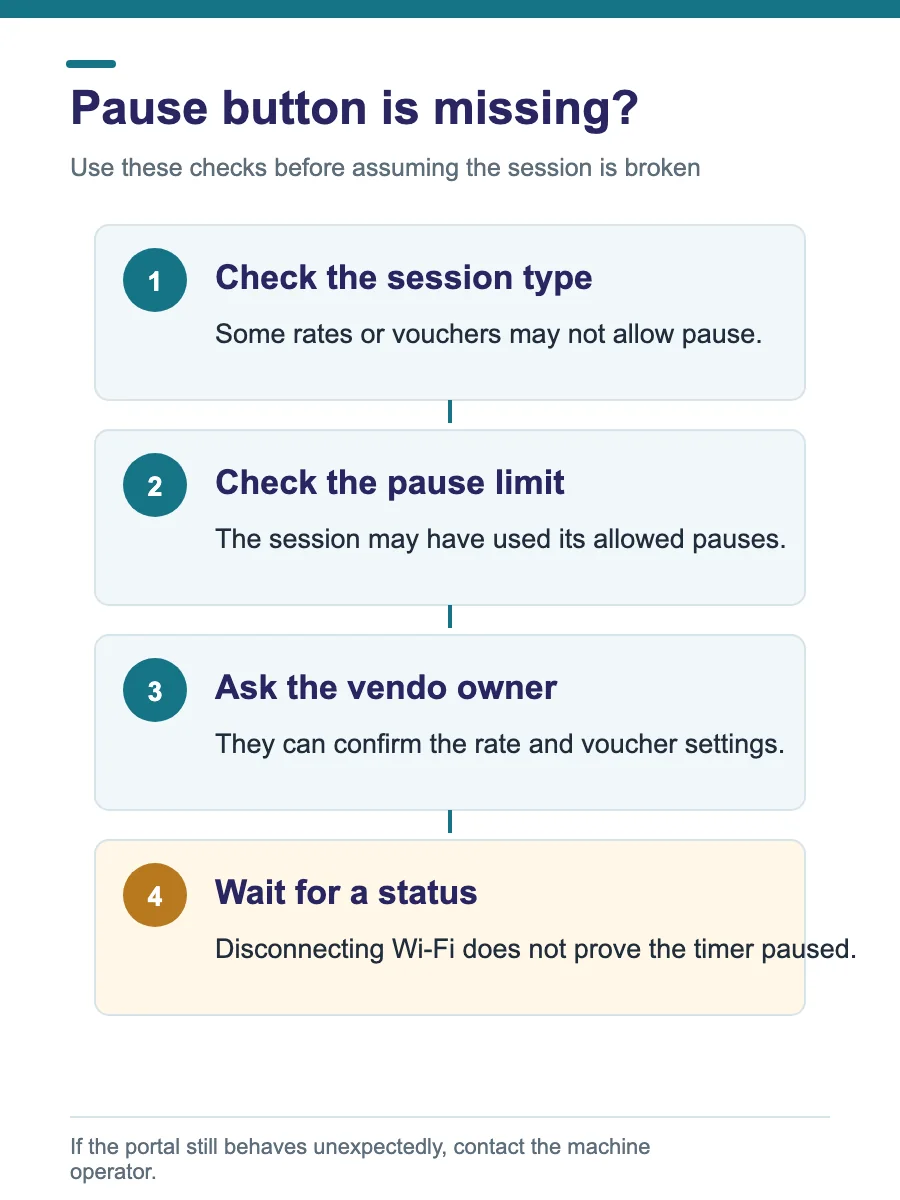
Pause is missing or the session still counts down
Check that the active session type permits pause and that its configured pause limit has not been reached. The owner can confirm the voucher or session settings. A general disconnect from WiFi is not proof that time has paused.
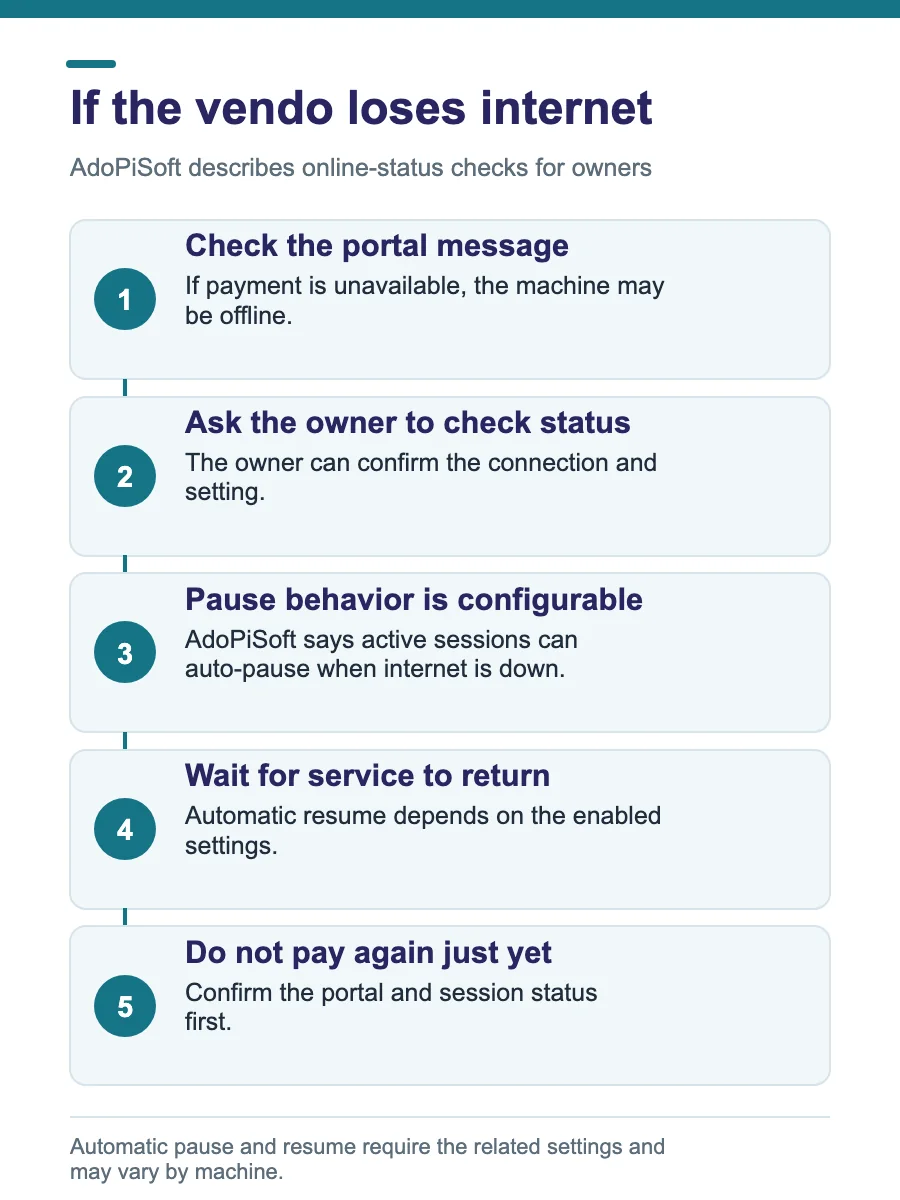
The machine lost internet
AdoPiSoft documents an online-status option that can pause active sessions when internet is down. The owner must confirm this feature is enabled and check the machine’s connection status; behavior can vary with configuration.
Coins did not add credit
Wait for the portal to update and check the balance. Note the time and amount, then ask the operator to review the payment or machine logs before paying a second time.
Voucher is rejected or expired
Check that the code was entered as printed and confirm its validity with the seller. Expiry is controlled by the voucher settings; only the operator can verify or correct a voucher record.
Session does not return after reboot
Ask the owner to check whether automatic session continuation after reboot is enabled and whether the session is still valid. Do not power-cycle the machine yourself.
Use the customer and admin pages safely
- Use the customer portal while connected to the vendo WiFi.
- Only an authorized owner or staff member should sign in to the admin dashboard.
- Do not share a voucher, account password, or one-time code publicly.
- Check your session and the price before payment; save transaction details if credit is missing.
- Ask the owner before changing settings or attempting to move a session between devices.
AdoPiSoft also documents admin protections and activity logs. Owners should use the official network security guidance and keep administrator access restricted.
AdoPiSoft Piso WiFi FAQs
How do I open an AdoPiSoft customer portal?
Join the correct vendo WiFi, then open the local portal address shown by the owner or on the machine. 10.0.0.1 is common on Piso WiFi setups, but the gateway can differ.
How do I pause AdoPiSoft WiFi time?
Pause is available only when the session and owner settings allow it. Use the Pause control in the customer portal and wait for its status to confirm the session is paused.
Does AdoPiSoft pause my session when WiFi disconnects?
AdoPiSoft documents automatic pause on inactivity or disconnection from its WiFi and automatic resume on reconnection as configurable session behavior. The operator must have the relevant settings enabled.
How many times can I pause?
The pause limit is configurable by session or credit range. AdoPiSoft’s documentation shows 10 pauses as an example for some sample ranges and unlimited pause for a sample time-with-data-capping setting; those are not universal defaults for every machine.
Will my session survive a machine reboot?
AdoPiSoft documents an “Automatically continue sessions after reboot” setting. Whether a session continues depends on the installed version and how the operator configured it.
Why is my AdoPiSoft pause button missing?
Pause may not be allowed for that session type, may have reached its configured limit, or may be disabled by the operator. Ask the vendo owner to check the session and its settings.
How much time do I get for ₱1?
There is no fixed rate across all AdoPiSoft vendos. The owner sets the coin-to-time or coin-to-data values. Check the local rate card or the portal before paying.
Can I pause an AdoPiSoft voucher?
AdoPiSoft’s voucher guide includes an “Allow Pause” option. Pause behavior therefore depends on the voucher settings and the local machine.
What should I do if my payment did not add time?
Wait for the portal to refresh and check the session balance. Keep the payment amount and time, then ask the operator to check the machine or payment record before paying again.
Can I use the admin page as a customer?
No. The admin dashboard is for an authorized operator. Customers should use the captive portal to view or manage their own session.
Official sources and scope
Reviewed on . This independent guide summarizes AdoPiSoft’s public product documentation and general customer checks. We do not operate AdoPiSoft machines and have not tested your local vendo. Follow the instructions and rates shown by its operator.
- AdoPiSoft: Session Settings
- AdoPiSoft: WiFi Rates
- AdoPiSoft: Vouchers
- AdoPiSoft: WiFi Devices
- AdoPiSoft: Theme: Captive Portal
- AdoPiSoft: Dashboard
For general Piso WiFi pause and troubleshooting steps, see the main guide. For LPB-specific behavior, see our LPB Piso WiFi guide.