
Open the LPB portal and check your session
Join the LPB vendo’s WiFi and open the portal address shown by the owner. Many setups use 10.0.0.1. Start your session and tap Pause Time only if you see that button. Wait for a paused message before leaving.
Pause, payment, and cloud session features depend on the LPB version and the owner’s settings. Check what your machine supports before relying on a feature.
What is LPB Piso WiFi?
LPB is a platform used by operators to run pay-per-use Piso WiFi vending machines. A customer connects to the vendo’s WiFi and uses its local portal to buy or open an internet session. The machine owner manages the rates, payment methods, and which portal features are available.
LPB lists coin payments, vouchers, time or data plans, online payments, cloud session time, and speed controls as platform features. A local machine may use another version or have only some options turned on. See LPB’s product information.
LPB customer portal vs. owner admin panel
The customer portal is where you view and manage your paid session. The admin panel is for an authorized machine owner. Do not enter owner credentials into a customer session page.
| Page | Who uses it | Typical tasks | Address |
|---|---|---|---|
| Customer portal | WiFi customer | Start a session, view time or data, pause or resume when available | The gateway for the connected vendo; often 10.0.0.1 |
| Admin panel | Authorized operator | Manage the vendo’s portal, users, rates, and enabled features | Often the gateway followed by /admin; confirm with the owner or official setup guide |
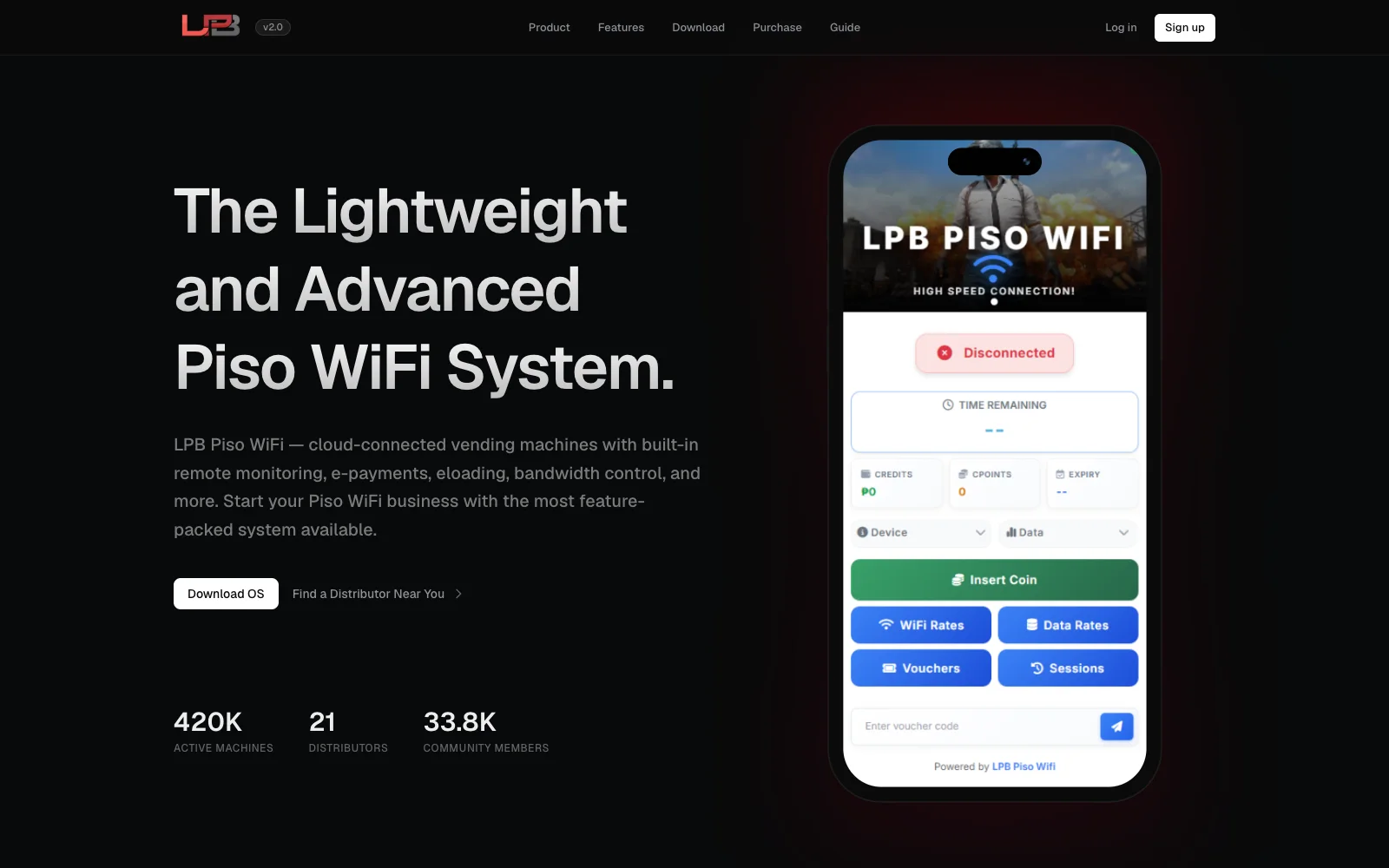
It opens only when your device is connected to a network that uses that gateway. Type it in the browser address bar, not into a search engine.
How to start an LPB Piso WiFi session
Use the customer portal while connected to the vendo network. Its labels can vary, so follow the buttons and price information shown on that machine.
- Choose the customer portal. Open the address supplied by the operator, often
http://10.0.0.1. - Review the available plan. Check the price, time or data allowance, and any expiry shown before paying.
- Choose a payment option displayed there. Depending on the setup, this may include coins, a voucher, GCash, or Maya.
- Wait for the portal to confirm the session. Check that it shows an active balance or session before opening other pages.
For a screen-by-screen example, see the customer video linked from LPB’s official guide. It is hosted by i07 TV; portal labels can vary by version.
Wait for the portal to refresh and check the amount or receipt. Ask the vendo owner to verify the payment before trying again, so you do not accidentally pay twice.
How to pause and resume LPB Piso WiFi time
- Join the correct LPB WiFi network. Use the network name shown by the vendo owner.
- Open the customer portal. Follow the sign-in notification or enter the gateway address supplied for that machine.
- Check your active session. Confirm your payment has started a session and that the portal shows remaining time or data.
- Select Pause Time if it is available. Wait for the portal to show a paused status before leaving.
- Return to the portal and select Resume. Check that the session is active again before browsing.
Original guide graphic. Button names and session rules can vary by machine.
If Pause Time is missing, check for an active paid session first. The owner may have disabled the feature or the installed version may use a different control. Customers cannot change owner settings from the portal.
Wait until the portal clearly confirms “Paused” or shows a stopped timer. A tap alone does not confirm that the session was saved.
LPB’s product page describes pause and resume as LPB features. The control shown on a specific machine can still depend on its version and setup.
How to check whether your LPB session is active or paused
Open the same customer portal while connected to the vendo and read the status shown beside your remaining time. A paused balance should stay unchanged while paused; an active session may continue counting down. If the page only shows a balance without a clear status, ask the owner before assuming the timer has stopped.
Original status guide; it does not show a live machine screen.
| What the portal shows | What it usually means | Next step |
|---|---|---|
| Active session and timer | Your paid session is running | Use Pause if available, then wait for confirmation |
| Paused or stopped timer | The portal reports the session paused | Check remaining time and the owner’s expiry rules |
| Expired or no active session | The session may have ended or not started | Check payment status with the owner before paying again |
What LPB says about cloud session time
LPB says its cloud-connected system stores customer session time in LPB Cloud and syncs remaining time across LPB machines. LPB also says customers can pause and resume from elsewhere in the Philippines. Those statements describe LPB’s product; they do not establish that every vendo is using the same version or service configuration.
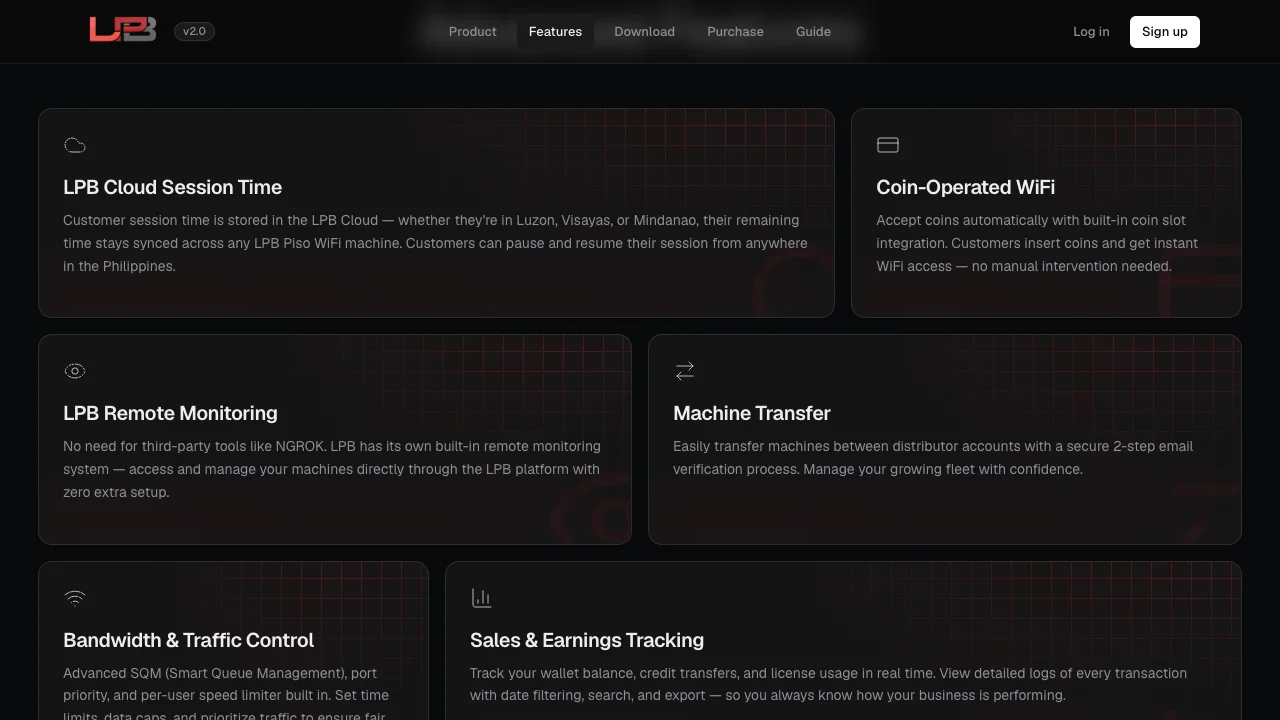
Ask the operator whether the vendo is connected to the LPB Cloud service and what account, session, or verification steps apply. The public product information does not explain every session-transfer condition.
Because LPB advertises cloud-synced sessions, do not assume that general advice about staying on the original device applies to every LPB setup. Follow the instructions for your machine and confirm the session appears before you pay again.
Source: LPB official product information.
LPB Piso WiFi rates, coins, vouchers, and payments
LPB lists coin-operated access, vouchers, time-based or data-based sessions, and GCash and Maya payments among its product features. The vendo owner decides which options are active and sets the local rates.
| Option | What to check |
|---|---|
| Coins | Confirm the amount and the minutes or data shown for that vendo. |
| Voucher | Read the portal instructions and confirm whether the voucher adds to a session or starts a new one. |
| GCash or Maya | Use only a payment option displayed by the local portal. Availability depends on owner setup. |
| Time or data plan | Check both the time and data allowance, plus any expiry stated before payment. |
There is no universal peso-to-minute rate. Check the machine’s rate card or the price shown on its customer portal rather than using an amount from another vendo.
For an LPB cashless-payment example, see the official LPB GCash transactions tutorial. Follow the payment steps shown by your local vendo and confirm the transaction in its portal.
LPB Piso WiFi problems and fixes
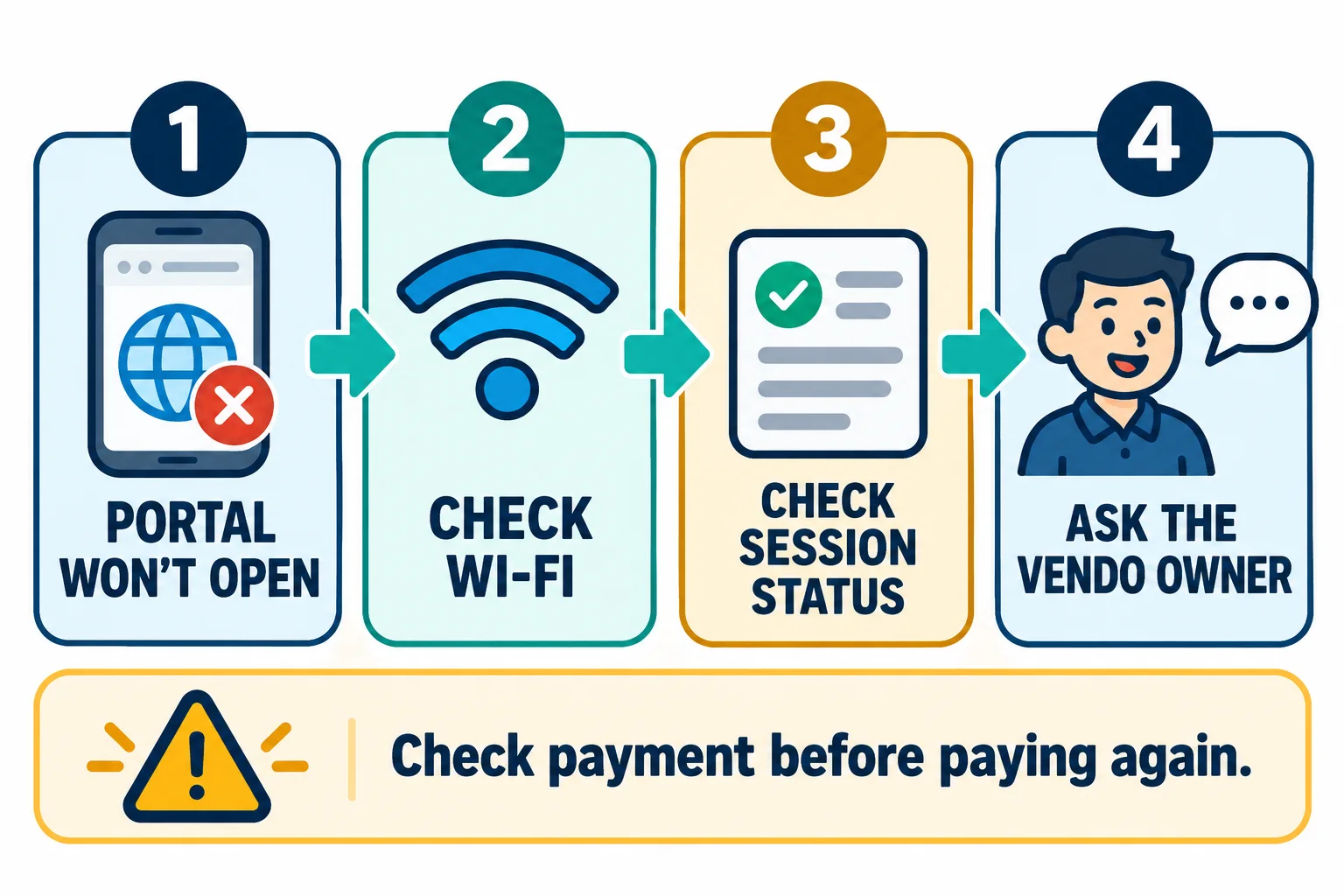
The portal at 10.0.0.1 will not open
- Connect to the correct vendo WiFi; a mobile connection or another router cannot open its local portal.
- Type the address in the browser address bar and check every number and dot.
- If your phone keeps using mobile data, temporarily turn it off while opening the local address, then turn it back on after.
- If a VPN or private DNS is blocking the local page, pause it briefly to check, then restore it.
- Reconnect to WiFi and reload once. If the address still fails, ask the owner to confirm the gateway and machine status.
The Pause Time button is missing
First confirm that the portal shows an active, paid session. Pause Time may be unavailable on that version or disabled by the operator. Ask whether it is enabled for that machine and payment type; customers cannot switch owner settings themselves.
The Pause Time button does not respond
Wait briefly for the portal to respond, then reload it once and check the session status again. Do not tap repeatedly or pay again while the balance is unclear. If the session still looks stuck, give the operator the time of the attempt and the status the portal showed.
Coins or payment did not add time
Wait for the portal to update and check its balance. Keep the payment time, amount, and receipt or transaction reference. Ask the operator to check the machine or payment record before paying again. If the coin was rejected, do not force it into the slot.
I cannot find a paused session
Reconnect to the correct LPB network and open its customer portal. Keep using the device that started the session while checking. LPB advertises cloud session syncing, but cross-machine or cross-device access depends on the machine’s version, connection, and session setup. Ask the operator before assuming a transfer is available.
GCash or Maya is not shown
Cashless payment is not necessarily enabled on every vendo. Use the methods the portal displays or ask the owner which payment options are active.
The portal opens, but WiFi is slow
Move closer to the vendo and reconnect to its WiFi. Pause large downloads or updates on your device and try again. If other customers also have slow service, the operator may need to check the internet connection, signal coverage, or network load.
The machine does not accept a coin
Check the amount and denomination shown on the vendo instructions. Do not insert damaged coins or force the slot. Tell the owner which coin was rejected so they can inspect or service the acceptor.
Check the address before troubleshooting
Local portal addresses are typed into the browser address bar while your device is connected to the vendo WiFi. A common address typo is 10.0.0.0.1; it has an extra number and is not the same as 10.0.0.1. Don’t rely on a search engine to correct it. If the common gateway does not load, ask the owner for the address set on that machine.
Check the letters: the platform is LPB. “LBP” and “LBS” are common typos, and they do not identify your login address. Ask the owner for the correct customer portal or admin address.
LPB owner access and setup help
The admin panel is for an authorized operator and is separate from the customer portal. Some installations use the local gateway with an /admin path, but the address, login method, and menu names depend on the machine. Never try to change a vendo that you do not own or manage.
Sign in to the admin panel
- Use a system you own or are authorized to manage. Connect to its management network or use the remote method documented for that installation.
- Open the owner address supplied for that machine. Some installations use a local gateway with
/admin; confirm the exact path first. - Enter the authorized account details. Do not use credentials copied from another machine or an unofficial page.
- If access fails, stop and ask the provider. A password may have been changed or the software may use a different login process.
Before changing owner settings
Identify the installed LPB version and hardware, keep the official instructions for that setup nearby, and record the current rates and portal options. LPB’s Guide hub lists tutorials and documentation; use the one that matches your system.
Enable Pause Time and check the customer view
If the installed version provides a Pause Time or Pause/Resume option, review it in the portal or session settings using the official steps for that release. Check which session or payment types the option applies to; do not assume coin and voucher sessions share the same setting. Save the change, then test with a customer device and confirm that the portal shows the control and a clear paused state.
Original owner checklist. It does not represent a captured LPB admin screen.
What the owner tools may manage
Depending on the release, hardware, and license, owner tools can include portal/session options, time or data rates, voucher settings, payment options, sales information, remote monitoring, and bandwidth controls. LPB advertises these as platform capabilities, but a particular installation may not include or enable all of them.
Create and test a voucher
If voucher generation is available, use the official guide for your version to choose a plan, set its price and limits, generate the code, and check its validity. Test the code on a customer device before distributing it. The labels and fields can differ between releases.
Rates, vouchers, and payment options
Set prices and time or data allowances to match the operator’s plan. Check any expiry and voucher rules shown in the current software. LPB describes coin-operated access, vouchers, GCash, and Maya among its platform features, but the available options vary by license and setup. Test each relevant payment flow before announcing it to customers.
Sales, connected devices, and speed controls
LPB lists sales tracking, remote monitoring, and bandwidth controls in its product information. Use the official guide for your installed version to find those tools. Review unexpected connected devices or performance limits only on a system you administer, and do not block a device unless you have confirmed it is unauthorized.
Admin login failed or a reset seems necessary
Do not rely on a password copied from an unofficial page, and do not factory reset as a first response. Contact the machine’s supplier or LPB support. A reset can erase custom rates, network settings, vouchers, and other configuration; only proceed if the authorized provider gives version-specific instructions.
Use a shared Piso WiFi connection carefully
- Treat a shared vendo connection like other public WiFi. For banking or other sensitive activity, use mobile data or a trusted private connection when possible.
- Use the customer portal for your session; never enter owner credentials there.
- Check the displayed price and available time or data before paying.
- Do not share passwords, voucher codes, or payment details with other customers.
- If you are an owner, change credentials only through the official process for your system and keep them private.
LPB customer and owner checklist
| For customers | For owners |
|---|---|
| Bookmark the gateway only after confirming the correct local address. | Label the customer portal address and payment options near the machine. |
| Wait for a payment or pause confirmation before leaving the portal. | Test pause and payment settings from an ordinary customer device. |
| Keep the same device available while checking a paused session. | Use the official guide that matches the installed version and hardware. |
| Ask the operator to verify a missing balance before paying again. | Keep admin access private and record changes to rates and portal options. |
LPB Piso WiFi FAQs
What is LPB Piso WiFi?
LPB is a platform used to run Piso WiFi vending systems. A local operator configures the machine, portal, rates, payment options, and any features customers can use.
Is 10.0.0.1 always the LPB portal address?
No. It is a common local gateway, but an operator can use a different address. Join the correct LPB WiFi network and check its sign-in page or ask the vendo owner for the address.
How do I start an LPB Piso WiFi session?
Join the vendo WiFi, open the customer portal, review the rate or plan, and use a payment method shown on that portal. Wait for the balance or active-session confirmation before browsing.
Can every LPB customer pause a session?
Pause Time depends on the LPB version and operator setup. Check that you have an active session, then ask the operator whether the feature is available and enabled if the control is missing.
How can I tell if my LPB session is paused?
Check the status and timer in the customer portal. Wait for a paused confirmation and see whether the remaining balance stays unchanged; ask the owner if the portal status is unclear.
Is 10.0.0.0.1 the same as 10.0.0.1?
No. 10.0.0.0.1 has an extra number and is a different, invalid-looking address for this common gateway. Use the address shown by the vendo owner; many LPB guides use 10.0.0.1.
Can a session expire while it is paused?
Pause limits and expiry rules can vary by machine and configuration. Check the local portal or ask the vendo operator; do not rely on a fixed time from another machine.
Can I resume my LPB session at another machine?
LPB says its cloud session time can sync across LPB machines and that customers can pause and resume from elsewhere in the Philippines. Whether a particular session can move between machines depends on the product version, service connection, and session requirements. Confirm with the operator before relying on a transfer.
How many minutes do I get for ₱1?
There is no single rate for every vendo. The owner sets prices and the time or data included. Check the rate card or customer portal before paying.
Does every LPB machine accept GCash or Maya?
LPB lists GCash and Maya payments as product features, but the owner must have the service and payment option set up for that machine. Use only the payment methods shown by the local portal.
What should I do if my coins or payment did not add time?
Wait for the portal to update and check the session balance. Avoid paying again until you have checked with the vendo owner, who can verify the machine and payment record.
How can an owner enable Pause Time?
Only an authorized owner should change vendo settings. Check the official instructions for the installed LPB version and look for the relevant portal or session control. Menu names and supported payment modes may differ.
What is the LPB admin password?
There is no safe, verified password that applies to every LPB installation. Use the credentials supplied for the machine and contact its authorized provider if access is lost. Do not rely on passwords posted by unofficial guides.
Should I factory reset a machine if the admin login fails?
No, not as a first step. A reset can erase rates, network settings, and other custom configuration. The machine owner should contact the supplier or LPB support and follow instructions for that exact hardware and software version.
Where can an owner find LPB instructions?
Use the videos and resources on LPB’s official Guide page, and choose instructions that match the machine’s installed version and hardware.
Before you use your LPB vendo
Connect to the correct vendo and follow the steps on its portal. Wait for a clear payment or pause confirmation. Owners should use instructions for their LPB version and test any change from a customer device. If this guide differs from the local machine, follow the operator’s instructions.
About this LPB guide
This independent guide is not run by LPB. When we describe a product feature, we link to LPB’s public information. A listed feature may not be active on your machine. We do not guess default passwords or pause limits. Check version-specific steps with the owner or LPB support.
- LPB Piso WiFi official product page — product features, cloud session time, payments, and hardware.
- LPB official guide hub — videos and owner resources.
Compare Piso WiFi platforms · Read the general pause and resume guide · About this independent site