
Platform guide · Updated
1Click Piso WiFi: portal and pause-rule checks
Published by Piso WiFi Pause · How we check guides
Join the operator’s WiFi and open its confirmed customer portal. If Pause is missing, ask the owner to check the Allow pause threshold as well as session status. The vendor-linked manual also documents automatic resume, so a paused session is not necessarily held indefinitely.
Start with the checks before leaving a paused session, then read the 1Click-specific pause rules below.
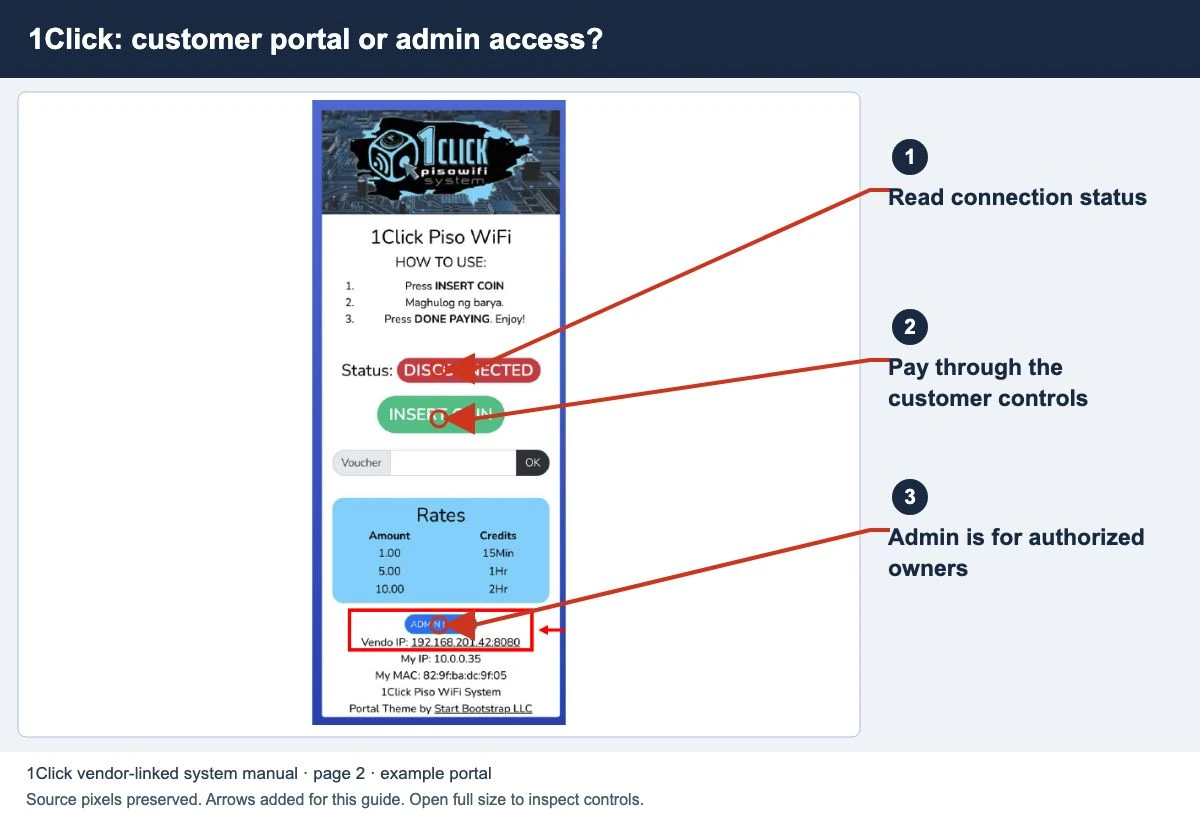
Open the customer portal
- Confirm the WiFi network name with the vendo label or operator.
- Open the customer address supplied for that network. If it does not load, use the gateway checks.
- Read the rate, validity and instructions before paying.
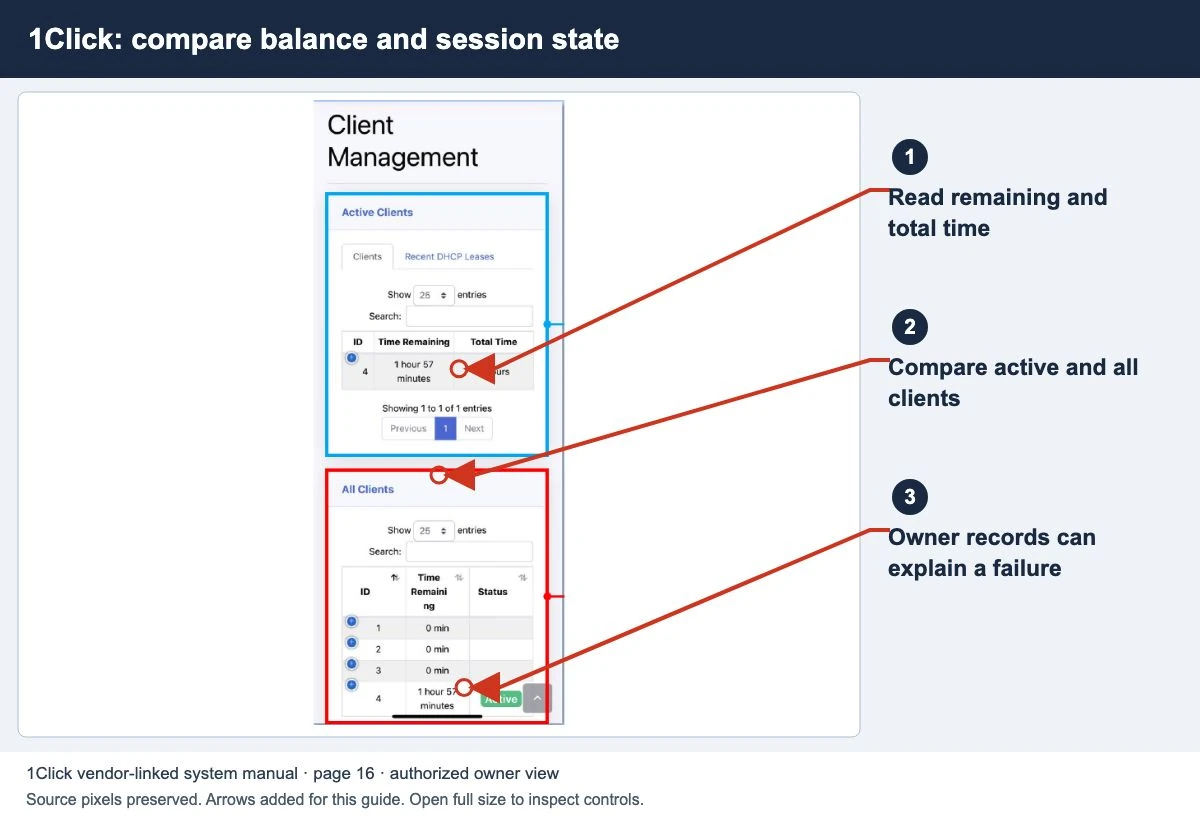
- Confirm that the payment produced credit and read the active or paused state.
The manual describes a separate management portal using the vendo address with port 8080. That is an owner function, not a requirement for a customer to check paid time. Confirm the management address against the installed setup.
A pause threshold can hide the button
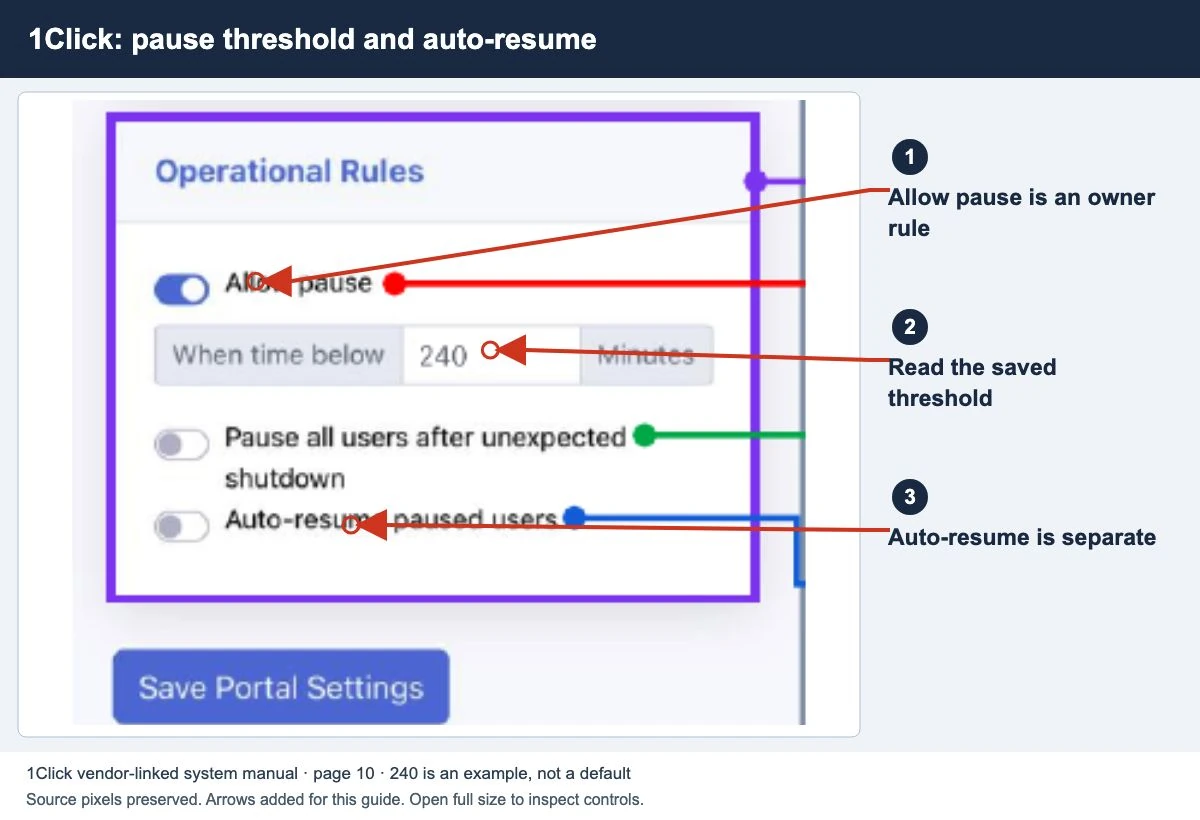
Page 10 of the manual explains an Allow pause rule based on remaining time. Its example uses a 240-minute threshold: customers above that balance cannot pause, and the button appears after the balance drops below it.
This is the manual’s example, not a universal 1Click default. Ask the operator which value is saved on your machine before treating a missing button as a browser failure.
Also check whether your session is active and eligible for the control. For other possible causes, use the missing Pause button guide. Do not clear paid-session data merely to make a hidden control appear.
Check automatic resume separately
The same manual page describes an optional rule that resumes paused users after a configured interval. Its 60-minute illustration explains the behavior; it does not establish the setting used by your operator. It also describes an optional pause action after an unexpected shutdown.
Before leaving a paid session, ask when a pause ends and how any session expiry applies. Record the displayed balance and status. Closing the browser or turning off WiFi is not proof that the manual’s optional rules are enabled.
If access ended while credit appeared to remain, follow the expiry checks and ask the owner to compare the actual session record.
Checks for an authorized owner
- Identify the installed build and compare its controls with the manual. The linked document is not a promise that every later interface is identical.
- Record the affected session’s balance, status and relevant saved rules.
- Review pause eligibility and automatic resume independently.
- If a documented setting needs changing, save it and test with an ordinary customer session.
- Confirm the result from the customer portal and explain the plan’s pause behavior to users.
For access problems, use the owner admin checklist. Avoid importing unrelated firmware, resetting a machine or exposing its dashboard just to follow a generic article.
Common questions
Is 240 minutes the required pause setting?
No. It is an example in the manual. The operator must confirm the configured threshold.
Will my paused time always wait until I return?
Do not assume that. Check automatic resume and session validity before relying on a long pause.
Did this publisher test my installed build?
No. This guide is based on the vendor-linked manual and cannot inspect your local settings.
Screens to help you check the right thing
Real source screenshots and project diagrams, with arrows added for this guide. Interface values are preserved. These are labelled examples, not a test of your local machine. Open an image full size to inspect its controls.
Sources and limits
Guide updated on 11 November 2026. This independent guide uses published platform documentation. We have not tested your local machine or every software version. Images marked as examples are illustrations. Captured screenshots show the source listed in the caption.
Found a website error? Send a correction to the publisher. For paid time or machine access, contact the local operator.