
Practical owner and customer guides · Updated
Extend Piso WiFi range without losing the customer portal
Published by Piso WiFi Pause · How we check guides
First check whether the problem is weak WiFi or a slow internet connection. For a larger customer area, plan a supported access point on the managed customer network. After changing coverage, test login, payment and session limits as well as speed.
Check the weak spot before buying an extender
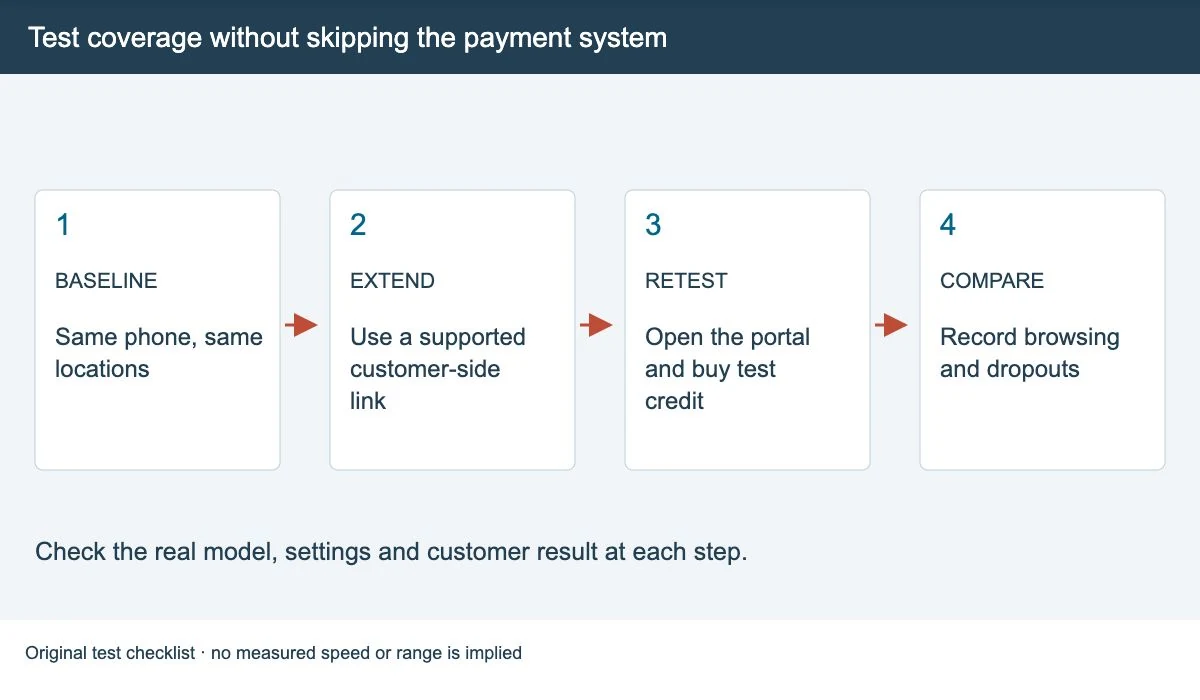
Try the same phone near the access point and at the problem spot. Use the same WiFi network and check that the session has active credit. Note whether WiFi drops, the portal stops opening, or websites are slow while WiFi stays connected.
If it is slow close to the access point too, adding coverage may not solve it. Check other customers, the upstream connection and busy periods. A stronger WiFi signal cannot fix an expired session or an internet outage.
For a customer-only check, start with WiFi keeps disconnecting. The setup changes below are for the authorized owner or installer.
Wired access point, repeater or mesh?
| Option | Useful when | Check before using |
|---|---|---|
| Wired access point | You can run a supported Ethernet link to the new area. | The controller, AP mode and customer-network connection match. |
| Wireless repeater | Cabling is difficult and a usable signal reaches the repeater location. | The device supports the hotspot’s network behavior; test performance and customer sessions. |
| Mesh system | The chosen equipment supports a suitable multi-node layout. | Its router/AP mode and backhaul work with the installed payment controller. |
A wired access point uses a cable for its link back to the network. A repeater needs a usable wireless link at its own position. Putting a repeater where the original signal is already lost does not create a good source connection.
Do not choose equipment from a claimed meter range alone. Walls, nearby networks, mounting position and client devices affect the result.
Keep customers behind the payment controller
Connect the new coverage device to the customer side specified by the controller’s guide. Do not assume that any spare port is suitable. If a second device creates a different routed network, the portal may not identify customers the way you expect.
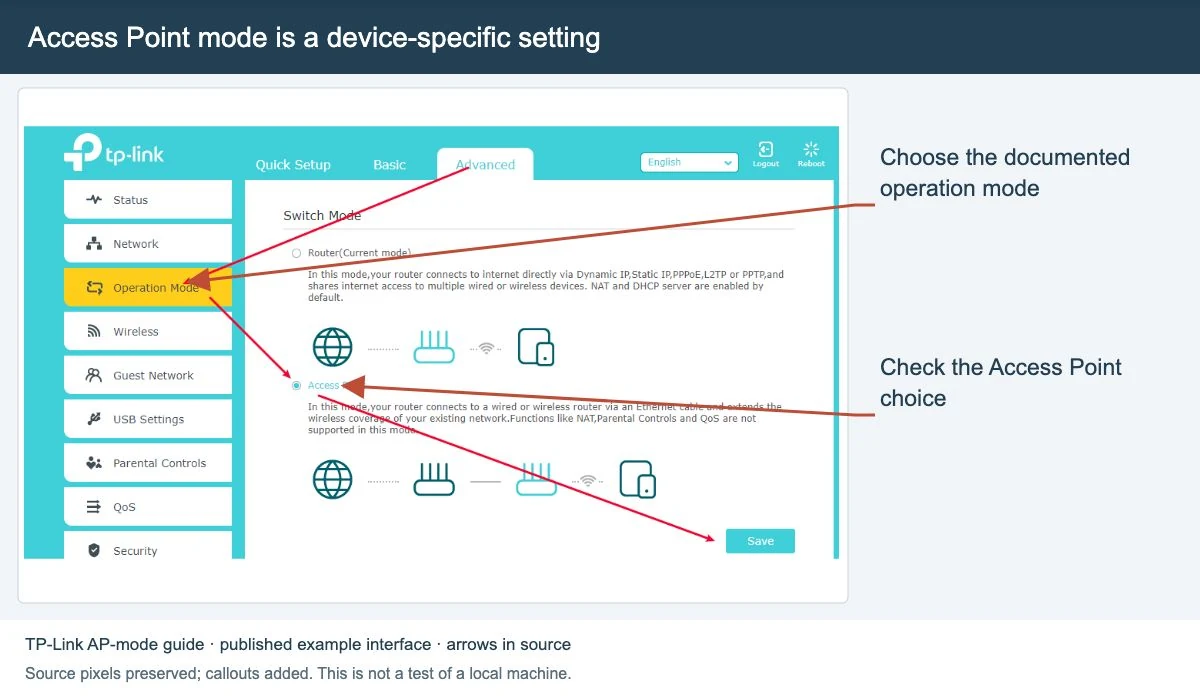
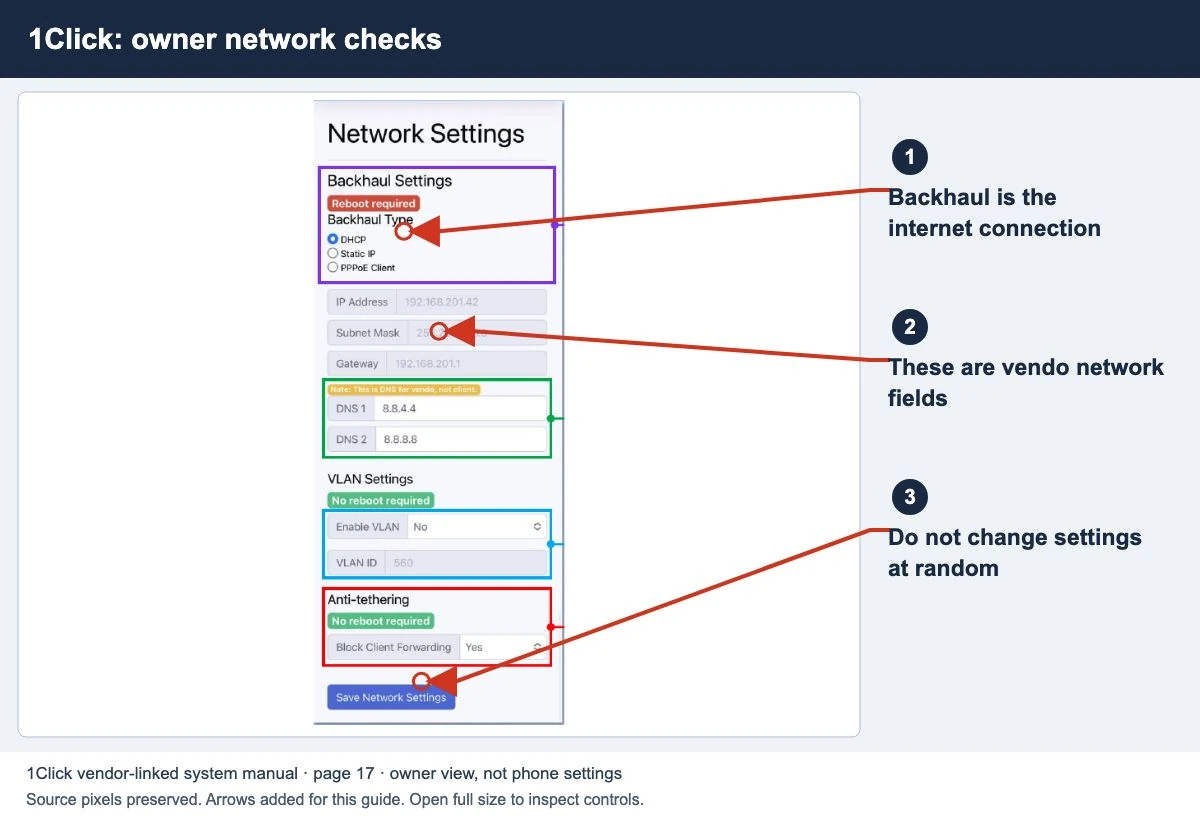
AdoPiSoft documents bridging access-point interfaces into a parent interface. TP-Link’s AP-mode guide describes a separate device setup, with different steps for models that have an Operation Mode menu and those that do not. Neither guide proves that every extender works with every vendo.
Have the installer check address assignment, the management address, client visibility and the supported connection mode before changing DHCP or routing. Keep a supported backup and the original cable layout.
Place it, then test the same route again
- Choose a clear, practical position near the area you want to serve. Use equipment rated for the environment.
- For a repeater, check its link to the main access point before testing the far end.
- Use the same phone, locations and test method as your baseline. Record the date, band and approximate customer load.
- Compare portal loading, paid browsing and dropouts. Record the result instead of relying on signal bars alone.
We have not measured your site or set a universal target speed. This is a test method you can use with your installer, not a claim that a particular device will cover your barangay.
Retest the paid session, not only the speed
- Join the added coverage area with a test device and confirm the correct customer portal opens.
- Use an agreed test payment or voucher. Check that the correct allowance is added.
- Check pause/resume only if the plan offers it. Test the end of the session too.
- If roaming between access points is intended, test it on the same paid device and record what happens. Do not promise seamless transfer before this test.
When the portal loads but the internet fails, use the no-internet guide. For normal session controls, return to Piso WiFi pause and resume.
Quick questions
Will an extender make the internet plan faster?
It can help reach an area with weak coverage, but it does not increase the service you buy from your internet provider. Check which link is slow first.
Should I give the new access point the same WiFi name?
Use the layout supported by your installer and controller. A matching name alone does not guarantee that devices roam correctly or keep their paid session.
Screens to help you check the right thing
Real source screenshots and project diagrams, with arrows added for this guide. Interface values are preserved. These are labelled examples, not a test of your local machine. Open an image full size to inspect its controls.
Sources and limits
Guide updated on 12 November 2026. This independent guide uses published platform documentation. We have not tested your local machine or every software version. Images marked as examples are illustrations. Captured screenshots show the source listed in the caption.
- TP-Link access-point mode guide
- AdoPiSoft access-point interface guide
- AdoPiSoft access-point wiring examples
Found a website error? Send a correction to the publisher. For paid time or machine access, contact the local operator.