
Troubleshooting · Updated
10.0.0.1 not opening: find your Piso WiFi portal
Published by Piso WiFi Pause · How we check guides
Connect to the operator’s Piso WiFi network, check the gateway shown in that connection’s settings, and enter that exact address in your browser. Use http://10.0.0.1 only if it is the gateway for your network. A search result or another WiFi connection cannot open your local portal.
Before trying another address, check the Piso WiFi gateway steps. The login page only opens on a network that uses that address.
Start with these checks
- Confirm the WiFi network name. Choose the network posted on the machine or supplied by the shop. A saved home WiFi or a similarly named hotspot leads to a different router.
- Check that you are still connected. A phone may leave a network that has no internet yet. Return to WiFi settings and check the selected network before retrying.
- Type the address, not a search query. Enter
http://10.0.0.1in the address bar only when that address matches the network. Do not addwwwor use the five-part typo10.0.0.0.1. - Use the gateway actually assigned to you. If 10.0.0.1 does not answer, find the gateway below or ask the operator. Guessing more addresses is less useful than checking the connection.
Already paid? Keep the original device and note the balance or payment time. Do not clear cookies, forget the network, change its private-address settings, or factory reset the machine as a first step.
Match the symptom on your screen
| What you see | Check next |
|---|---|
| Google search results | The address may have been entered as a search, or may contain a typo. Re-enter the confirmed gateway in the address bar. |
| Connection timed out or refused | Confirm the selected WiFi and gateway. If they are correct, ask whether the machine or portal is online. |
| Connected, no internet | This alone does not establish that the local portal is down. Try its confirmed gateway and check your session status. |
| A browser security or certificate warning | Do not ignore the warning or enter credentials. Confirm the intended address and protocol with the operator. |
| Portal opens, but Pause is missing | Address troubleshooting is finished. Follow the missing Pause button checks. |
Piso WiFi stuck on “Obtaining IP address”
This message appears before the customer portal stage. Your phone is still trying to get a local network address. Buying more time will not fix that step.
- Check the WiFi name with the operator and move closer to the access point. Wait for the connection attempt to finish.
- Note the exact message. Does the phone stay on Obtaining IP address, show a connection failure, or connect and then show No internet?
- Ask whether another customer can join the same network. If several devices fail, the owner should check the access point and the service that assigns addresses, called DHCP.
- If only your device fails, open its network details with the operator. If you previously entered a manual IP address, ask which address mode this network needs before changing it.
Do not copy a static IP, gateway or DNS address from a video. An address used by another device can cause a conflict. Do not turn off Private DNS or change your WiFi MAC address as a routine fix.
Already paid? Keep the original network details and show the operator your payment time before forgetting the network or resetting settings. Once the device connects, continue with opening the customer login page. If the portal opens but browsing fails, use the active-session internet checks.
Owner check: one phone or the whole access point?
Record whether other customers can join, whether the affected phone received an address and gateway, and whether the problem follows one access point. Ask the installer to check DHCP leases, the available address pool and the customer-side connection. These checks need the actual network layout; do not reset every device to test one phone.
Find the gateway for this connection
The gateway belongs to the WiFi network you joined. It is not the address of pisowifi.cc, and it may differ from 10.0.0.1.
Android or Samsung
Open WiFi settings and the details for the connected network. Look for a field called Gateway or Router, sometimes under advanced network information. Names and available fields vary by phone; ask the owner if the address is not shown.
iPhone or iPad
Open Settings → WiFi and the information button beside the connected network. Check its Router field. If the captive sign-in screen appears, follow the operator’s instructions rather than searching for a different login page.
Windows
Open Command Prompt and run ipconfig. Read Default Gateway under the connected WiFi adapter, not an Ethernet, VPN or disconnected adapter. Microsoft documents that the command displays this network information.
Mac
Open System Settings → WiFi → Details for the selected network, then check TCP/IP for Router. Use the address for that connection. If the operator supplies a different portal URL, confirm which one is intended for customers.
If the phone or laptop still will not open it
Open Chrome, Safari or your usual browser directly if the small sign-in window closes. Apple documents that captive WiFi networks can display their own sign-in screen when you join.
Check whether a VPN or managed-device policy allows access to local network addresses. Follow that product’s instructions or ask its administrator; do not remove security settings just to follow a general guide. If the portal works on another customer device but not yours, give the operator your device type and the exact error.
If several customers cannot reach the same confirmed gateway, the owner needs to investigate the machine or network. Repeatedly paying, resetting your phone, or downloading a “pause time” app does not diagnose that fault.
What to tell the operator
- The WiFi network name and the gateway you checked.
- Your device and browser, plus the exact error or a screenshot without private details.
- Whether the portal ever opened and whether another device can reach it.
- If already paid, the approximate payment time and amount. Share voucher or transaction references privately.
For platform-specific session behavior, use the LPB guide or AdoPiSoft guide. This website cannot reach your local router, restore paid time, or supply its admin password.
Common questions
Why does 10.0.0.1 work at one shop but not another?
Each network can use its own addressing and portal configuration. Check the current network rather than reusing a gateway from another location.
Do I need internet access to open the local portal?
The portal is a local network service. Internet access and local gateway access are different checks; the machine and your connection still need to be working.
Should I forget the WiFi network?
Do the connection and gateway checks first. If you have paid credit, ask how the system identifies your session before changing saved network details.
Screens to help you check the right thing
Real source screenshots and project diagrams, with arrows added for this guide. Interface values are preserved. These are labelled examples, not a test of your local machine. Open an image full size to inspect its controls.
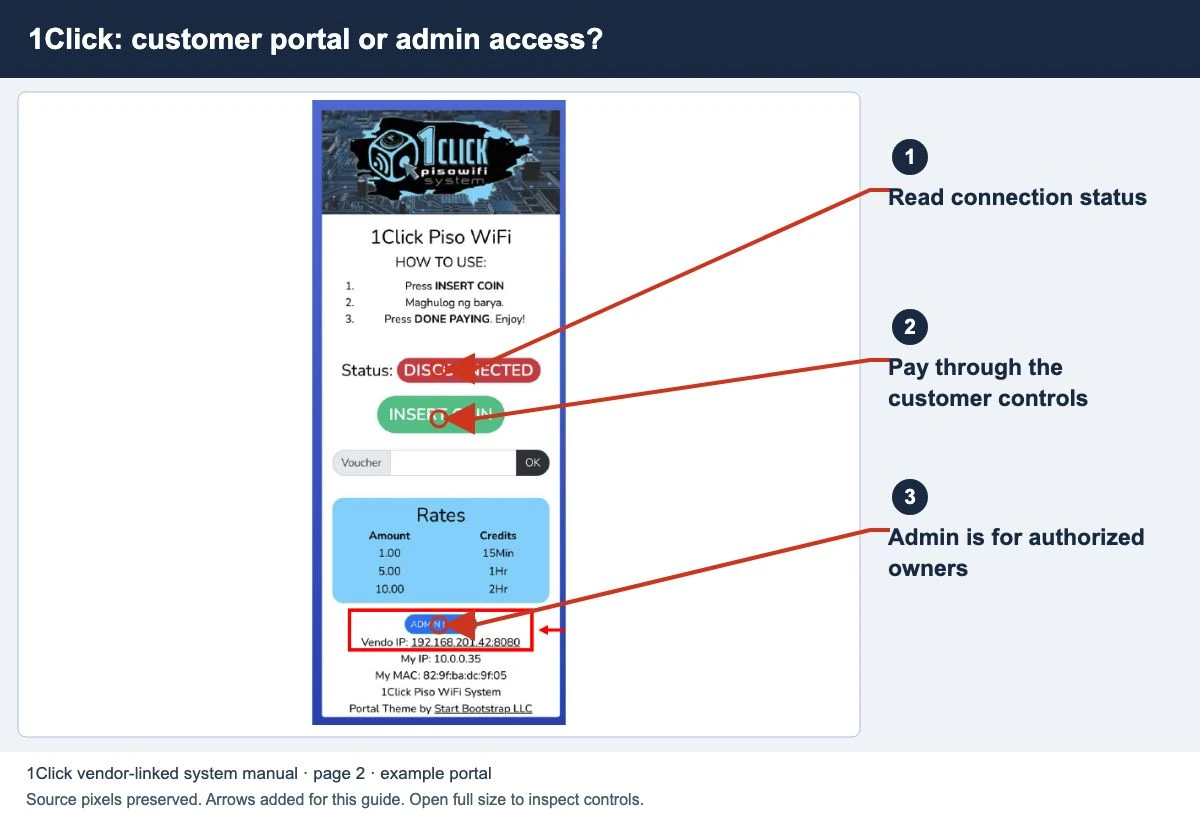
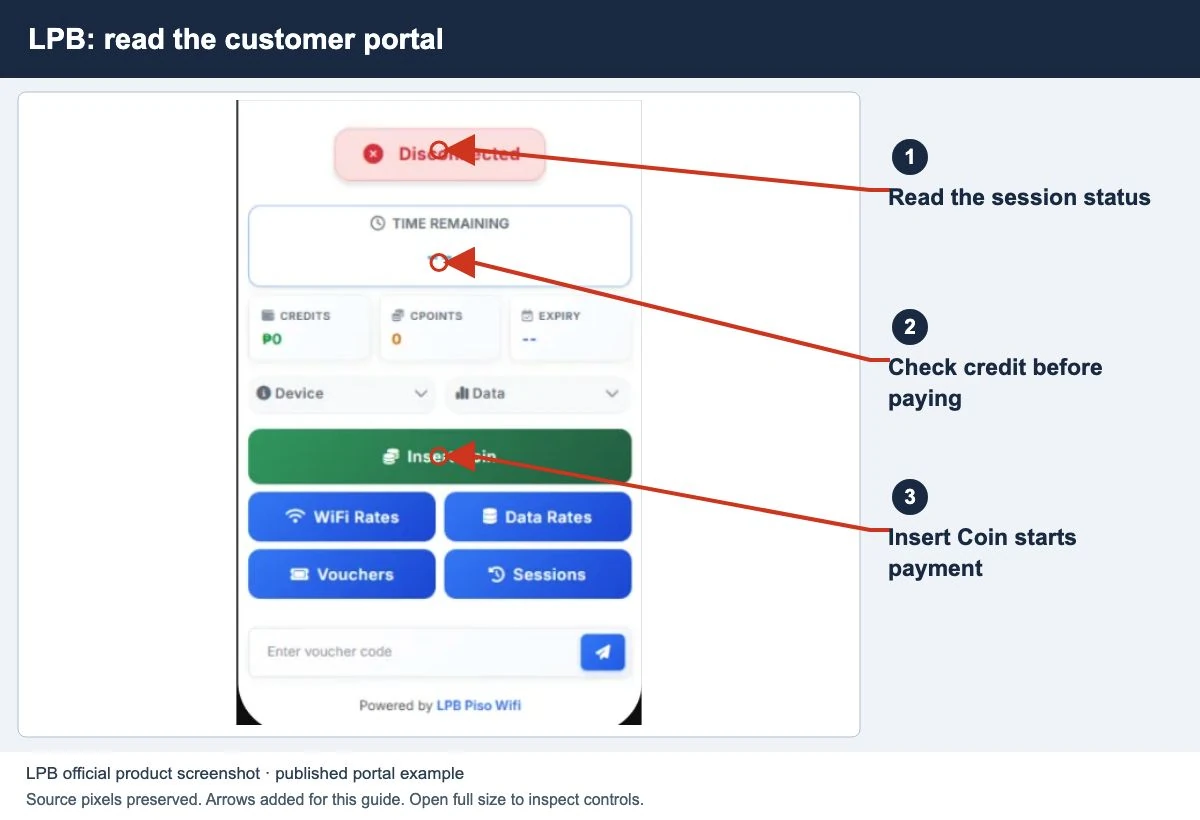
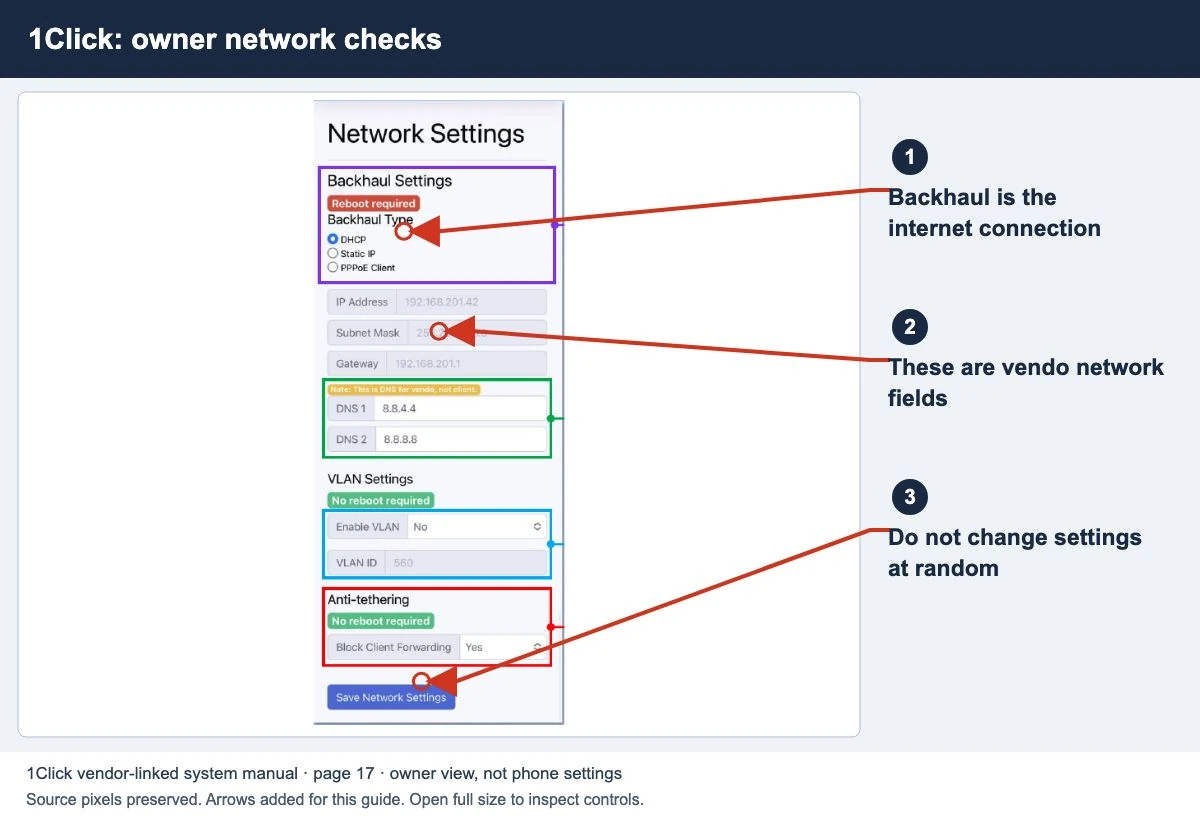
Watch the matching portal example
A genuine vendor or vendor-linked tutorial. It demonstrates one platform and version; follow your operator’s actual portal and rates.
Sources and limits
Guide updated on 13 November 2026. This independent guide uses published platform documentation. We have not tested your local machine or every software version. Images marked as examples are illustrations. Captured screenshots show the source listed in the caption.
- Google: Android WiFi connection settings
- Google: Android private DNS and network addresses
- Apple: captive WiFi networks
- Microsoft: ipconfig and the default gateway
Found a website error? Send a correction to the publisher. For paid time or machine access, contact the local operator.