
Customer help · Updated
Piso WiFi voucher not working
Published by Piso WiFi Pause · How we check guides
Keep the voucher private and confirm that it belongs to the WiFi network you joined. Re-enter it exactly once, read the precise error, and ask the seller to check its activation, validity and permitted users. A rejected code and an active session without internet need different checks.
For a quick check of time and payment, see adding time to a Piso WiFi session. Use the voucher checks below if your code is rejected.
Check the network and code first
- Confirm the vendo or network named by the seller. A similar software brand does not mean two shops share vouchers.
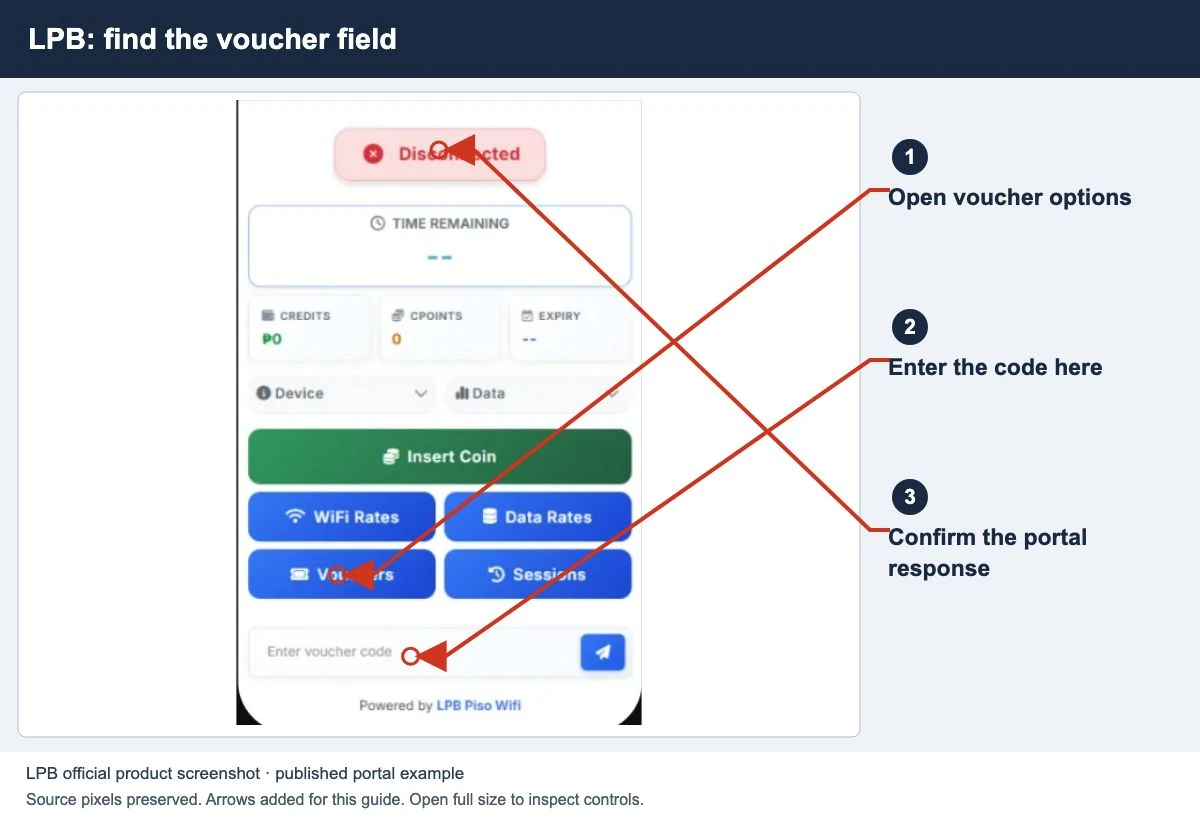
- Open the customer portal and find its voucher field. Do not enter the code into a public guide’s contact form.
- Copy the code exactly as issued, checking letter case, zero versus the letter O, spaces and any requested password.
- Submit once and read the complete result. Note the error without publishing the code.
- If activation succeeds, confirm the credited time or data and whether the session is active.
If the voucher field is absent, ask whether that payment mode is enabled. Repeatedly buying codes will not make a hidden field appear.
Different messages need different checks
| Reported result | Ask the operator to verify |
|---|---|
| Invalid or not found | Correct network, exact code and intended service. |
| Already used | Activation record and the original device/session. |
| Expired | Applicable validity rule and when it began. |
| User or device limit | Sharing allowance and currently associated users. |
| Accepted, no internet | Session state, remaining allowance and network status. |
These are diagnostic categories, not a claim that every portal uses those exact messages. Use the no-internet guide once valid credit is confirmed.
Check the voucher type, not just the brand
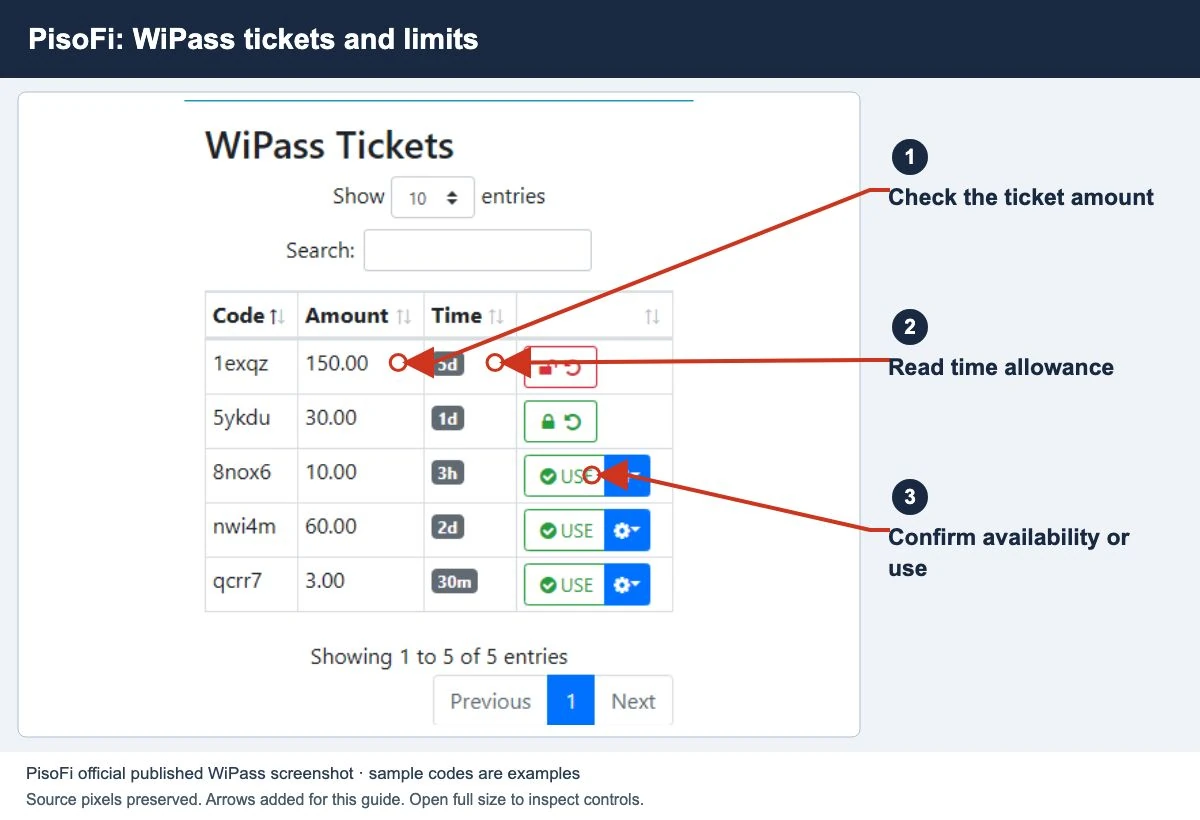
AdoPiSoft documents several voucher types and configurable expiry, pause permission and maximum users. PisoFi describes separate WiFi/desktop Wipass options and secured vouchers with passwords. Neither description establishes the terms of a voucher sold by a particular operator.
Ask what the voucher includes before paying: service, credit, validity, sharing and pause permission. For more context use the AdoPiSoft or PisoFi guide.
If you activated credit and later lost access, see session expiry. That is different from a code that was never accepted.
What to send the seller privately
Provide the purchase time, intended machine/network, exact error and whether the code ever activated. Share the full code and receipt only through the authorized seller’s private support channel.
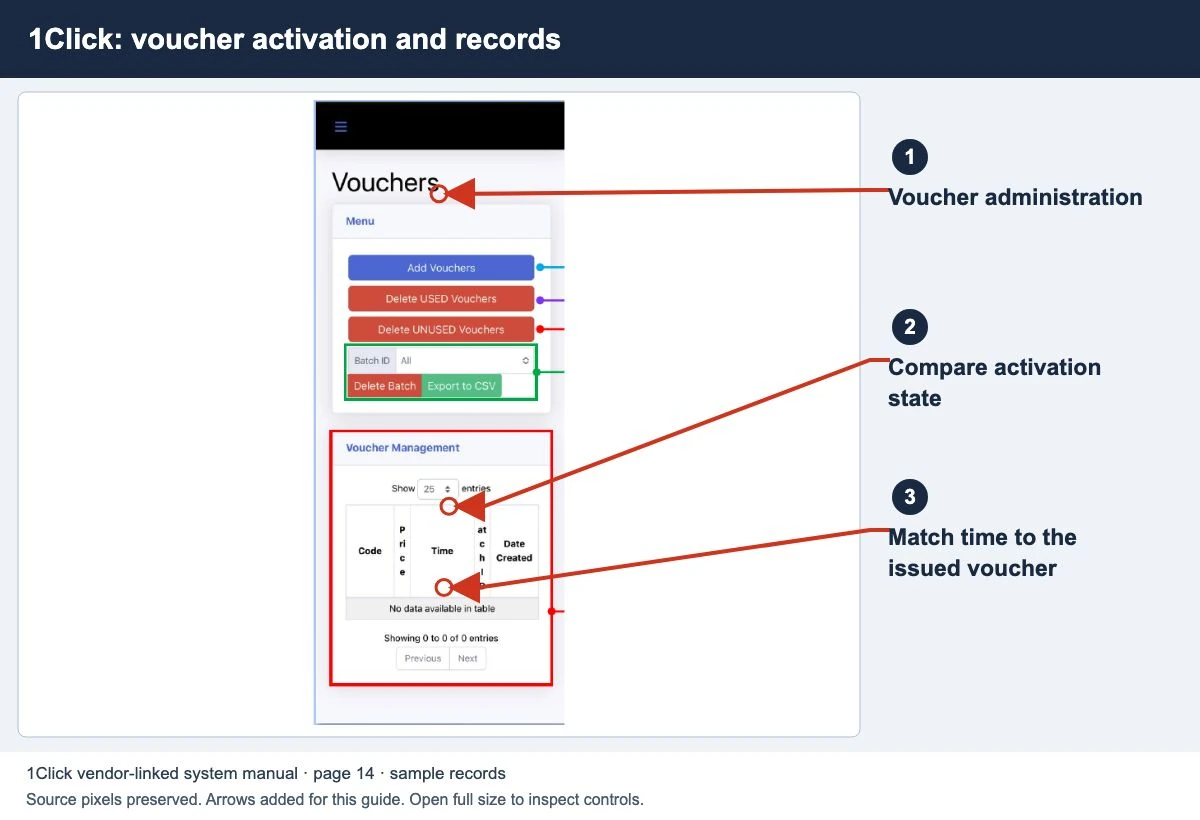
Ask the seller to compare the issued voucher with its activation and session records. Only that operator can explain replacement, recovery or any refund process for the purchase.
Keep the original device available. Do not post a screenshot exposing a usable code or attempt to guess another voucher.
Separate voucher activation from internet access
A voucher can be accepted even when the next step fails. Check the result after submission:
- No success message and no new credit: keep the exact rejection and ask the seller to find the voucher record. Check the network, voucher type and whether it was already activated.
- Success message and credit added: stop re-entering the code. Check whether the session is active, paused, out of data or expired.
- Credit is active but browsing fails: follow the connection test. Buying a second voucher does not establish why the first session cannot browse.
Owner checks for an AdoPiSoft voucher
The official voucher guide separates time, data and time-with-data-capping types. It also documents expiration, Allow Pause and Maximum Users Per Voucher. Check the saved voucher record and the affected session against those fields. A valid code alone does not establish that another device is allowed or that an allowance remains.
As a hypothetical example, a time-with-data-cap session can still show minutes after its data is used up. That needs an allowance check, not a new spelling of the voucher code. Do not apply AdoPiSoft field names to another platform without its matching guide.
Common questions
Can one voucher work on several phones?
Only if the issued plan and local configuration permit it. Ask before sharing.
Can the publisher validate my code?
No. This website has no access to the issuing machine’s voucher database.
Does a valid voucher always allow pausing?
No universal pause permission follows from validity. Check the plan and the Pause control checks.
Screens to help you check the right thing
Real source screenshots and project diagrams, with arrows added for this guide. Interface values are preserved. These are labelled examples, not a test of your local machine. Open an image full size to inspect its controls.
Watch the matching portal example
A genuine vendor or vendor-linked tutorial. It demonstrates one platform and version; follow your operator’s actual portal and rates.
Sources and limits
Guide updated on 13 November 2026. This independent guide uses published platform documentation. We have not tested your local machine or every software version. Images marked as examples are illustrations. Captured screenshots show the source listed in the caption.
Found a website error? Send a correction to the publisher. For paid time or machine access, contact the local operator.