
Troubleshooting · Updated
Piso WiFi coins accepted but no time added
Published by Piso WiFi Pause · How we check guides
Stop inserting coins and check whether the customer portal shows the amount you already paid. Keep the same device connected, note the payment time and amount, and ask the vendo operator to check its records. A coin entering the slot does not by itself confirm that credit reached your session.
See the missing Piso WiFi load checklist for the details to keep before you contact the operator.
Check the payment without spending more
- Stay on the original device and vendo network. Check the network name before opening the customer portal. If it will not load, use the portal access checks.
- Read the payment screen. Look for a registered amount, a pending step or an error. Follow only the instructions shown by that machine. Do not start a second payment while the first is unclear.
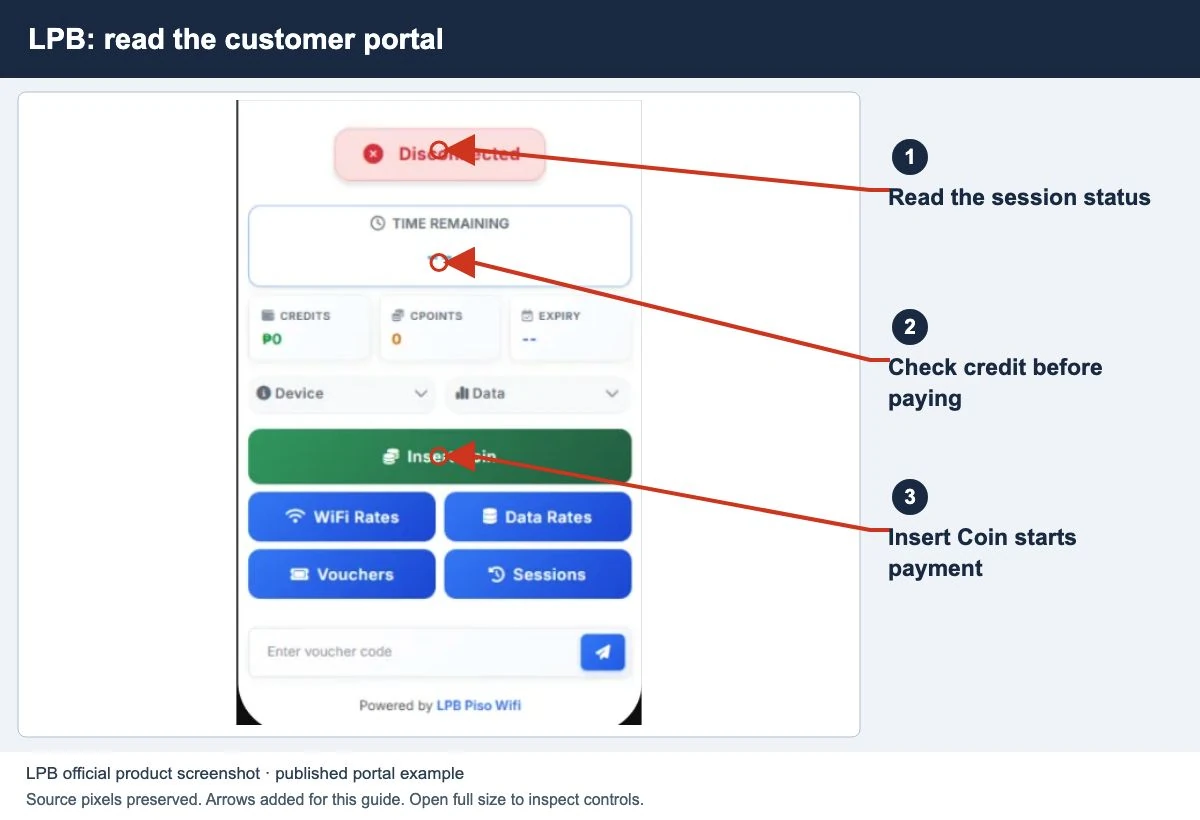
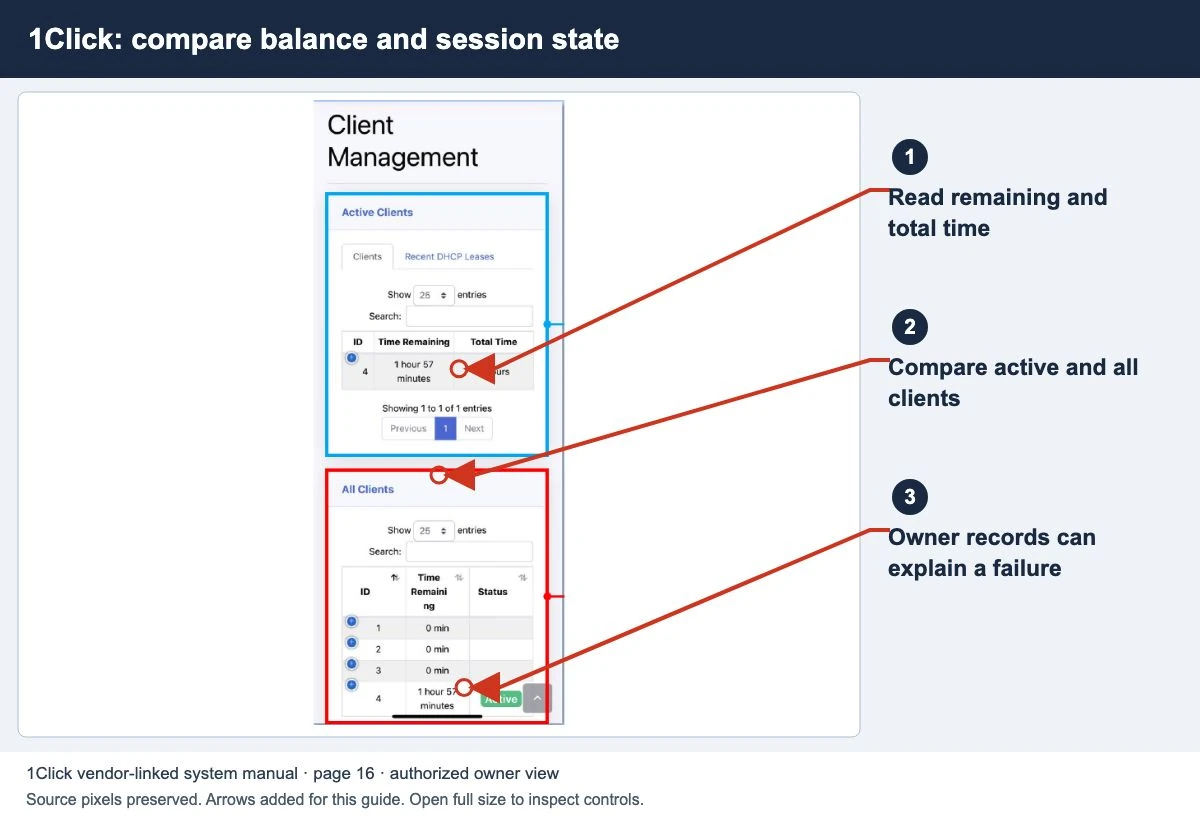
- Compare the balance. Check whether the remaining time or data changed and whether the session is active. A portal can show credit without confirming that internet access has started.
- Reload once after any displayed payment step finishes. If the balance is unchanged, stop and contact the operator. Repeated taps or additional coins make the original payment harder to identify.
Do not force the coin slot, open the enclosure, or reset the machine. Customers cannot diagnose an internal acceptor or wiring fault from a web page.
Which part did not work?
| What you see | What to check next |
|---|---|
| Coin returns from the slot | Check the posted denominations. Tell the operator which coin was rejected; do not force it back in. |
| Coin accepted, amount stays at zero | Record the amount and time. Ask the operator to compare the payment record with your session. |
| Amount appears, credit does not update | Read any remaining confirmation step. If completing it does not update the balance, report both screens to the operator. |
| Credit appears, but internet does not work | The payment and connection checks are now separate. Check session status and ask whether the machine has an internet outage. |
| A different phone shows no time | Return to the device used to pay. Ask about supported recovery before assuming the payment failed. |
Details that help the operator investigate
Give the operator the machine location or label, WiFi network name, approximate payment time, total amount and denominations used. Explain whether the portal displayed the amount and whether any time or data appeared afterward.
A screenshot of the displayed status can help. Keep voucher codes, payment references, device identifiers and other private details between you and the authorized operator. You can describe a website error through our publisher contact form, but this publisher cannot see vendo transactions or issue refunds.
For an electronic payment, keep the payment provider’s receipt or reference privately. Follow that provider’s support process if the operator cannot match it. A payment receipt and a credited local WiFi session are two different records.
LPB and AdoPiSoft notes
LPB’s public Portal 4 template tells users to check that the amount appears before starting internet access and warns against inserting coins too quickly. This is a template example, not proof of the controls or timing on every installed LPB version. Follow your machine’s own instructions. See our LPB guide.
AdoPiSoft documents an optional internet-status check before allowing coin insertion. The owner needs to confirm whether it is enabled on the affected machine. Its availability does not prove why an individual payment failed. See the AdoPiSoft guide.
Checks for an authorized operator
- Find the affected customer session and compare its balance with the payment or sales record.
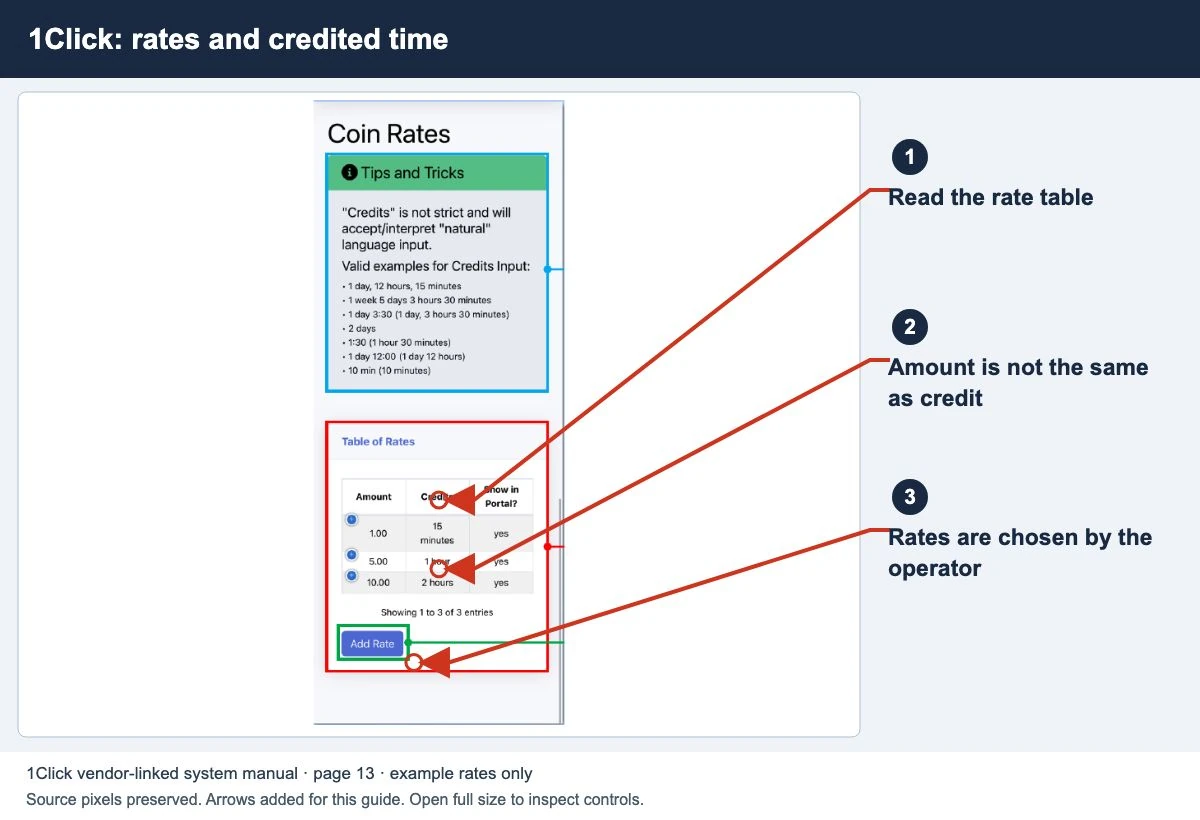
- Confirm the installed software version, accepted denominations and rate configuration.
- Determine whether one payment or multiple customers are affected. Record the symptom before changing settings.
- Check machine and internet status. Use the matching vendor instructions for hardware inspection or servicing.
- After resolving the cause, verify the complete customer payment flow and confirm the resulting credit. Keep any adjustment or refund record with the original incident.
A web guide cannot determine a refund entitlement or guarantee recovery. The operator must reconcile the actual records and explain the outcome.
Common questions
Will another coin recover the missing payment?
It does not establish what happened to the first payment. Ask the operator to investigate before spending more.
Should I clear browser data?
Keep the original session available while payment is checked. Changing browser or network details first can make the problem harder to reproduce.
My time appeared and then expired. Is that the same problem?
No. Check the session expiry guide to distinguish a missing payment from a session that later ended.
Screens to help you check the right thing
Real source screenshots and project diagrams, with arrows added for this guide. Interface values are preserved. These are labelled examples, not a test of your local machine. Open an image full size to inspect its controls.
Watch the matching portal example
A genuine vendor or vendor-linked tutorial. It demonstrates one platform and version; follow your operator’s actual portal and rates.
Sources and limits
Guide updated on 10 November 2026. This independent guide uses published platform documentation. We have not tested your local machine or every software version. Images marked as examples are illustrations. Captured screenshots show the source listed in the caption.
Found a website error? Send a correction to the publisher. For paid time or machine access, contact the local operator.