
Troubleshooting · Updated
Piso WiFi Pause button missing or disabled
Published by Piso WiFi Pause · How we check guides
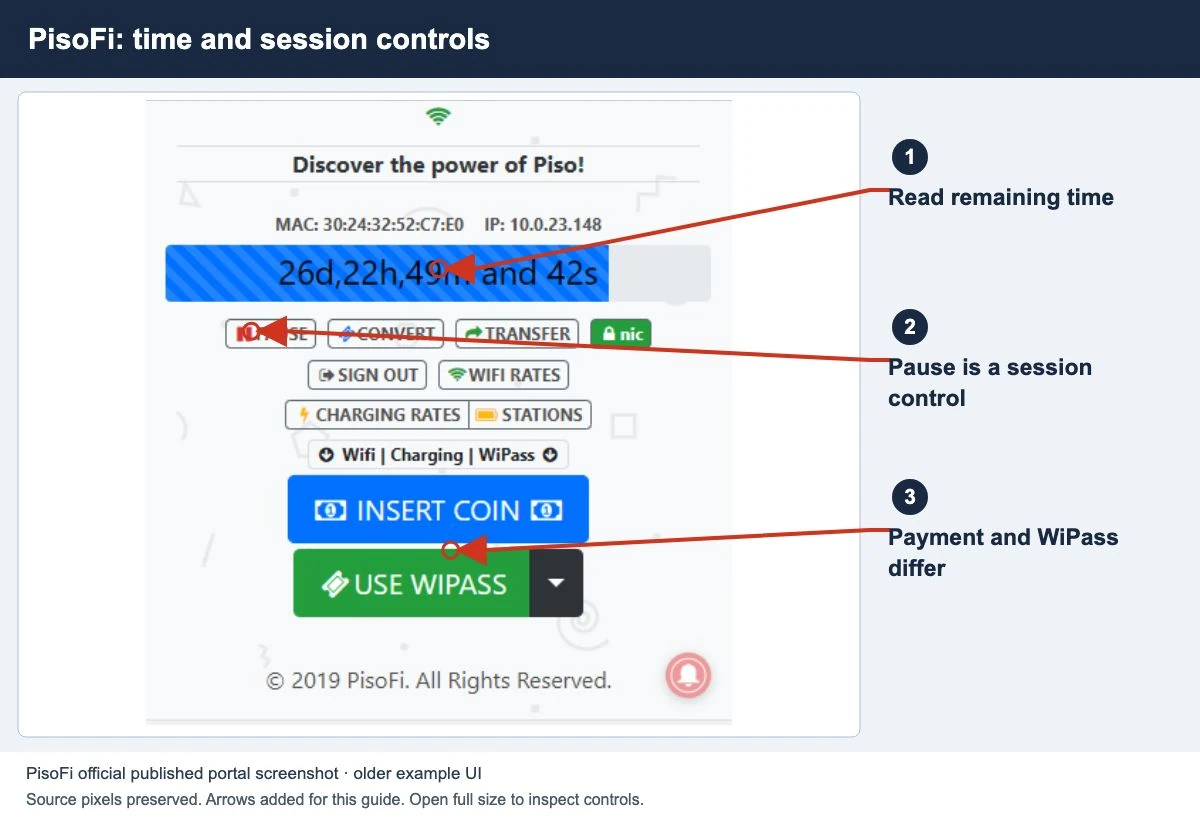
First confirm that you are on the customer portal and it shows an active paid session. If Pause is missing or disabled, ask the operator to check the session type, voucher permission and pause rules for that installation. A customer cannot turn on an owner-controlled feature from this guide.
If this is your first session, follow the Piso WiFi pause and resume steps first. Then use the checks below if the button is still missing.
What a customer can check
- Open the right customer portal. Join the vendo network and use its confirmed gateway. An owner login page and a customer session page serve different purposes. If the portal itself will not load, start with 10.0.0.1 not opening.
- Read the session status. Look for an active session and remaining time or data. A payment that has not registered, an expired session or an already-paused session needs a different action.
- Check whether Resume is shown instead. A paused session may offer Resume or Continue rather than another Pause button. Read the status before selecting a control.
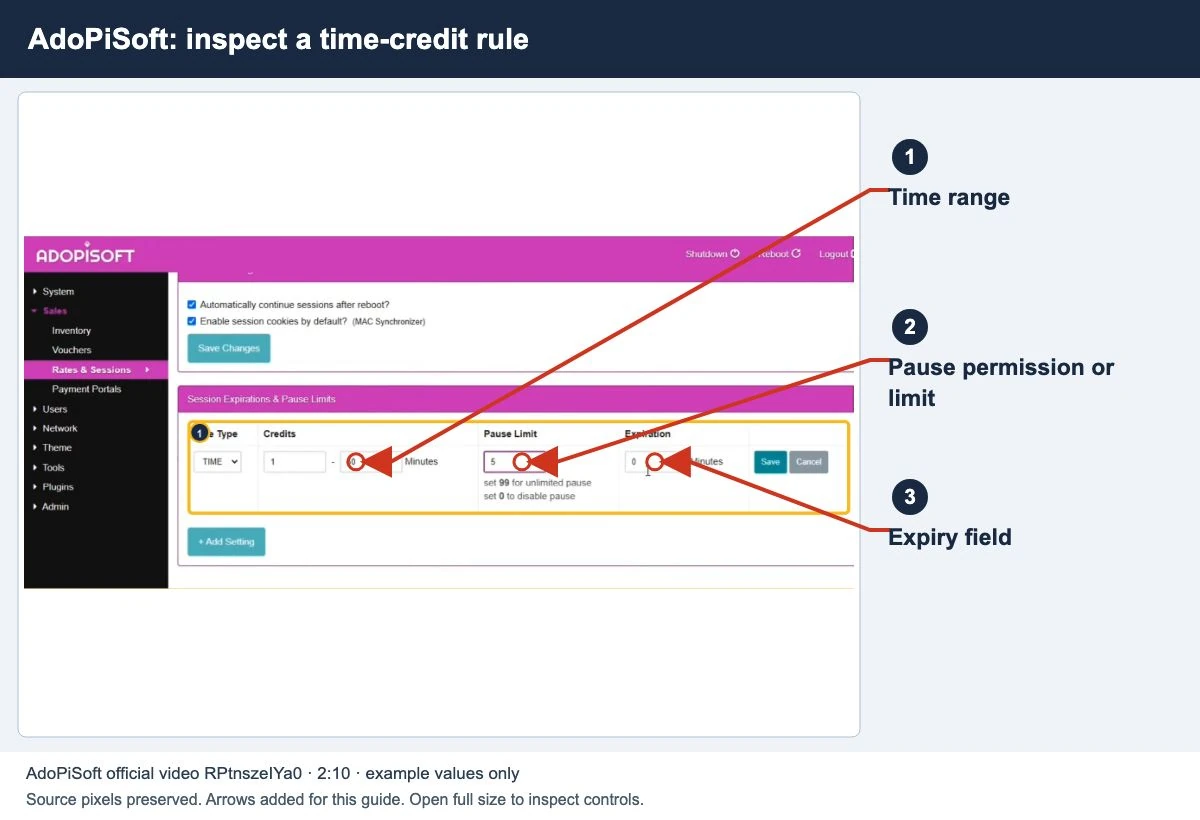
- Look for the displayed rules. Check the session details, voucher terms or rate card for pause availability, limits and expiry. There is no universal allowance across all vendos.
- Reload once if the page looks incomplete. Keep the same device and network. If the session is still unclear, ask the operator before clearing browser or network data.
Missing, greyed out, or not responding?
| Symptom | Next check |
|---|---|
| No Pause control anywhere | Confirm an active session, then ask whether pause is enabled for its payment or plan type. |
| Pause is visible but disabled | Check the portal’s explanation and ask which session rule or limit is preventing the action. |
| Pause can be tapped but nothing changes | Wait for a response, reload once, and read the status. Do not assume the timer has stopped. |
| Resume or Continue is visible | The portal may already consider the session paused. Confirm the balance and expiry before resuming. |
| Time keeps decreasing after a tap | There is no confirmed pause yet. Stay on the portal and ask the operator to check the request. |
| A different phone shows no paid session | Return to the device used for payment and ask about supported session recovery or transfer. |
Check the installed platform
AdoPiSoft
AdoPiSoft documents configurable session pause limits and expiry. Its voucher guide separately includes an “Allow Pause” option. Ask the owner to check both the session rules and voucher configuration if you paid with a voucher; one setting does not establish the other.
See the AdoPiSoft guide for the difference between remaining credit and session expiry. The local settings determine eligibility, not a pause count copied from another machine.
LPB Piso WiFi
LPB advertises pause/resume and cloud session time. That feature description does not establish which controls or permissions your installation provides. Ask the operator to identify the version and verify the customer view. Use the LPB guide for the documented scope and cloud-session caveats.
Other or unbranded setups
Do not apply LPB or AdoPiSoft menu paths automatically. Ask which software is installed and use its matching documentation. A shared “Piso WiFi” label does not mean every portal has identical settings.
Checklist for an authorized owner
Use the manual for your installed version. Record current settings before editing them, and avoid changing several rules at once.
- Identify the affected session and verify whether it is active, paused or expired.
- Check the plan or voucher’s pause permission, then its limits and expiry.
- Confirm whether the symptom affects one customer or every customer on that machine.
- Check that the customer portal loads completely and shows the controls expected for that version.
- If a documented setting is changed, save it and test with an ordinary customer session. Check both the control and the reported balance.
Do not restart, factory reset, or update firmware merely because a button is missing. Those actions may interrupt sessions and do not establish which setting caused the problem.
Before disconnecting or paying again
Note the remaining balance and the status shown on the portal. Keep the payment time and voucher reference privately. Closing the browser or turning off WiFi is not proof that a pause request succeeded.
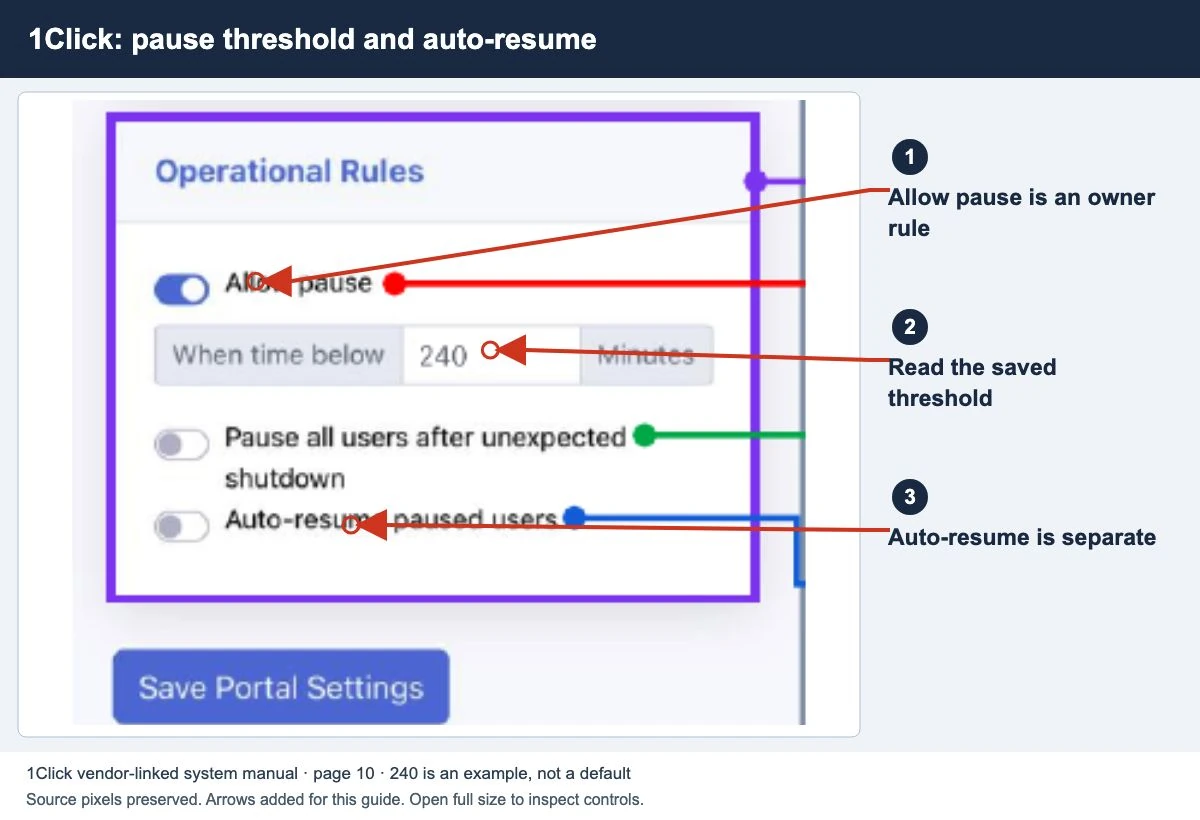
Automatic pause is a separate behavior. Even if a system supports it, confirm whether it is enabled for your session. Do not test it by abandoning paid time when the rules are unknown.
If you cannot pause, the operator must explain your plan’s rules and any recovery options. Buying more time or installing an unrelated app is not a way to enable a disabled owner-controlled feature.
Common questions
Can this website enable Pause on my vendo?
No. Only the authorized operator can change that installation’s settings.
Does a missing button mean my credit is lost?
Not by itself. Read the session balance and expiry and ask the operator to check its records.
Should every voucher support pausing?
No universal rule applies. Check the voucher’s terms and the local configuration before relying on pause.
Screens to help you check the right thing
Real source screenshots and project diagrams, with arrows added for this guide. Interface values are preserved. These are labelled examples, not a test of your local machine. Open an image full size to inspect its controls.
Watch the matching portal example
A genuine vendor or vendor-linked tutorial. It demonstrates one platform and version; follow your operator’s actual portal and rates.
Sources and limits
Guide updated on 10 November 2026. This independent guide uses published platform documentation. We have not tested your local machine or every software version. Images marked as examples are illustrations. Captured screenshots show the source listed in the caption.
Found a website error? Send a correction to the publisher. For paid time or machine access, contact the local operator.