
Customer help · Updated
Piso WiFi keeps disconnecting
Published by Piso WiFi Pause · How we check guides
First check what disconnected: the WiFi connection, the paid session, or one internet service. Stay on the original device, note the time and portal state, and check whether the issue also affects nearby customers. Those observations help the operator separate signal, session and upstream problems.
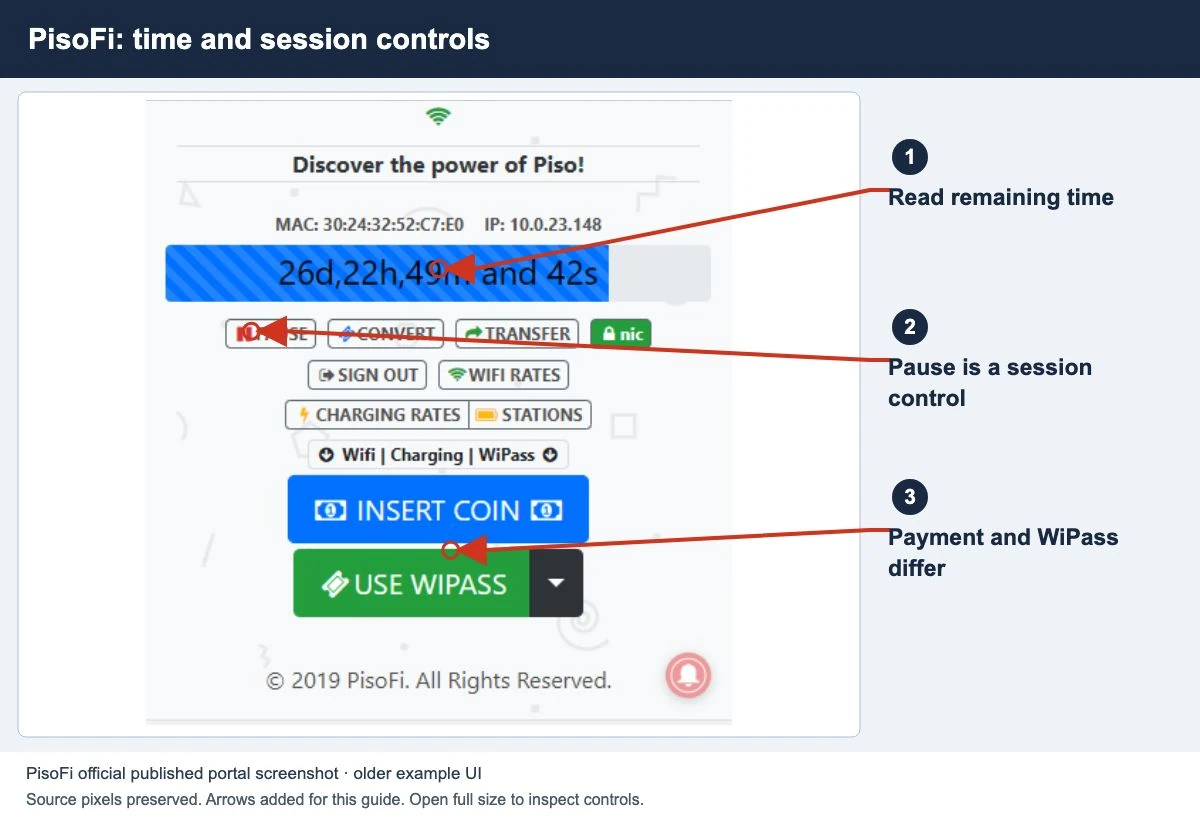
First check automatic pause and resume settings. A session that pauses is different from a phone losing its WiFi signal.
What changed when access stopped?
- The WiFi name is no longer selected: check signal and whether your device changed networks.
- WiFi remains connected but the portal says Expired: check the session limits.
- The portal shows active credit but sites fail: use the internet diagnosis.
- Only one app disconnects: check whether other services still work before blaming the whole network.
Record the exact observation. “WiFi disconnected” and “my game disconnected” can describe different faults.
Customer checks before changing settings
- Confirm that the original vendo network is still selected.
- Move closer to the access point and check whether the symptom changes.
- Open the customer portal and note the balance, validity and current status.
- Observe whether the phone changed to mobile data or another saved WiFi network.
- Ask whether other customers saw the same interruption at the same time.
Apple documents a separate sign-in process for captive networks. If a sign-in screen reappears, read it and check the current session instead of assuming another payment is required.
Keep your original browser and device identity while the paid session is investigated. Forgetting the network or clearing data is not the first way to establish which part failed.
Patterns worth recording
Note whether interruptions happen in one location, after the screen locks, after moving between access points, or at a particular time. These are clues for testing, not proof of a specific cause.
For a screen-lock pattern, check the device’s current WiFi and battery-management documentation. Menu names and behavior vary; avoid switching off every power or security control based on a generic guide.
If multiple customers lose service simultaneously, report the shared timing. If only one device fails, give its model, software and browser so the operator can compare its session with a working one.
Checklist for the authorized operator
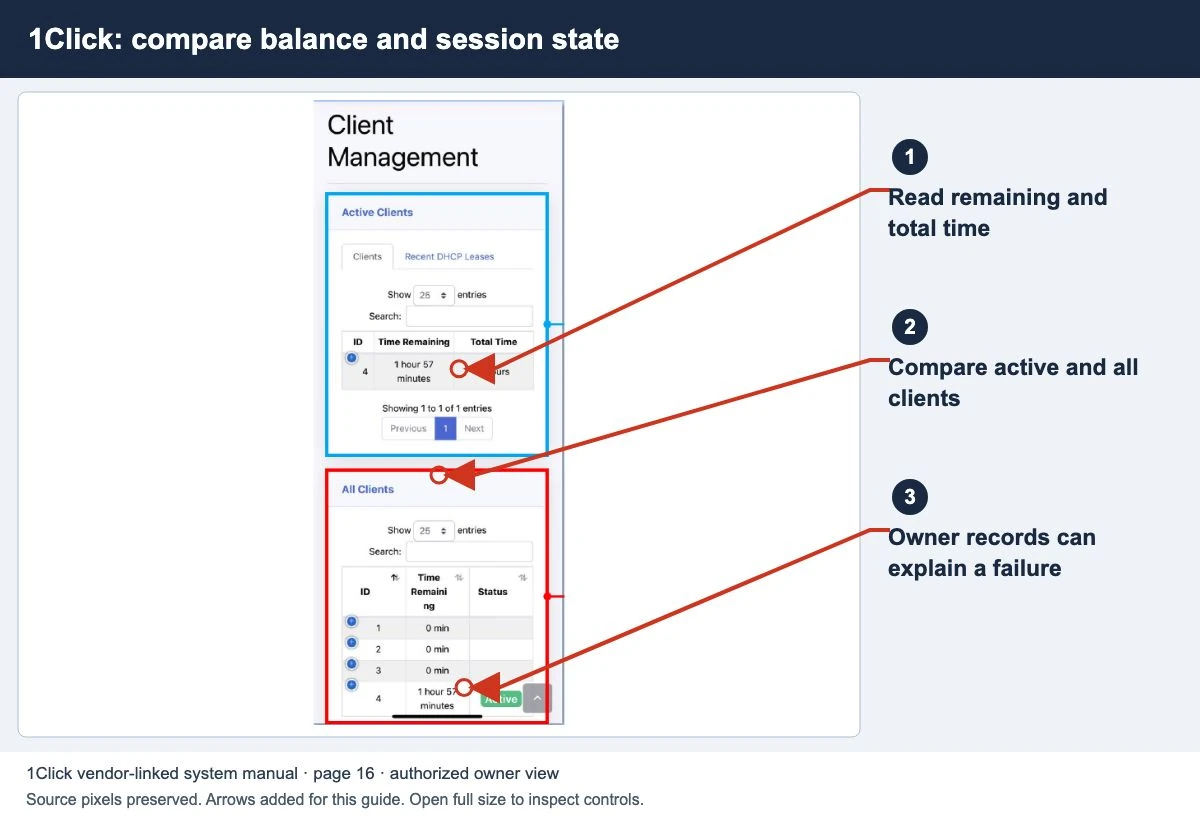
- Compare session records with the reported interruption time.
- Distinguish a planned expiry or allowance limit from a dropped network connection.
- Check access-point coverage and whether the problem follows one physical location.
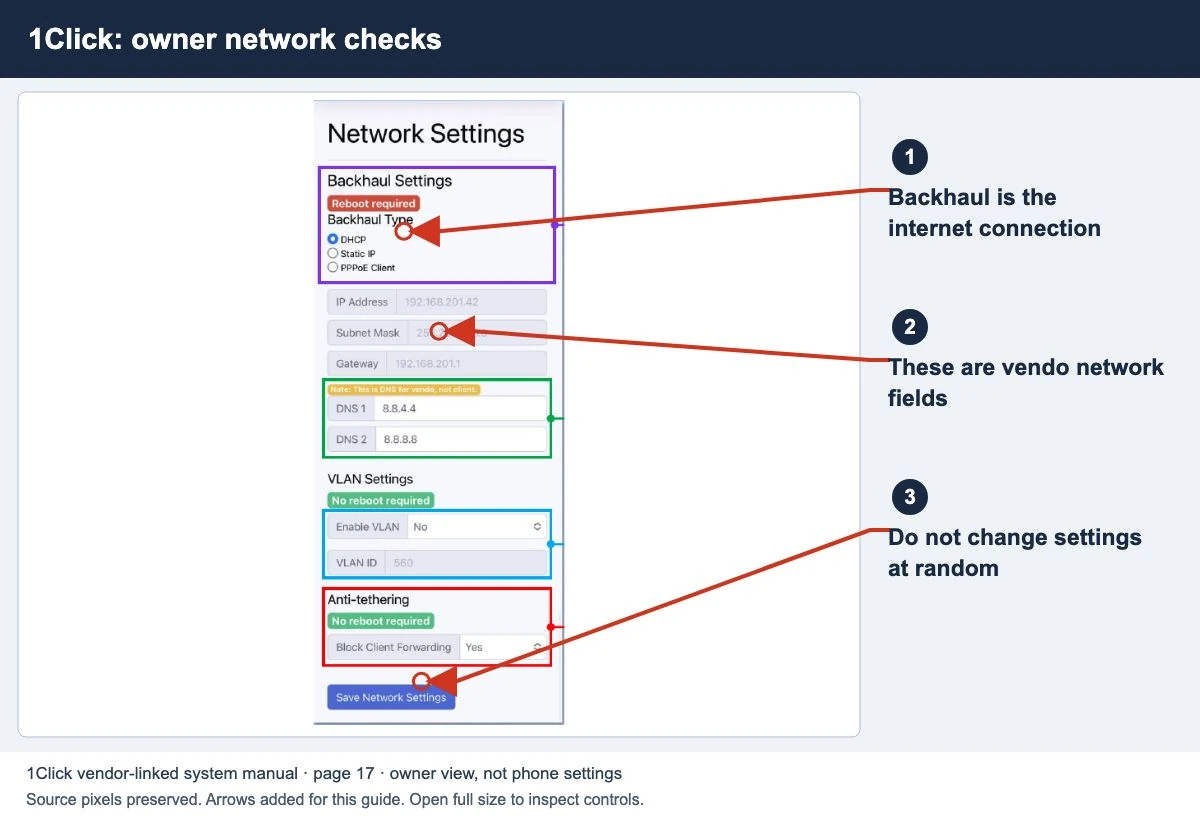
- Check the internet connection and machine status when several customers are affected.
- Change one relevant setting through the supported documentation, then test the same observed pattern.
Do not promise that changing a rate, rebooting or adding credit will resolve an unidentified fault. Keep the original incident and any credit adjustment recorded.
The publisher cannot monitor local signal quality or see router logs. Report a website instruction error through Contact Us; ask the operator about service and payment issues.
For owners adding coverage, use the access-point and range-extension checklist. Test the paid session after changing the network, not only the signal bars.
Repeat the same test before changing a setting
Choose the place where the problem occurs. On the same paid device, note the selected WiFi, signal, portal state and time. Try a short browsing session close to the access point, then repeat it at that place. Keep the device and test the same so the comparison is useful.
- Fails only at the farther location: report the location and signal pattern. The owner should check coverage there before buying a larger internet plan.
- Fails after moving between access points: record the starting point, destination and whether the portal asks you to sign in again. Signal coverage and session recognition need separate checks.
- Fails while you stay in one place: compare whether WiFi itself disconnected or the paid session changed state. Note whether nearby customers lost service too.
Keep an incident record you can compare
Write down: time, location, device, selected network, portal status, remaining allowance, affected app or website, and whether another customer had the same problem. Do not include full voucher codes or passwords.
After a documented owner change, repeat the original test and record the outcome. If it still fails, keep both results rather than making several unrelated changes. The coverage guide explains what to retest when an access point is added.
Common questions
Will pausing solve weak signal?
Pause is a session control. It does not improve the radio connection.
Did closing the browser disconnect my WiFi?
Check the device’s selected network and the portal state. A closed tab alone does not establish either WiFi status or a confirmed pause.
Should I use another phone?
A comparison can help the operator, but do not assume your paid credit transfers to the other device.
Screens to help you check the right thing
Real source screenshots and project diagrams, with arrows added for this guide. Interface values are preserved. These are labelled examples, not a test of your local machine. Open an image full size to inspect its controls.
Watch the matching portal example
A genuine vendor or vendor-linked tutorial. It demonstrates one platform and version; follow your operator’s actual portal and rates.
Sources and limits
Guide updated on 13 November 2026. This independent guide uses published platform documentation. We have not tested your local machine or every software version. Images marked as examples are illustrations. Captured screenshots show the source listed in the caption.
Found a website error? Send a correction to the publisher. For paid time or machine access, contact the local operator.