
Platform guide · Updated
PisoFi Piso WiFi: customer portal and owner checks
Published by Piso WiFi Pause · How we check guides
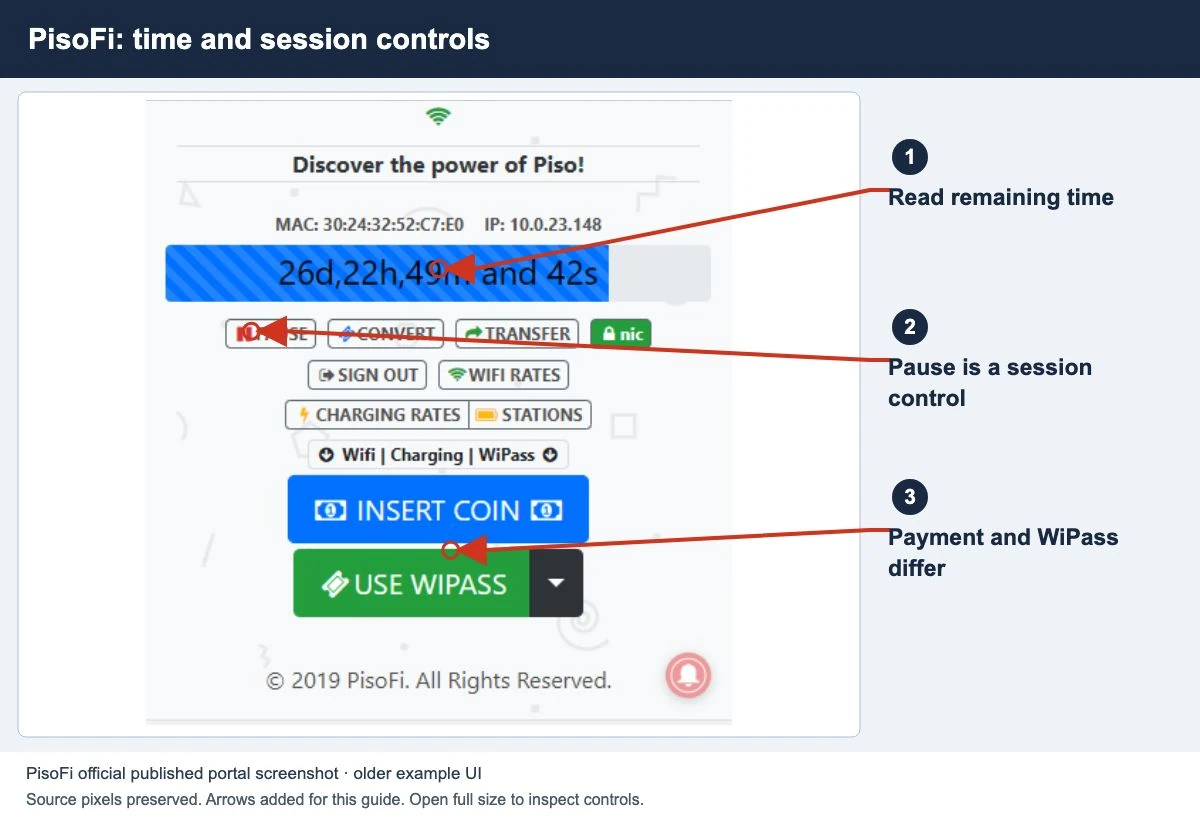
Join the operator’s WiFi and open the customer portal address supplied for that machine. Read the active time or data session before paying or selecting Pause. PisoFi publishes configurable pause, transfer and Wipass features, so the options on your installation depend on its version and owner settings.
New to coin-operated WiFi? Start with how Piso WiFi and pause time work, then check the PisoFi options below.
Open the PisoFi customer portal
- Check the network name on the vendo or with the operator. A nearby hotspot may be a different installation.
- Open the address posted for that machine. Use 10.0.0.1 only if it matches the actual gateway; see how to find the correct portal.
- Read the displayed rates, payment options and validity before starting a purchase.
- After payment or voucher activation, confirm the new balance and session status. Do not treat a closed payment window as proof that the session started.
The customer portal and the owner dashboard serve different purposes. You do not need an operator’s password to follow this guide.
Pause, validity and transfer are separate controls
PisoFi’s feature list describes configurable pause eligibility, pause validity and automatic behavior when a device connects or disconnects. It also describes time transfer and configurable portal buttons. Those are available capabilities, not proof that every machine enables them.
If Pause is available, select it once and wait for a clear paused status. Note the credit and validity before leaving. If the control is missing or disabled, use the Pause button checklist and ask the operator which rule applies.
Do not assume that transfer, another phone or a reboot will preserve your credit. Ask which supported recovery process applies to the local installation. See credit versus expiry if minutes remain but access has ended.
Wipass and voucher checks
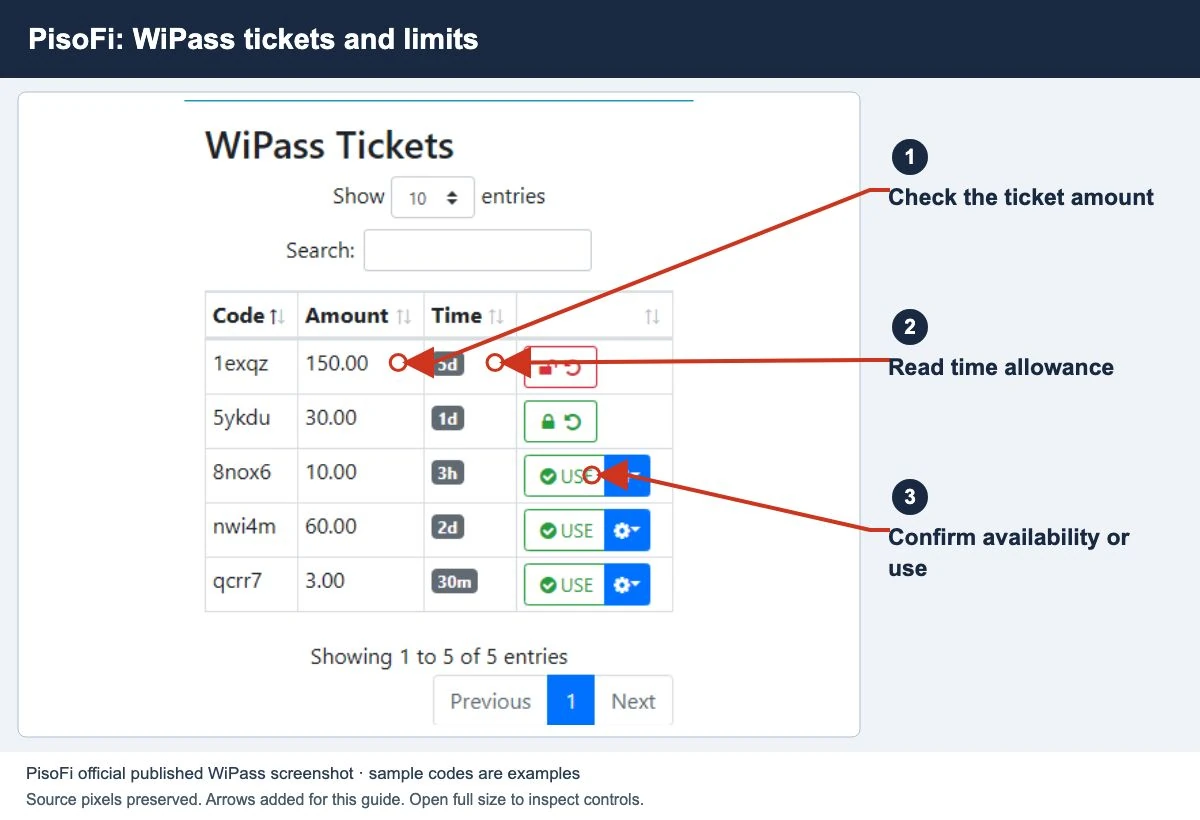
The vendor lists separate WiFi and desktop vouchers, configurable time and speed, and secured or unsecured voucher options. Confirm that the code you received is intended for the service you are using.
- Enter the code exactly as issued and use a password only when the portal requests one.
- Check the displayed validity and whether the voucher has already been activated.
- Keep the code private while the operator investigates a rejection.
- Ask before assuming that a WiFi voucher also works on a desktop session.
For a rejection, follow the voucher troubleshooting guide. For coins that never produced credit, use the missing payment checks.
Checklist for an authorized PisoFi owner
The published feature list dates from 2019 and may not match your installed interface. Identify the release and hardware first, then use the current vendor instructions for it.
- Record the existing plan, pause and session rules before changing them.
- Check the affected customer’s session type and balance.
- Review the relevant portal button, eligibility and validity controls.
- For vouchers, verify the intended service and assigned limits.
- Test the complete customer flow after saving a documented change. Record what changed and whether the reported symptom disappeared.
Do not import an unrelated configuration or reset the machine simply because one customer cannot pause.
Pause, transfer and WiPass solve different tasks
The vendor’s dated feature list describes these controls separately. Use this distinction when you explain a problem to the owner:
- Pause: holds an eligible session under the configured pause rules. Check the status and pause validity before leaving.
- Live transfer: moves time between users or devices when the installation supports and enables it. Seeing Transfer on an example screenshot does not confirm that your payment can move.
- Convert to WiPass: is a separate conversion of remaining time into a voucher, subject to the owner’s controls and minimum. It is not the same action as pausing.
- Redeem WiPass: applies an issued voucher. Check whether it is for WiFi or desktop use and whether a password is required.
Do not select a conversion or transfer control merely to stop the timer. For a normal break, use Pause only when offered and confirmed. If you need another device, ask the owner which supported route preserves the credit before leaving the original session.
Owners should test these as separate customer actions and explain which are offered on the machine. This guide’s source is the vendor’s 2019 feature list, so the control names and layout must still be checked against the installed release.
Common questions
Is PisoFi the same as LPB or AdoPiSoft?
No. Use the instructions for the software actually installed rather than copying another platform’s menu names.
Can this site transfer my time?
No. Only the local system and authorized operator can provide supported session actions.
Does PisoFi guarantee a fixed number of minutes per peso?
No rate is established by this guide. Check the local price and plan before paying.
Screens to help you check the right thing
Real source screenshots and project diagrams, with arrows added for this guide. Interface values are preserved. These are labelled examples, not a test of your local machine. Open an image full size to inspect its controls.
Sources and limits
Guide updated on 13 November 2026. This independent guide uses published platform documentation. We have not tested your local machine or every software version. Images marked as examples are illustrations. Captured screenshots show the source listed in the caption.
Found a website error? Send a correction to the publisher. For paid time or machine access, contact the local operator.