
Practical owner and customer guides · Updated
Piso WiFi app or browser: which one do you need?
Published by Piso WiFi Pause · How we check guides
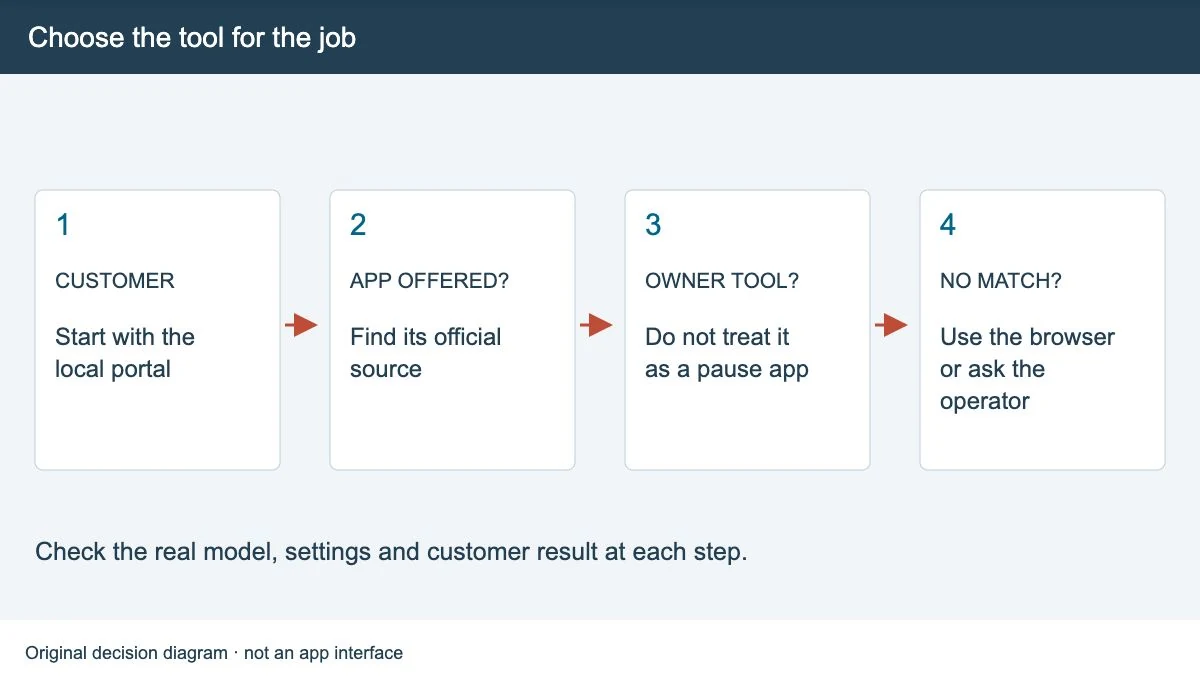
Start with the customer portal supplied by your vendo operator. You do not need to install an app just to try that page. If the operator recommends an app, check its link on the platform’s own website and confirm whether it is for customers or owners.
A portal, a customer app and an owner app do different jobs
| Option | What to check |
|---|---|
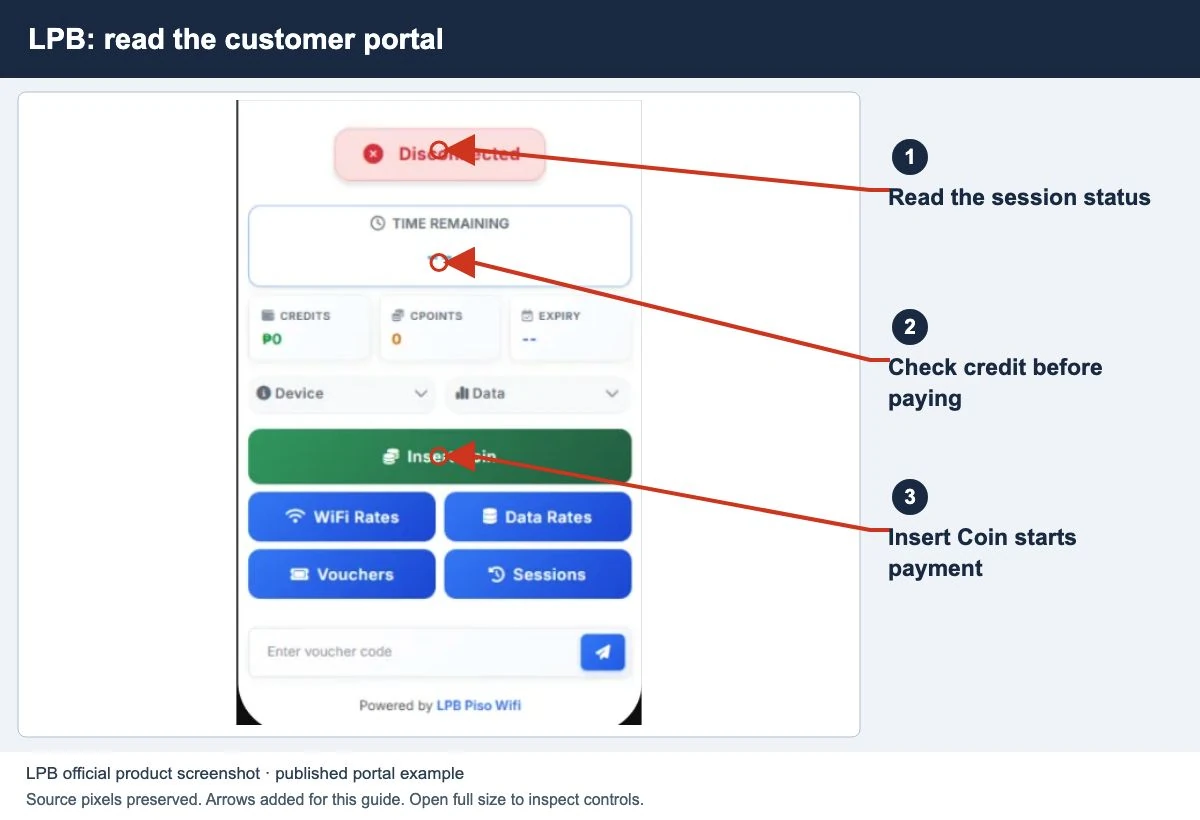
| Browser portal | The local page where your operator shows payment, credit and available session controls. |
| Customer app | An app the actual provider supports for customer sessions. Check the exact product and release. |
| Owner management app | A tool for monitoring or managing a machine. Its presence does not give customers a Pause button. |
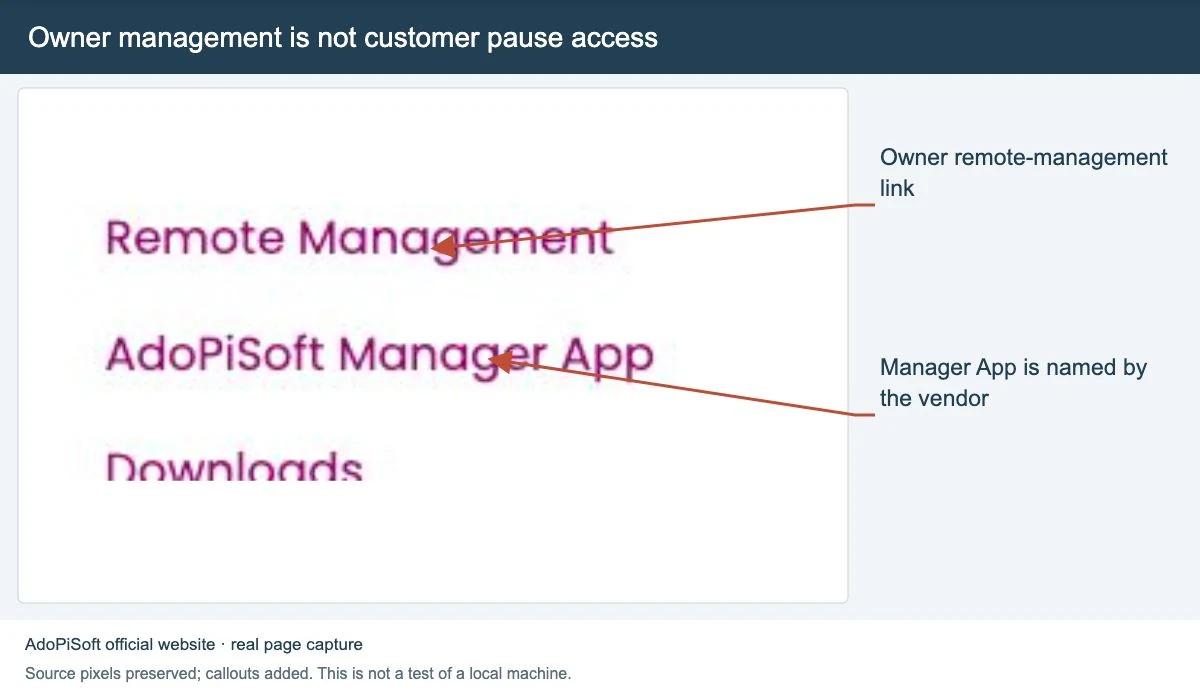
AdoPiSoft’s website, for example, links an AdoPiSoft Manager App alongside its remote-management service. That is an owner-management example, not evidence that every paying customer should install it. The site’s link does not guarantee that a store listing is available in your region today.
Try the browser first
- Join the WiFi network shown on the machine or confirmed by the operator.
- Open the network sign-in notice if one appears. Otherwise open the portal address supplied for that machine in your browser.
- Confirm that you reached the customer portal before entering a voucher or paying.
- Read the balance and session status. Only use Pause if your plan offers it.
The Piso WiFi login guide covers the sign-in flow. If the address does not load, use portal-not-opening checks instead of downloading another app.
On iPhone or iPad, Apple documents a Join Network option beside a captive WiFi network. A sign-in window is part of joining that network; it is not proof that you installed a separate Piso WiFi app.
Check a download before installing it
- Identify the software on your machine. A WiFi network name alone may be a shop label.
- Find the app link on the provider’s official website or ask the authorized installer for it.
- Check the developer, supported product, recent updates and permissions. Read what the app actually does.
- If the official link is broken or the provider does not confirm the app, use the browser or ask for support.
Do not assume a matching logo, high rating or the words “10.0.0.1” prove ownership. This guide does not host APK files or promise that an app can unlock paid time.
Save the right portal for next time
Once the operator’s portal works, bookmark that exact address in your browser. On devices that offer it, you can also add a browser shortcut to the home screen. A shortcut opens a page; it does not add new payment or pause features.
Return while connected to the correct network. A public article or saved shortcut cannot see your local balance from another internet connection. For the session steps, read how to pause and resume your time.
If an app cannot find your session
Check the selected WiFi network, the app’s supported platform and the instructions for its version. Only change permissions the provider documents for that app. There is no single permission list that applies to every product.
Compare with the browser portal on the same device. If the browser shows active credit but the app does not, send the operator the app version and exact message. If neither works, start with the network and portal checks.
A missing Pause button can be an owner setting or a plan rule. Installing another app does not change it. Use the missing Pause button guide for those checks.
Quick questions
Is there one official Piso WiFi app for all machines?
No single app is established by the sources here. Match any app to the actual provider and machine.
Will an app give me free time or a voucher?
Not unless the real operator offers that benefit. A download cannot replace a valid purchase or change the operator’s session records.
Screens to help you check the right thing
Real source screenshots and project diagrams, with arrows added for this guide. Interface values are preserved. These are labelled examples, not a test of your local machine. Open an image full size to inspect its controls.
Sources and limits
Guide updated on 12 November 2026. This independent guide uses published platform documentation. We have not tested your local machine or every software version. Images marked as examples are illustrations. Captured screenshots show the source listed in the caption.
- Apple captive WiFi instructions
- AdoPiSoft official site and Manager App link
- JuanFi project and manager information
Found a website error? Send a correction to the publisher. For paid time or machine access, contact the local operator.