
Customer help · Updated
Piso WiFi connected but no internet
Published by Piso WiFi Pause · How we check guides
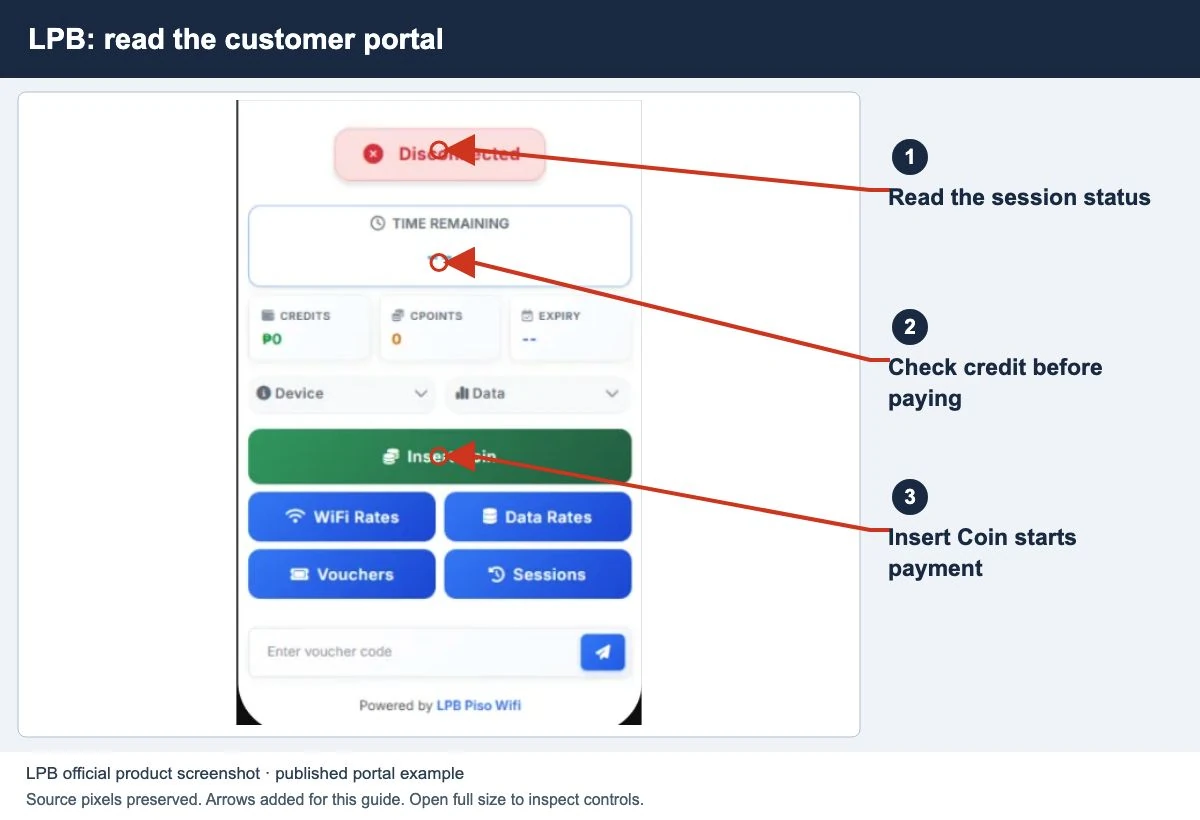
A WiFi connection only confirms that your device joined the local network. Open the customer portal and check whether your paid session is active, paused, expired or out of data. If you still have valid credit, check whether the problem affects one device, one app or other customers too.
The Piso WiFi session status guide helps you read the timer before checking the connection.
Check your session first
Stay on the operator’s WiFi and open its customer portal. If the portal itself will not open, use the gateway checks before treating this as an internet outage.
- No credit appeared: investigate the payment.
- Paused: check validity and use the offered Resume control when you want access.
- Expired or exhausted: ask which limit ended access. Do not assume remaining minutes also mean remaining data.
- Active credit: continue with the scope checks below.
AdoPiSoft documents combined time-and-data plans where either allowance can end internet access. Check both time and data. Ask the operator which rules apply to your plan.
Find out how much is affected
| Observation | Next check |
|---|---|
| One app fails but websites load | Check that service’s status and settings. Do not conclude the entire vendo is offline. |
| One device fails; others work | Check the affected device and its session with the operator. |
| Several customers fail with active sessions | Ask the operator to check the machine and internet connection. |
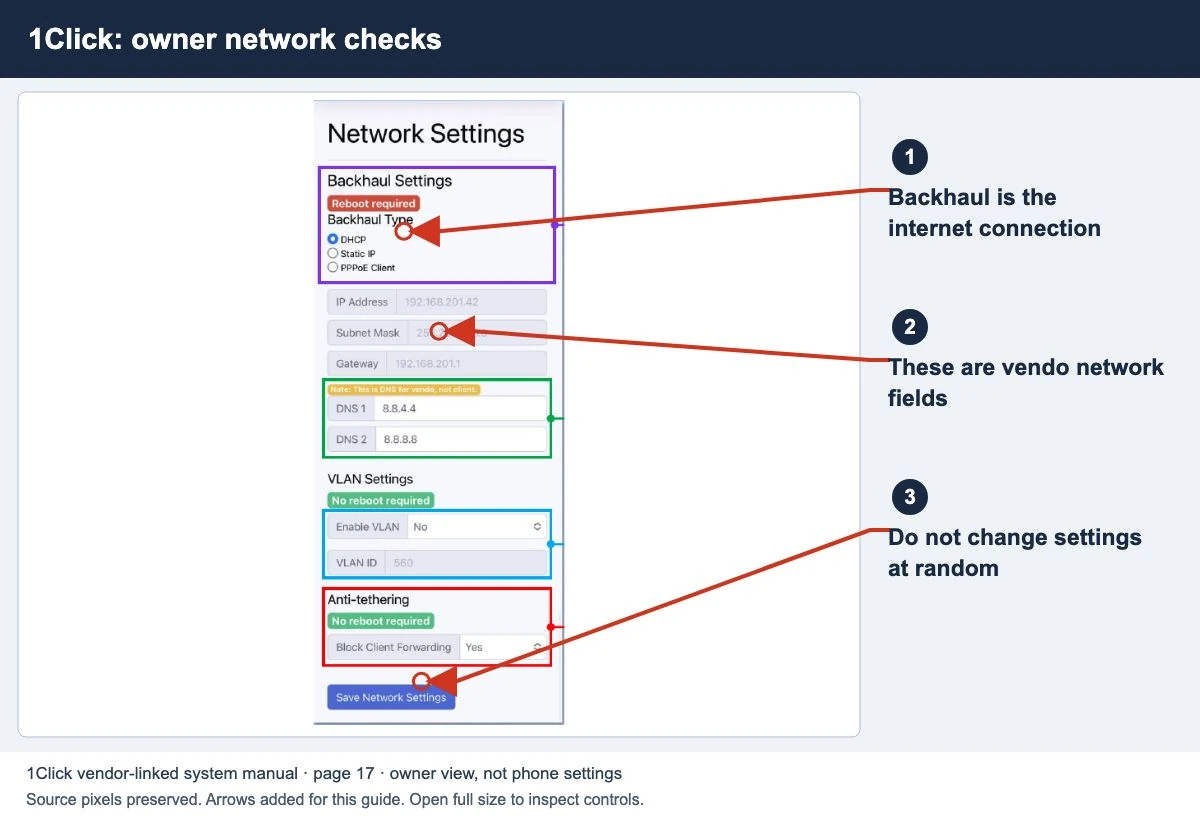
| Portal opens, external sites do not | Local access works; whether the session has internet access and upstream access still need checking. |
If your phone has mobile data enabled, confirm which connection is serving a successful test. Mobile data may load the page even when Piso WiFi is not working.
Checks that preserve the paid session
Move closer to the access point and check the selected network. Reload the portal once. Note any exact error and whether the balance continues to decrease.
Check whether a VPN, filtering app or managed-device policy prevents local portal access or the affected service. Follow its own documentation or administrator guidance; do not remove security settings as a general fix.
Keep the original device, browser and network details while the incident is investigated. Clearing browser data, changing your device address or paying again can make the problem harder to trace.
If access repeatedly drops and returns, use the disconnection checklist.
What the operator needs
Give the machine identity, approximate time, device type, portal status, remaining time/data and whether other customers are affected. Keep payment or voucher references private.
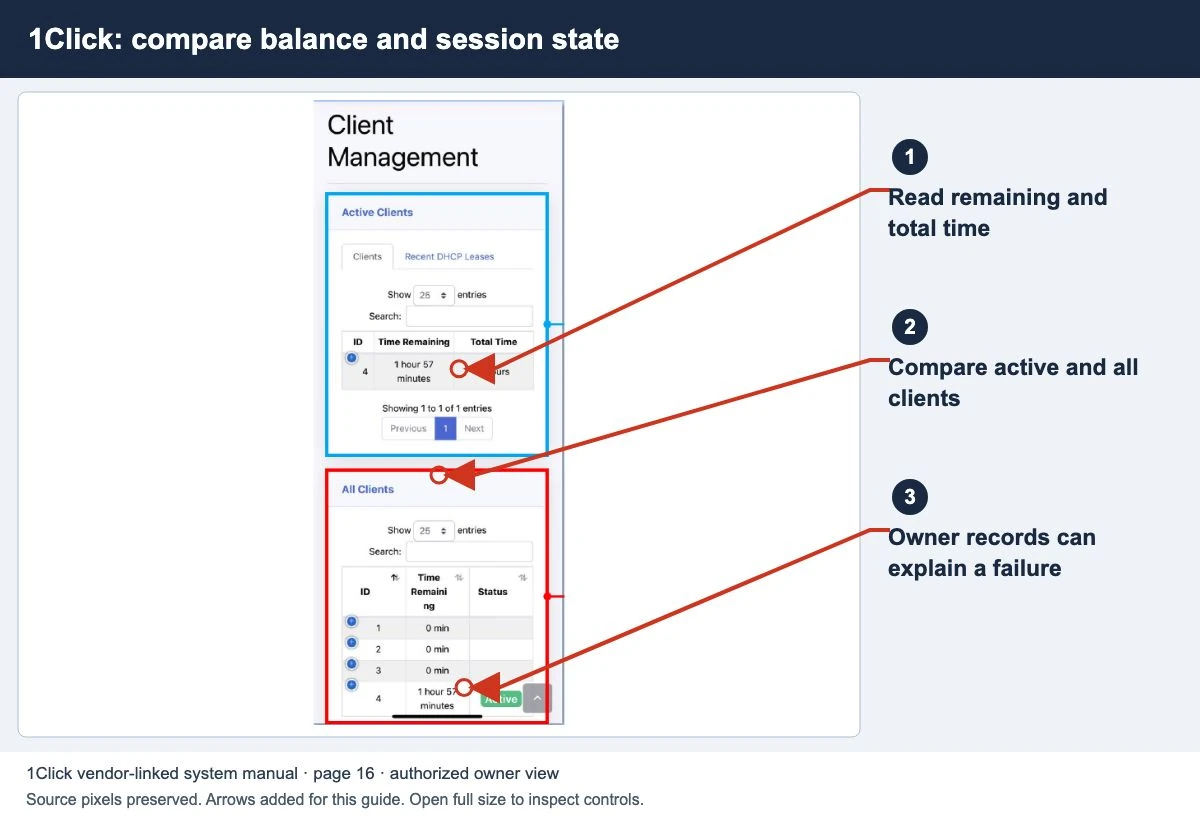
The operator can compare whether the session has internet access, machine status and the internet service. Ask how paid time is handled during the incident. Do not assume automatic pause is enabled merely because a platform supports it.
This publisher cannot inspect a local machine’s records, confirm a fault at your internet provider or adjust your balance.
Use this short test to narrow the fault
- Note the portal status and remaining time or data. Keep that record before you change anything.
- While on the same WiFi, open one ordinary website in your browser. If it works but a game or messaging app fails, record the affected service instead of reporting a total outage.
- If the site fails, reopen the local portal. A working portal shows that this local service is reachable; it does not prove that the paid session has internet access.
- Ask another customer to test from their own active session. Compare results without sharing vouchers or moving your payment to their device.
Two results that point to different checks
Example, not a field-test result: your portal shows active time, but neither you nor another paid customer can open a website. Ask the operator to compare the machine’s internet status and upstream connection at that time.
If the other customer can browse and you cannot, the next check is your device and session record. If yours says Paused or Expired, resolve that state first. A WiFi icon or remaining minutes alone cannot distinguish these faults.
Tell the operator what worked, what failed and when. Ask how they will handle paid time affected by the incident; credit adjustments depend on their records and policy.
Common questions
Should I buy more time to fix the connection?
First check whether valid credit already exists. More credit does not diagnose an outage.
Does the WiFi icon prove internet access works?
No. Joining the access point and reaching the internet are different checks.
Can the portal be available during an internet service fault?
Local portal access and external internet access can differ. Report both observations to the operator.
Screens to help you check the right thing
Real source screenshots and project diagrams, with arrows added for this guide. Interface values are preserved. These are labelled examples, not a test of your local machine. Open an image full size to inspect its controls.
Watch the matching portal example
A genuine vendor or vendor-linked tutorial. It demonstrates one platform and version; follow your operator’s actual portal and rates.
Sources and limits
Guide updated on 13 November 2026. This independent guide uses published platform documentation. We have not tested your local machine or every software version. Images marked as examples are illustrations. Captured screenshots show the source listed in the caption.
Found a website error? Send a correction to the publisher. For paid time or machine access, contact the local operator.