
Customer help · Updated
Piso WiFi login: open the customer portal
Published by Piso WiFi Pause · How we check guides
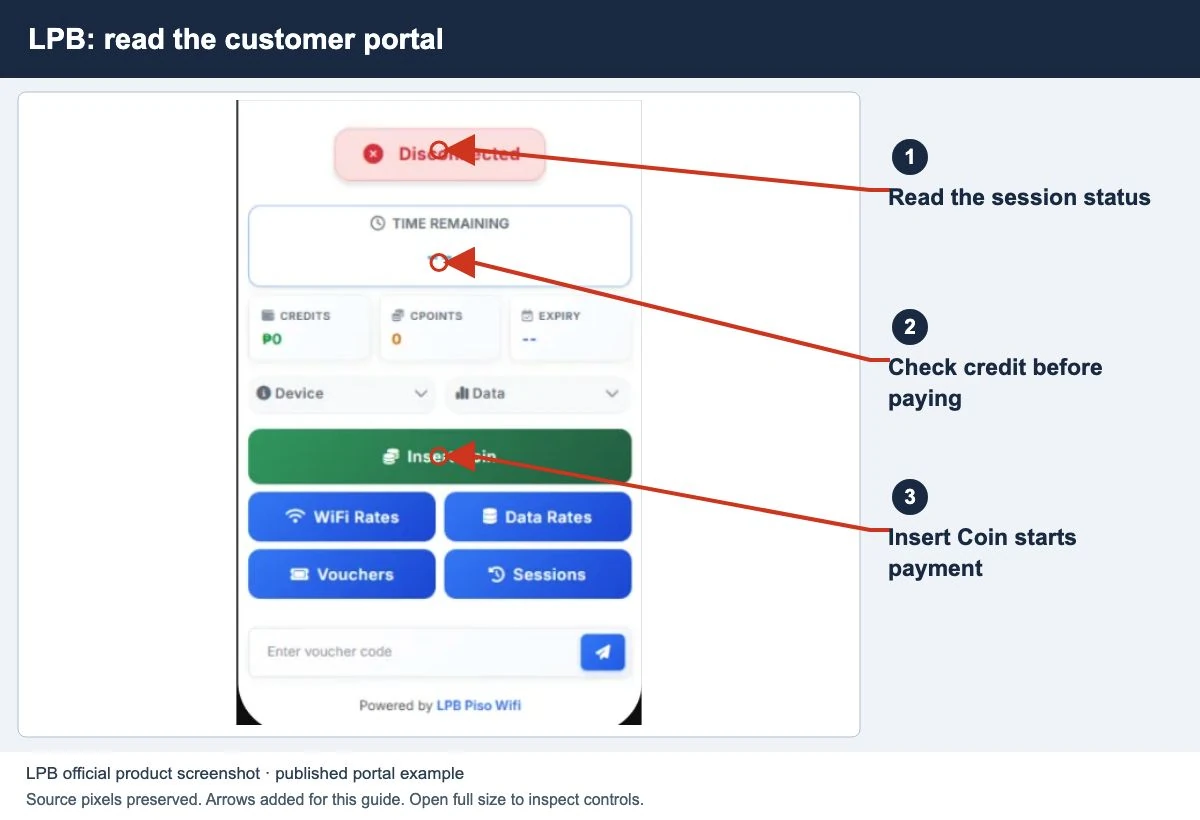
Connect to the operator’s WiFi, open the gateway supplied for that network, and follow its customer payment or voucher instructions. Check the balance and active-session status before browsing. The customer portal is different from an owner’s admin dashboard.
Once the portal shows your paid time, follow our guide to pausing and resuming Piso WiFi if your plan allows it.
Log in from the network you intend to use
- Check the WiFi name. Read the vendo label or ask the operator. Choose that network in your device’s WiFi settings.
- Open its portal. Use the sign-in screen when one appears. Otherwise open a browser and type the supplied gateway into the address bar. Use
http://10.0.0.1only when that is the correct address. - Read the offer. Check price, credit type, validity and available payment methods before spending.
- Complete one payment or voucher flow. Follow the instructions displayed by that installation. Keep the original device connected while it processes.
- Confirm the result. Look for credited time or data and an active session. Then try the internet service you wanted to use.
This website explains the process; it is not the local login server and cannot activate paid time on your behalf.
Do you need customer access or owner access?
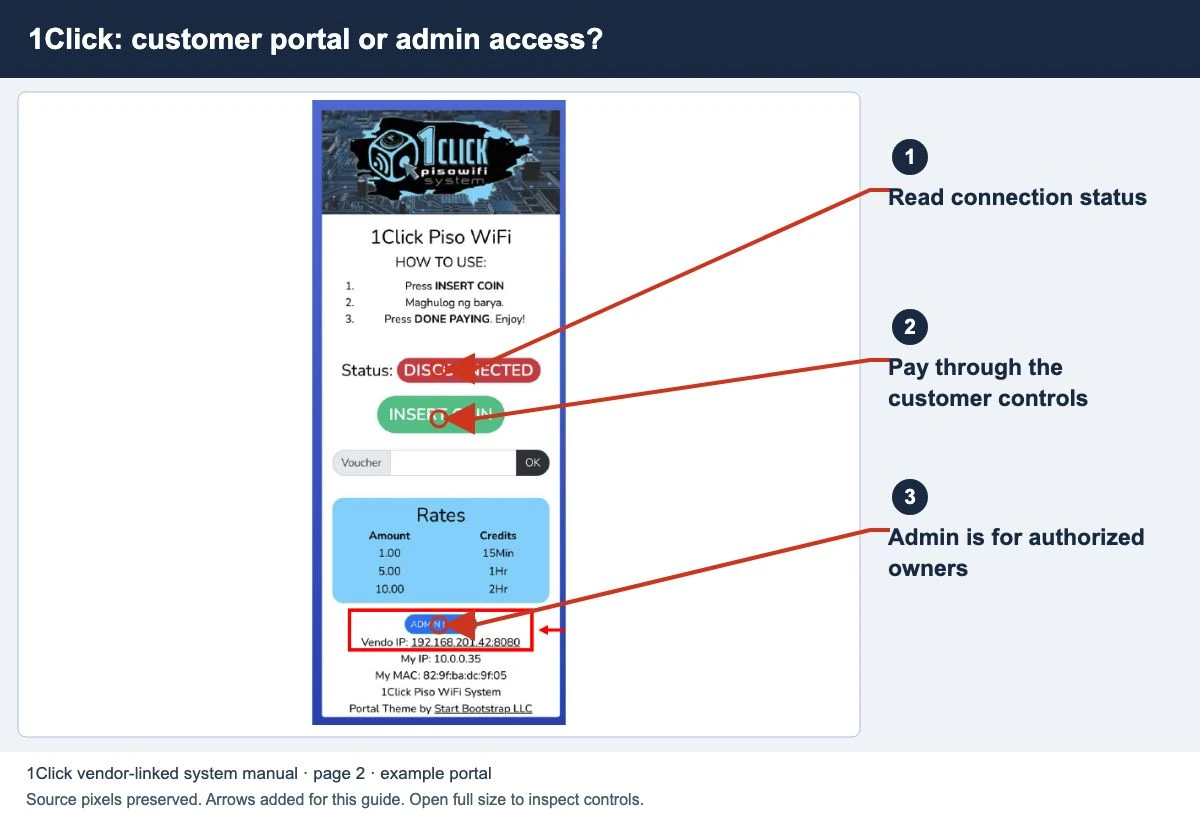
A customer normally needs the network’s payment, voucher or account flow. An owner dashboard controls the installation. Do not enter an operator’s credentials simply to view your remaining minutes.
If you manage the machine, read the authorized-admin checklist. If you only want to pause an active session, use the pause and resume guide.
When the small sign-in window does not appear
On an iPhone or iPad, Apple documents captive-network sign-in from WiFi settings. You can return to that network’s details and check for its join action. On other devices, start with the selected WiFi connection and the operator’s confirmed address.
A Windows user can view the connection’s Default Gateway through ipconfig. Android and other device menus vary; the gateway guide explains what to check without guessing multiple addresses.
If a security warning appears, confirm the intended local address and protocol with the operator before entering credentials. Do not install a random app to bypass the login screen.
Reopen the portal on your device
- On iPhone or iPad, open WiFi settings, select the network details and look for Join Network. Apple documents this captive-network action.
- On Android or Samsung, select the correct WiFi network and use its sign-in notice if it appears. Menu labels vary by device. Otherwise open the operator’s confirmed portal address in your browser.
- On a laptop, keep the same WiFi selected. Open the confirmed gateway in the address bar, not a search box. Windows users can check Default Gateway with ipconfig.
Once it works, bookmark the address. A bookmark does not replace joining the correct WiFi. For downloads and shortcuts, see app versus browser access.
Pause, disconnect and log out are different
Before you leave, read the session state and remaining allowance. Use Pause only if the portal offers it and confirms the change. Turning WiFi off or closing the tab does not confirm a pause.
If the portal has Log out, ask the operator whether that action ends access, releases the device or affects saved credit. This varies by plan and software. Do not use logout as a substitute for Pause without checking.
What does the portal show now?
- Amount paid, no credit: use the missing-payment guide.
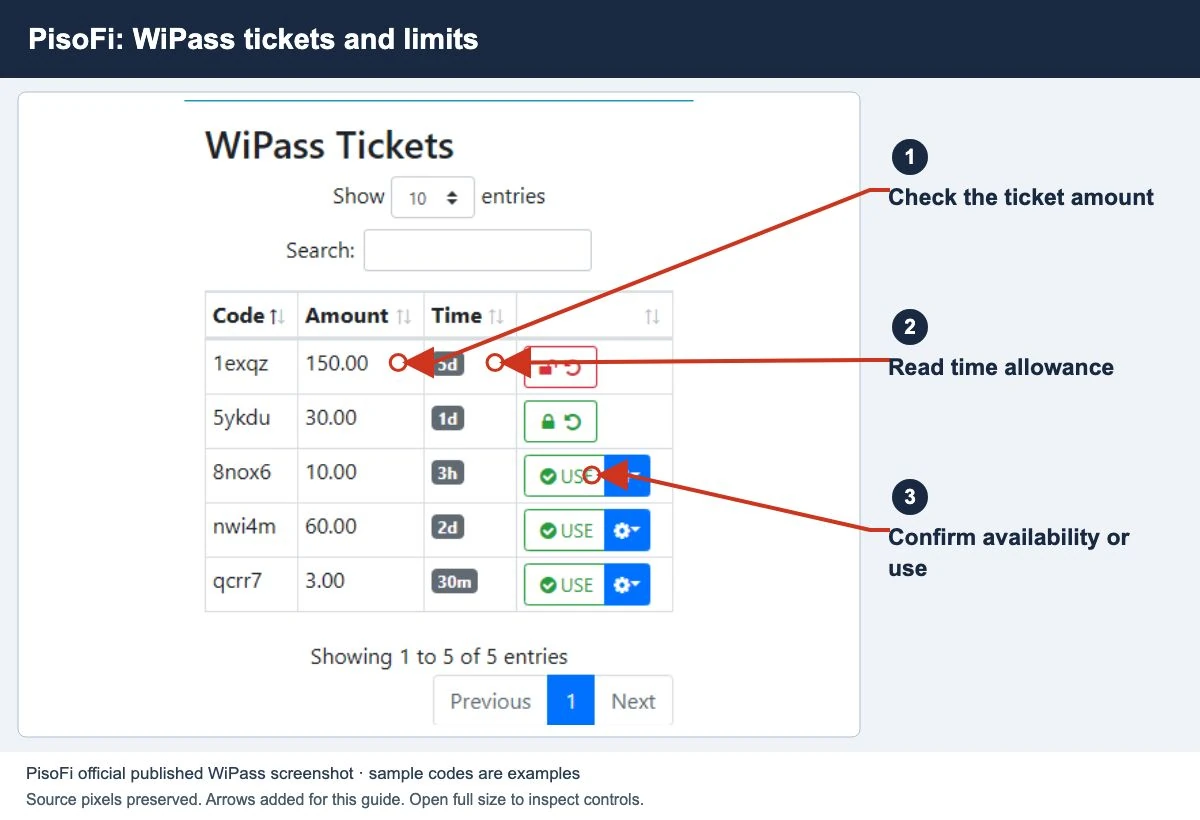
- Voucher rejected: check voucher validity and scope.
- Active credit, no internet: use the connection diagnosis.
- Paused: read the remaining balance and validity before selecting Resume.
- Expired: ask the operator which limit ended the session before paying again.
Keep voucher references and payment details private. They can help the operator match the record, but posting them publicly can expose your access.
Open Piso WiFi on iPhone or iPad
- Open Settings, then Wi-Fi. Join the network named on the machine.
- If a login window appears, read the operator’s instructions. If it does not appear, tap the information button beside the network, then tap Join Network if offered.
- Still no login page? Check the Router address in that network’s details. Open the operator’s confirmed customer portal in Safari.
- Check the session balance before another payment. Use the same device that received the credit.
Keep Auto-Join enabled if you want the phone to reconnect to this network. Auto-Login is a separate captive-network setting; neither option means paid time has been paused. Follow the pause and resume steps and wait for the portal to confirm the change.
Private Wi-Fi Address and missing paid time
Apple uses a private WiFi address to reduce tracking. Keep that privacy feature enabled on networks that support it. Do not switch its mode to try to recover credit.
If the network stops recognizing your paid session after an address change, tell the operator which device and payment are involved. Whether credit is tied to an address depends on the installed platform. The operator must check the session record; this website cannot move the credit.
Common questions
Why does Google show guides instead of my portal?
A local gateway belongs in the browser address bar while connected to the correct network. A search result does not connect you to a shop’s machine.
Is 10.0.0.0.1 the same address?
No. It has five parts. Check whether the supplied address is 10.0.0.1, and confirm the actual gateway if it still does not open.
Does every portal require a username?
No single login form applies to all machines. Follow the payment, voucher or account controls shown locally.
Screens to help you check the right thing
Real source screenshots and project diagrams, with arrows added for this guide. Interface values are preserved. These are labelled examples, not a test of your local machine. Open an image full size to inspect its controls.
Watch the matching portal example
A genuine vendor or vendor-linked tutorial. It demonstrates one platform and version; follow your operator’s actual portal and rates.
Sources and limits
Guide updated on 13 November 2026. This independent guide uses published platform documentation. We have not tested your local machine or every software version. Images marked as examples are illustrations. Captured screenshots show the source listed in the caption.
Found a website error? Send a correction to the publisher. For paid time or machine access, contact the local operator.