
Owner guide · Updated
Piso WiFi admin access for authorized owners
Published by Piso WiFi Pause · How we check guides
Identify the installed platform and use the management address and account supplied for that machine. The customer gateway is not proof of a universal /admin path or password. If access is lost, use the vendor or supplier’s documented recovery process before considering a reset.
For the wider setup checklist, see Piso WiFi help for machine owners. The steps below focus on admin access.
Identify what you manage
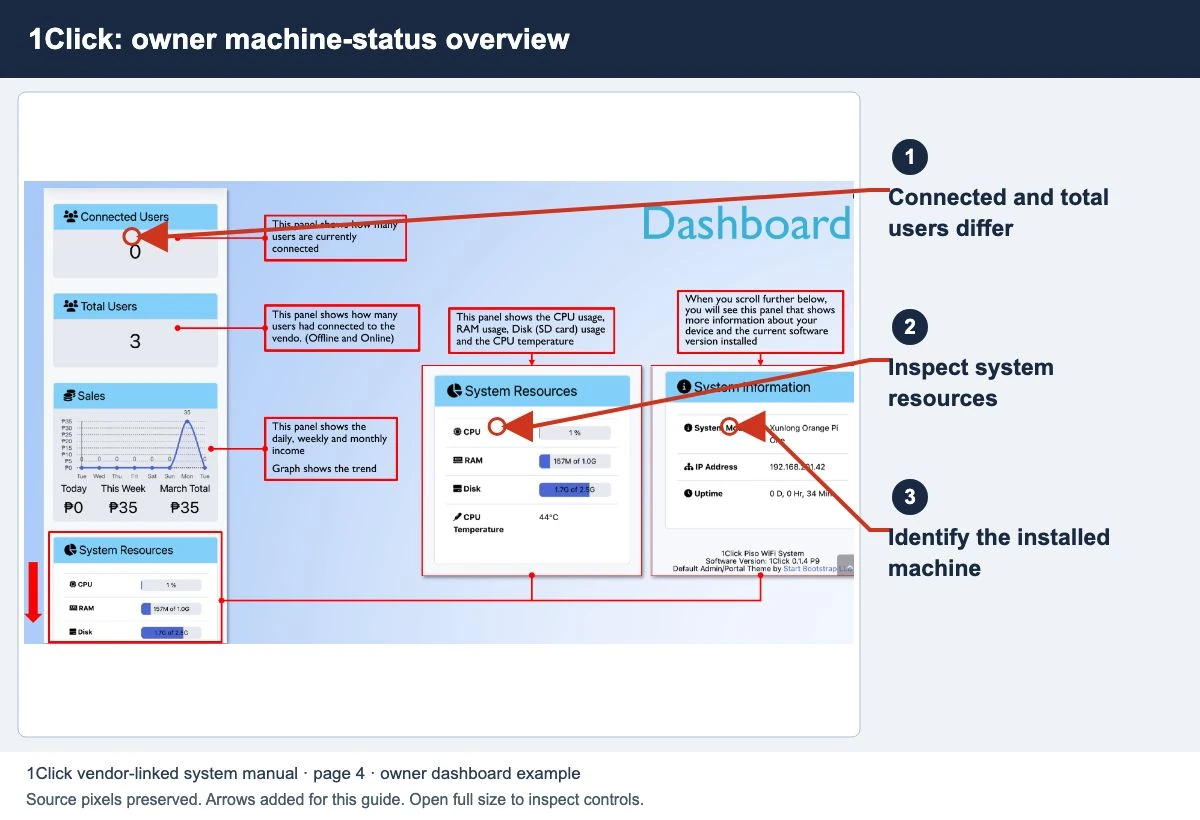
Record the machine label, installed platform, hardware and software version from your handover notes or supplier. The same enclosure can contain different software, and a screenshot from another shop does not identify yours.
Our platform guides explain the documented scope of LPB, AdoPiSoft, PisoFi and JuanFi. For JuanFi, distinguish the controller from MikroTik management as well as the customer Hotspot portal.
Check the route to the dashboard
- Use the owner’s management connection and address from the actual setup records.
- Confirm which interface opened before entering an admin account.
- Use your assigned account. Avoid credentials copied from unrelated default-password lists.
- If the page does not load, distinguish a network/address issue from a rejected login. Ask the supplier which connection is required.
- If the account is rejected, note the error and check the authorized recovery route rather than trying repeated guesses.
Customers looking for paid time should use the customer login guide. This public website is not a remote management service for local vendos.
When you have lost access
Look for the original handover record, supplier support and vendor documentation matching the installed release. Ask what proof of ownership and recovery steps are required.
Before a reset is proposed, establish what it erases, whether a usable backup exists, how to restore network and payment settings, and how current customers will be affected. A reset is not a substitute for identifying the system.
Do not expose the dashboard to the public internet just to make recovery convenient. Use only the management method supported and secured for that installation.
Need to choose a recovery step? The Piso WiFi reset guide separates account recovery, restarting and a planned factory reset.
Verify configuration changes from a customer’s view
- Record the existing value and the problem you intend to fix.
- Back up through the supported tool before making a consequential change.
- Change one relevant setting and save it using the matching documentation.
- Test an ordinary customer session: payment registration, credited balance and available controls.
- Confirm that the expected behavior changed and keep a short change record.
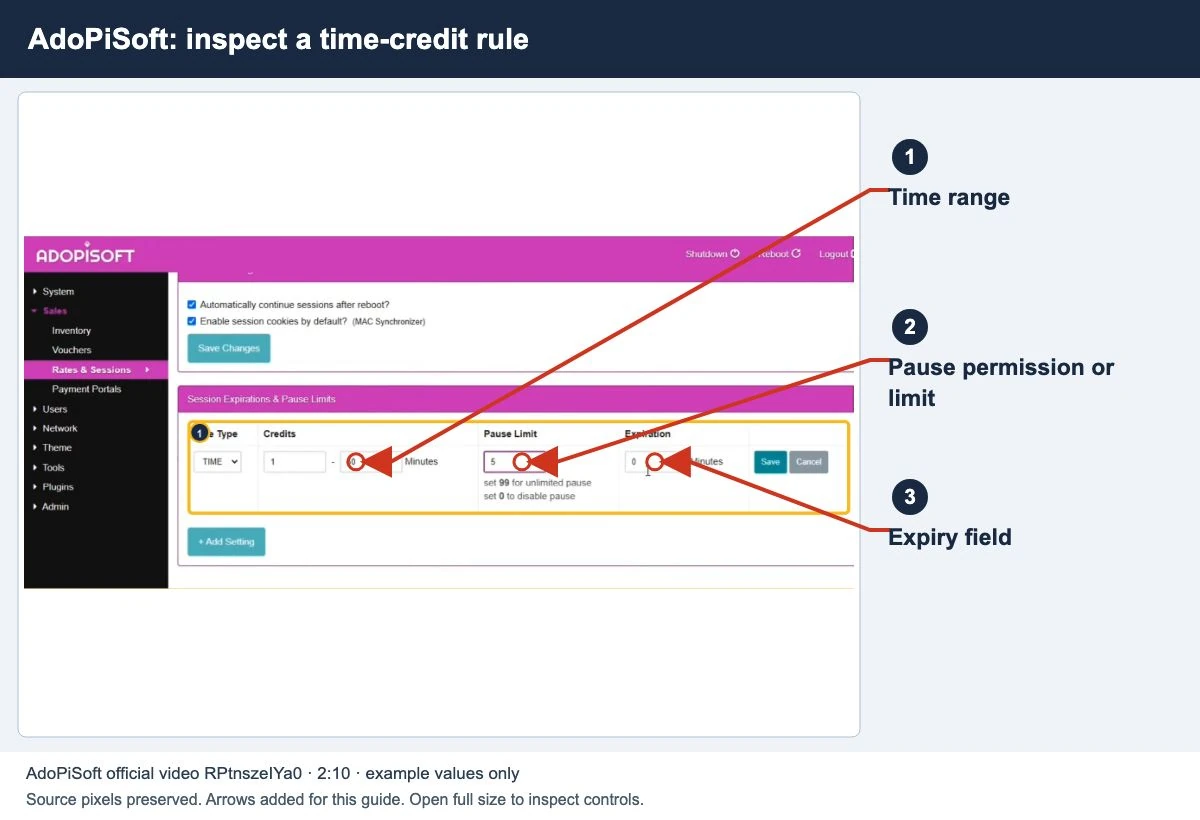
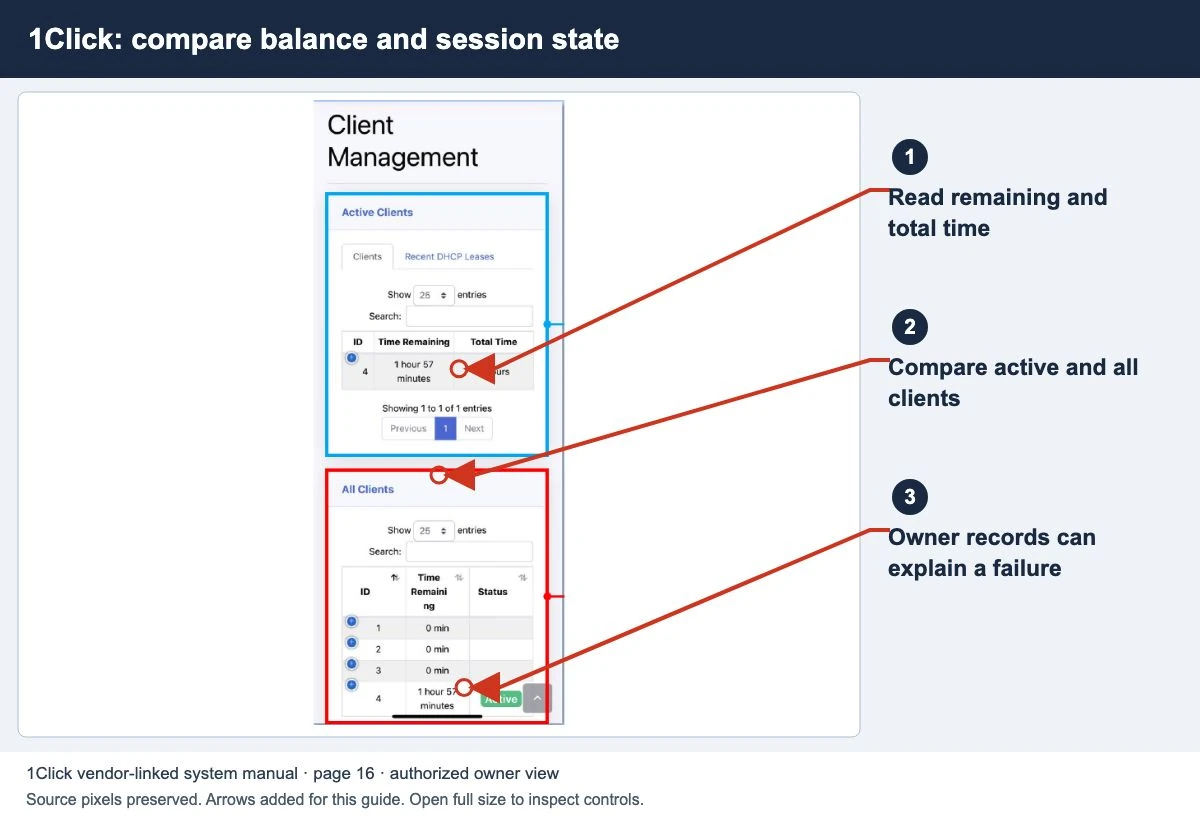
For a missing Pause button, check session eligibility and permissions. For a failed payment, compare the payment and session records before changing rates.
What happened when you opened the admin page?
Separate these three results before trying a recovery procedure. They need different evidence.
- The page never loads: confirm the management network and address from the handover record. Ask whether another authorized owner device can reach it. A password reset cannot fix an unreachable address.
- The login page loads, but the account is rejected: check that it belongs to this controller or router. Record the exact error and the last known working login date. Use the supplier’s account-recovery route rather than guessing more passwords.
- You can sign in, but a control is missing: check the assigned account role, installed release and interface. Missing permission is different from a lost password.
Keep a short owner handover record
Record the software name and release, device model, management connection, customer network name, supplier contact and backup location. Store credentials separately in a private password manager. Keep a record of who can restore the system if the main owner is unavailable.
For a support request, send the error, device model and software release first. Share a cropped screenshot if needed, with passwords, license keys, customer records and voucher codes hidden. Once access works, test the customer portal before making any unrelated change.
Common questions
Is /admin always the right path?
No universal path is established here. Use the supplier or platform instructions for the installed system.
Can this site recover my password?
No. Contact the authorized supplier or vendor support.
Should every complaint trigger a reboot?
No. Record the symptom and check the relevant session or connection first. Restarting can interrupt other users without identifying the cause.
Screens to help you check the right thing
Real source screenshots and project diagrams, with arrows added for this guide. Interface values are preserved. These are labelled examples, not a test of your local machine. Open an image full size to inspect its controls.
Watch the matching portal example
A genuine vendor or vendor-linked tutorial. It demonstrates one platform and version; follow your operator’s actual portal and rates.
Sources and limits
Guide updated on 13 November 2026. This independent guide uses published platform documentation. We have not tested your local machine or every software version. Images marked as examples are illustrations. Captured screenshots show the source listed in the caption.
Found a website error? Send a correction to the publisher. For paid time or machine access, contact the local operator.