
Practical owner and customer guides · Updated
Piso WiFi vendo: what to check before you buy or set up
Published by Piso WiFi Pause · How we check guides
A Piso WiFi vendo sells access to an internet connection. Before buying, check the exact controller, software, access point, coin acceptor and license. Ask the seller to show a complete customer session, from payment to the end of the paid time.
What is inside a Piso WiFi vendo?
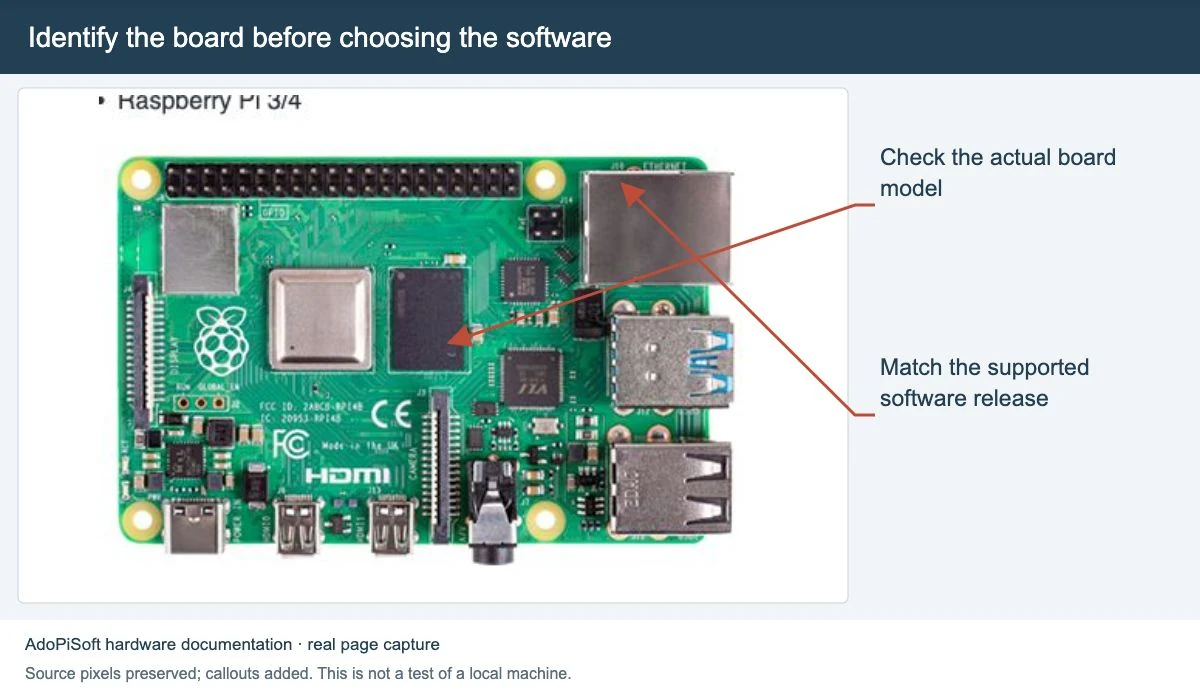
The box is only one part of the setup. Your internet provider supplies the connection. The controller runs the payment and session software. An access point sends the WiFi signal to customers. Some machines combine these jobs; others use separate devices.
| Part | Check before paying |
|---|---|
| Controller and software | Which board, software version and license are included? |
| Coin acceptor | Has it been tested with the Philippine coins you will accept? |
| Access point | Is it included, and is its indoor or outdoor rating right for the location? |
| Power and case | Do the power supplies match the exact devices, and is the unit protected from rain? |
| Internet connection | Do you need to arrange and pay for this separately? |
For example, AdoPiSoft publishes a hardware list for its supported builds. Use the list for your chosen release, not a wiring photo from a different board. A ready-made unit should come with the seller’s matching setup instructions.
Complete machine or DIY kit?
A complete machine saves assembly work, but the listing still needs to say what is included. A low price may cover only the case or coin slot. A DIY kit gives you more choices, but you must match the board, software image, connectors and power supply yourself.
- Ask for the exact model list and a written warranty.
- Check who owns the software account and whether the license can move to you.
- Ask who helps with installation, updates and account recovery after the sale.
- For a used machine, ask the seller to demonstrate the coin slot, portal and admin access.
There is no single fair price or user limit for every vendo. Compare quotes for the same parts and support. Do not buy on a promised daily income or a claimed WiFi distance alone.
Set up the network in the right order
- Get the upstream internet connection working before connecting the vendo. Confirm that the service allows your intended use.
- Have the installer identify the internet-facing port and the customer-facing network. Label the cables.
- Use the software guide for the exact controller and release. Set the access point up on the customer side of the system.
- Keep owner access separate from the instructions you give customers. Save the handover record privately.
Start with the matching LPB guide, AdoPiSoft guide or JuanFi guide. For a satellite internet source, use the Starlink setup checks.
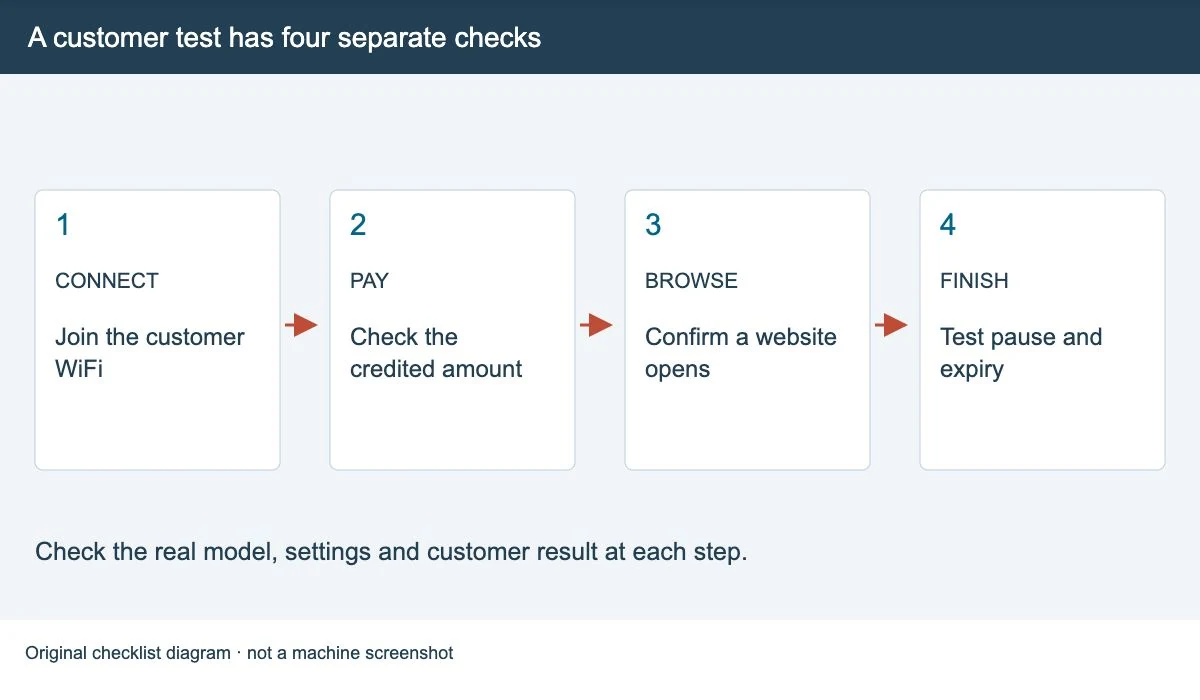
Test one full customer visit before opening
- Join the customer WiFi with a phone that is not signed in as the owner.
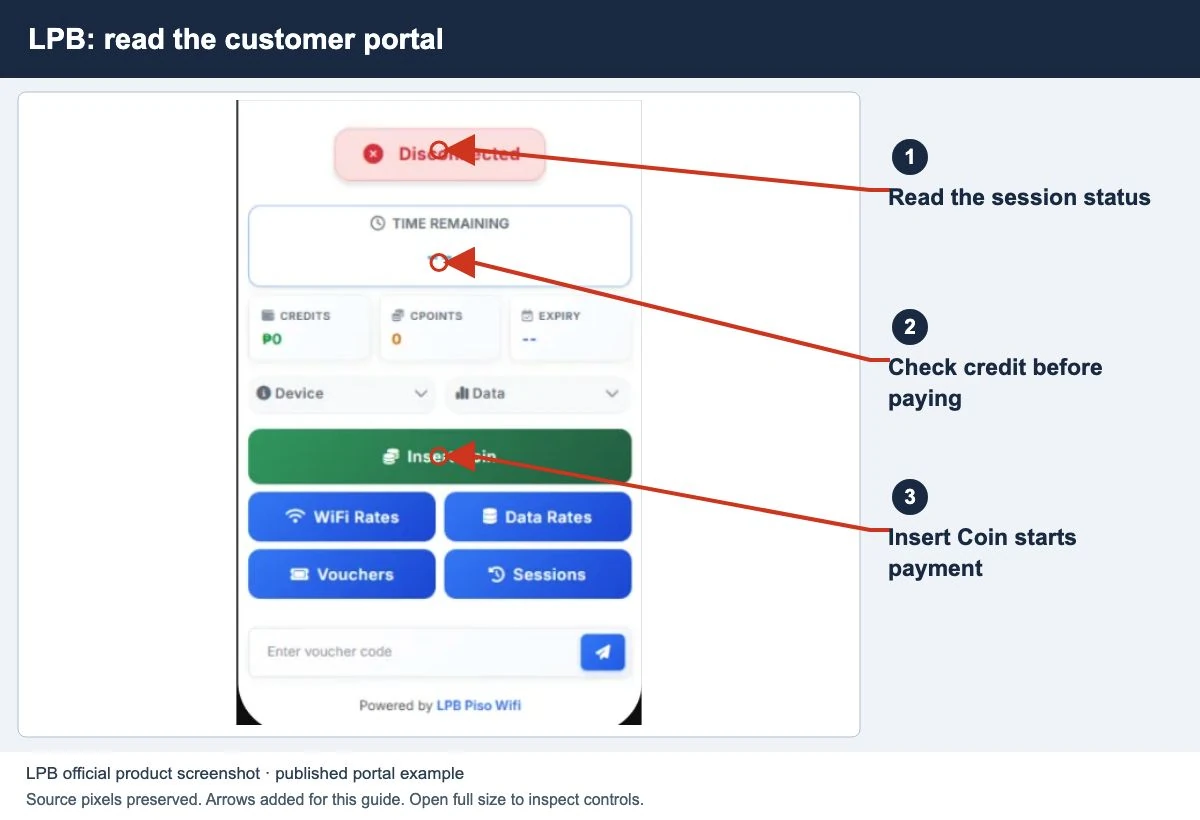
- Open the customer portal. Read the price, time or data allowance and expiry rule.
- Make an agreed test payment or use a test voucher. Check that the credited amount matches.
- Open a normal website. If pause is offered, pause, confirm the status, then resume.
- Test the end of the session and a second customer device separately. Check coverage where customers will sit.
Keep the test record: device, location, software version and what happened. A speed test alone does not show that payments or session limits work.
Fix the failed step, not every setting
If coins do not add credit, use the coin-payment checks. If paid credit is active but pages do not load, use the no-internet guide. For weak coverage, see how to extend the customer WiFi.
Need the customer steps rather than installation help? Go to how to pause and resume Piso WiFi.
Set rates that customers can understand
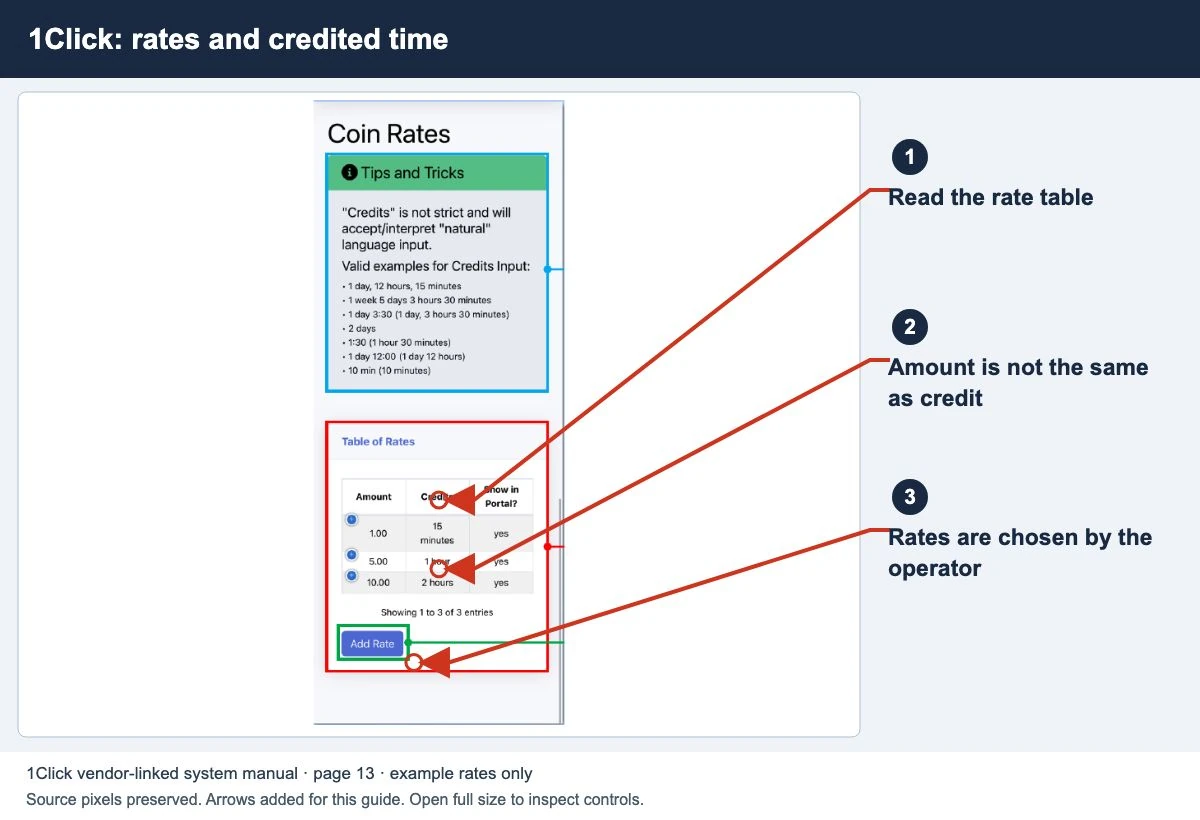
There is no fixed number of minutes for ₱1 on every Piso WiFi machine. The operator chooses the offer. Before opening, write down the payment amount, time or data allowance, expiry and any pause limit for each plan.
AdoPiSoft separates WiFi rates from session rules. A plan can have time credit, data credit or time with a data cap. Its session guide explains that access can end when either applicable limit is reached. Check your installed version before editing a rule.
Test the amount and the session separately
- Save a record of the current settings before an agreed change. Note which plan you are changing.
- Use a fresh test session with the operator’s approved coin amount or test voucher.
- Compare the payment with the credit shown on the customer portal. Then test browsing, pause if offered, and expiry separately.
- Check what happens to an existing paid session before applying new rates to customers. Do not assume an edit changes old and new sessions in the same way.
Put the offer beside the machine and on the portal. For a time plan, show the price and credited minutes. Also state any separate validity deadline, data cap or pause rule. A rate board should match what the machine actually credits.
If a test coin is accepted but the balance does not increase, stop the test and use the coins accepted but no time added checklist. For customers comparing the displayed offer, see how to read Piso WiFi rates.
Quick questions
Does the machine include internet?
Not necessarily. Ask the seller to separate the machine price, software fees and internet subscription in the quote.
Can I set the same rate as the shop nearby?
You can choose rates your platform supports, but first check your own costs and service. Display the price and validity clearly, then test that the portal applies them correctly.
Screens to help you check the right thing
Real source screenshots and project diagrams, with arrows added for this guide. Interface values are preserved. These are labelled examples, not a test of your local machine. Open an image full size to inspect its controls.
Sources and limits
Guide updated on 13 November 2026. This independent guide uses published platform documentation. We have not tested your local machine or every software version. Images marked as examples are illustrations. Captured screenshots show the source listed in the caption.
- AdoPiSoft: WiFi rate settings
- AdoPiSoft: session limits and expiry
- AdoPiSoft hardware guide
- AdoPiSoft access-point assembly guide
- LPB product and platform features
Found a website error? Send a correction to the publisher. For paid time or machine access, contact the local operator.